Teammates & access
A team belongs to a workspace. You add teammates in Workspace settings, under Team, and choose what each one can do and see there. The same person can run one workspace as an admin and help in another as a teammate.
The app gives each person abilities, not a job title.
Add or remove a teammate
Opens on Pro (Plans & limits).
- Click the gear beside the workspace name: Workspace settings.
- Under People, choose Team.
- Click Add teammate and type their email.
- Tick Invite as workspace admin to let them run this workspace.
- Click Send invite.
Already on your team elsewhere? They join at once. Otherwise they get an email with Accept invite and sign in with Google as that address. Pending invites last 14 days: Resend or Cancel.
 Invite
 Teammate
 Workspace cases
- One seat per person, in any number of workspaces. A pending invite holds a seat. Clients take none.
- Remove from this workspace, on their card, drops them from it and its cases at once, and pauses automations they set up. Other workspaces are untouched.
What a teammate can do and see
Click a teammate's card, then Configure access:
- Capabilities: Update cases, Delete cases, Add activity, Sensitive data, Compose emails, Manage file categories. New teammates have Add activity. Everyone reads the workspace's cases.
- Dashboard views: none ticked gives every view. Tick some to allow only Details plus those.
- Only show cases assigned to this teammate hides cases they are not on (People on a case).
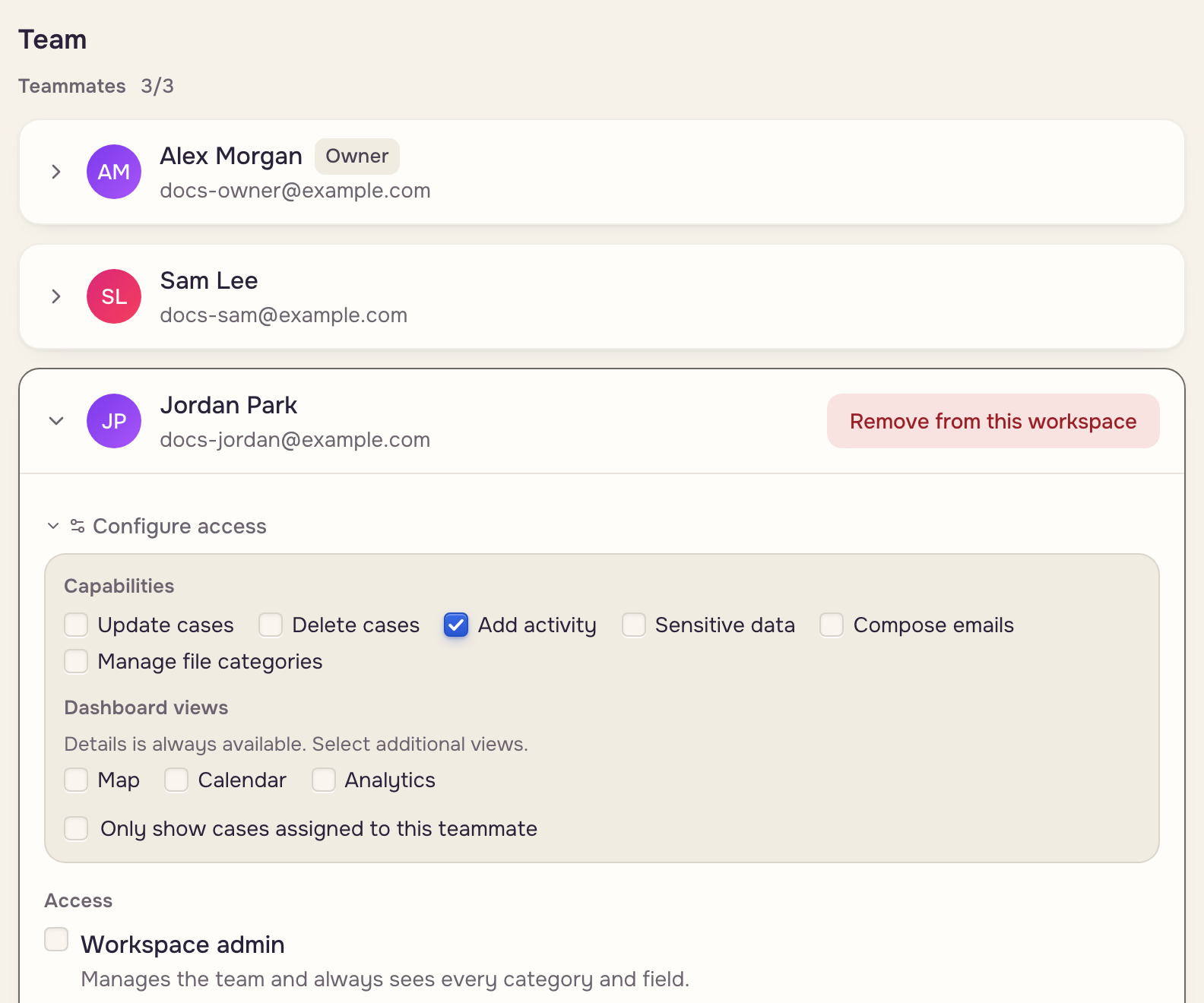
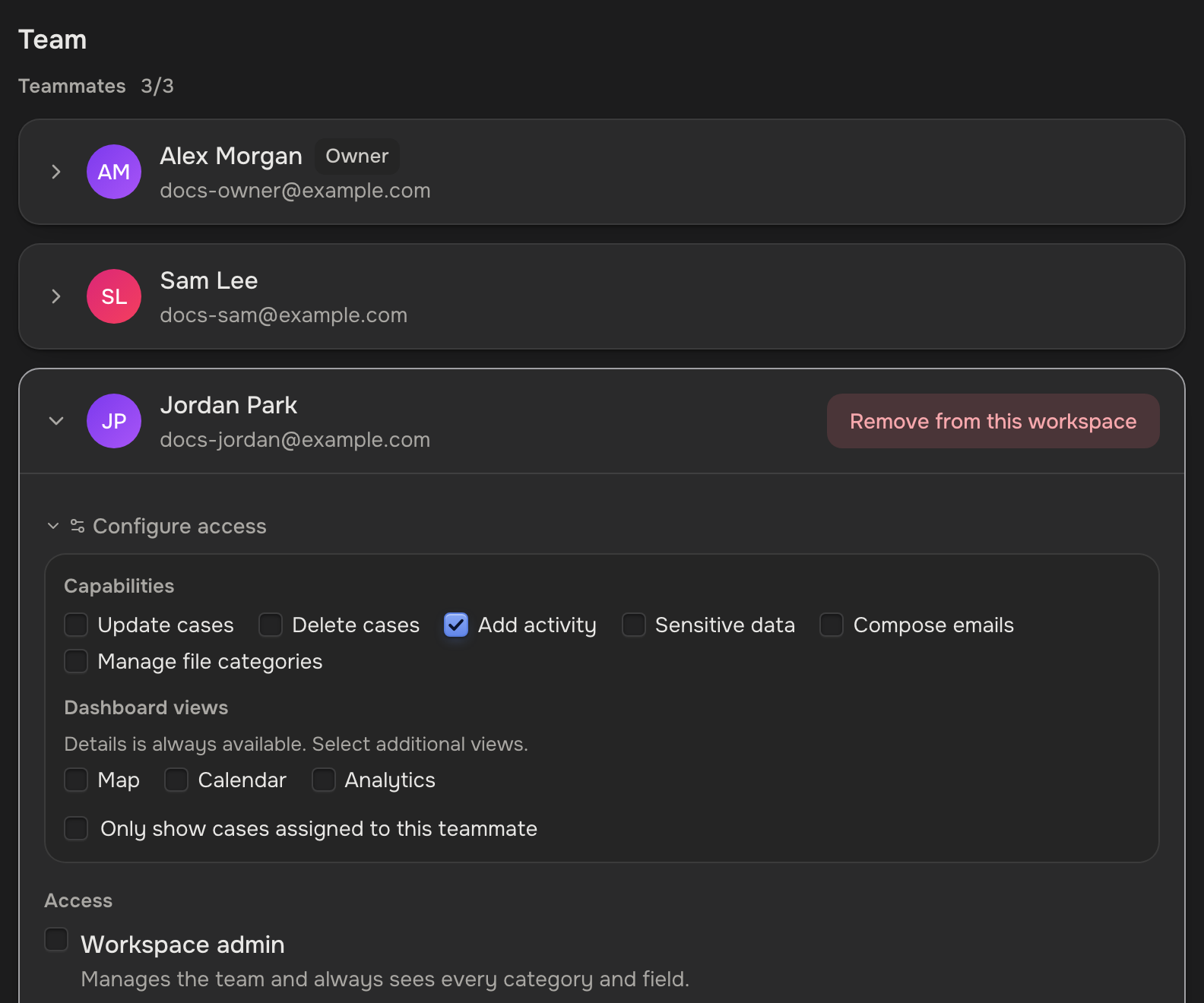
Under Access, untick the file categories and fields they should not see. While every box is ticked, later categories and fields show too. Save changes, at the top, saves all of workspace settings.
 The case
 Their access
 What they see
Ask for access
Try something an admin has not given you, and the app names it ("Your admin hasn't given you Update cases") with a Request access button. The owner and the workspace's admins get a notification. It opens the Team settings, where they tick the box and click Save changes. A second ask the same day sends nothing. A feature missing from the plan shows the upgrade message instead.
Teammate Admins notified
 Access
Workspace admins
Tick Workspace admin on a card, then click Save changes. Only the owner and admins see the gear, Templates and Email templates in the sidebar.
- Admins see every category and field.
- They start with every capability except Delete cases and Sensitive data, which you can switch on.
- They give no more than they hold, and never change their own access.
Sensitive fields
In Workspace settings, choose Sensitive fields, tick the fields, and click Save changes.
Case values Sensitive fieldsSensitive data
- Only the owner and teammates with Sensitive data read them. Clients never do.
- In a case, click Show sensitive. Settings, Preferences, Show sensitive values by default shows them always.
Your own account
Joining a team never changes your account: its plan and workspaces stay yours. In theirs you work on their plan, and the owner pays. The pricing page buys for your own account.