Placing fields on the page
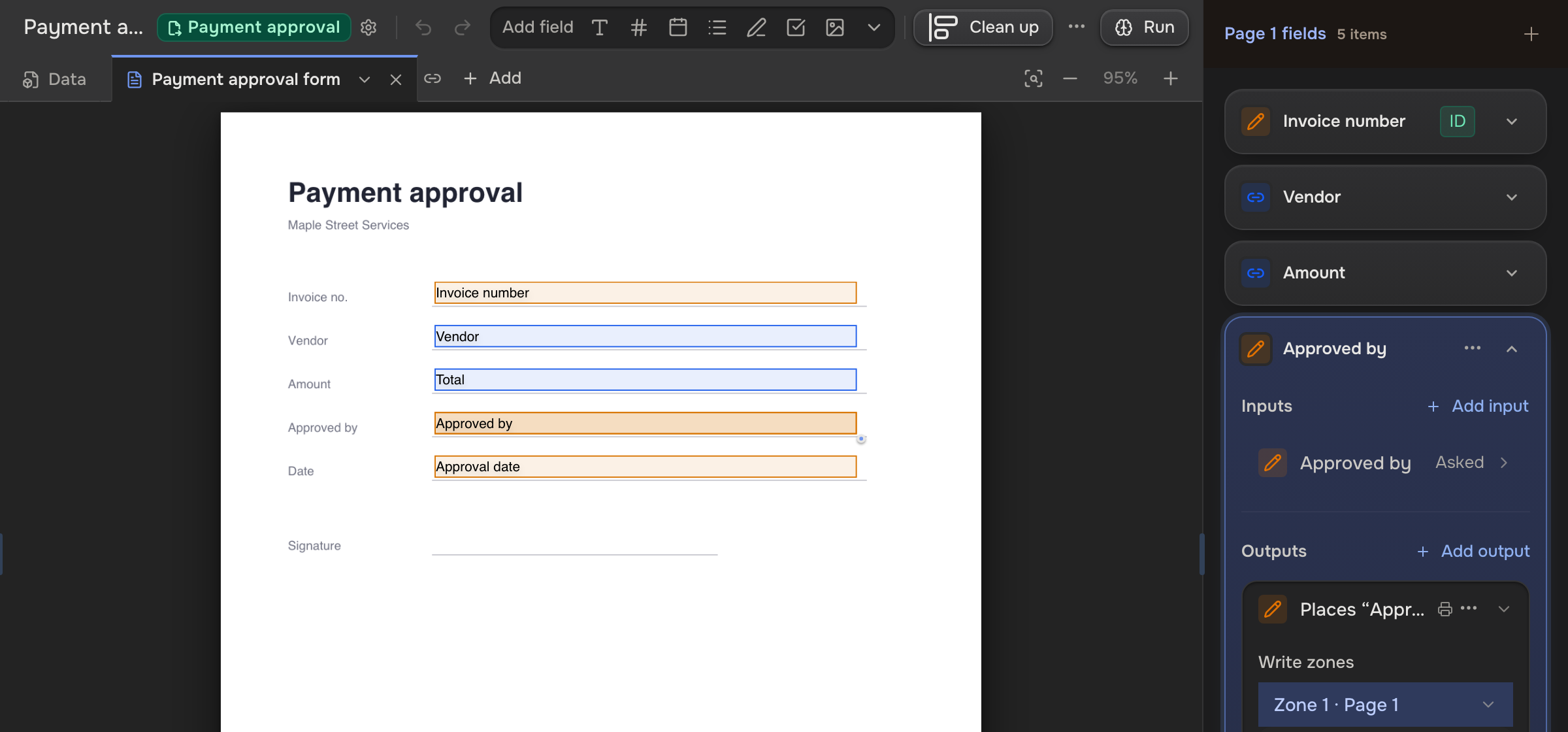
A write zone is the box where a value prints. Draw it once, and every run prints the value in that spot, at the size and style you set.
A field can keep a value without printing it. To print it, give it a write zone: a box on the page. One value can print in several places.
 A case value
 A write zone
 Every run
Select a zone and its field opens beside it, on the row that prints it.
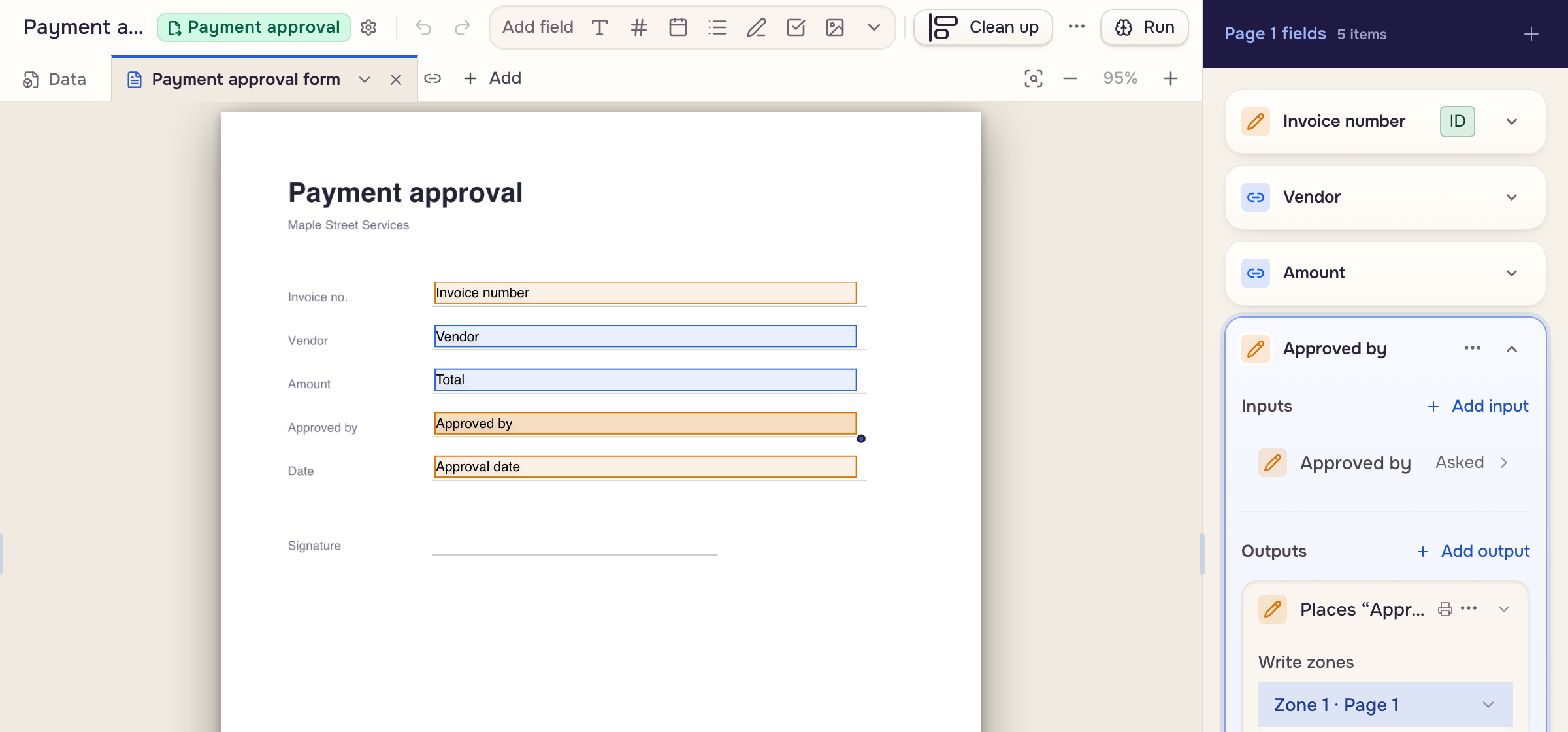
Add a field to the page
- Add field in the toolbar: pick a type; the arrow at the end holds Address, Batch and Options. The field lands mid-page.
- Double-click an empty spot (press and hold on a tablet), then Add field. The field lands there.
- On a phone: Add field in the fields sheet.
A Word document has no boxes: click a paragraph and the field prints at its end.
Move and size a zone
Drag a zone, or its edges and corners. Arrow keys nudge it, Shift further. Drag across empty space to select several.
- Delete removes the zone, not the field; a field goes through its ⋯ menu, Delete field.
- Add write zone under Outputs prints the value in one more place.
- Each zone has its own Appearance.
Tidy with Clean up
Clean up in the toolbar snaps every write zone onto the form's own lines and boxes and lowers a text size that will not fit. No AI; up to 60 pages. Undo clean up puts everything back.
Zones roughly placed Lines and cellsZones on the lines
A form's own fillable boxes stay where the form put them; Build from a completed example switches them on. Nothing is saved until Save, at the top of the app, which shows only with unsaved changes.