Respond with your bid
Build a bid template that asks for one number, the bid amount, and fills everything else from the job's case. Run it on the case, then email the bid from your own Gmail.
Tutorials
Updated 2 min read
The invitation is already on the case. The bid reuses its values, so the only thing you type is your price.
Template
The documents
Marked up
The values it captures
Build the template
- Click + beside Templates, choose Start from scratch, then Blank page.
- Click Untitled template in the toolbar, name it "Bid response", and click Back to template.
- Rename the Case ID field "E-Number". In its Outputs, click Add output and choose Print: a box lands on the page.
- Add a Number field "Bid amount". Set Comes from to The form and tick Required.
- Add a Text field "Address". Set Comes from to The case and pick Address under Case value.
- Drag each box to its place on the page.
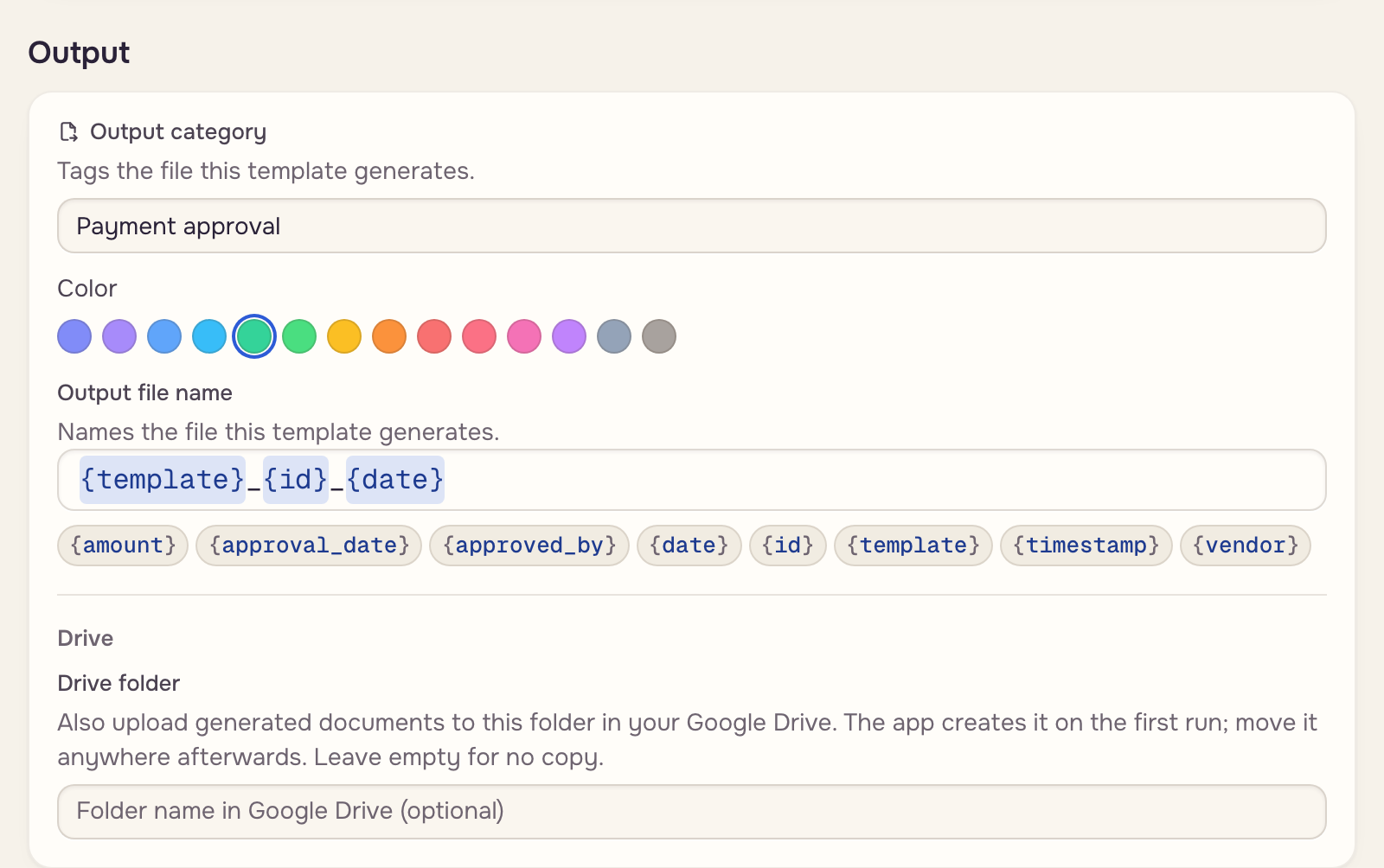
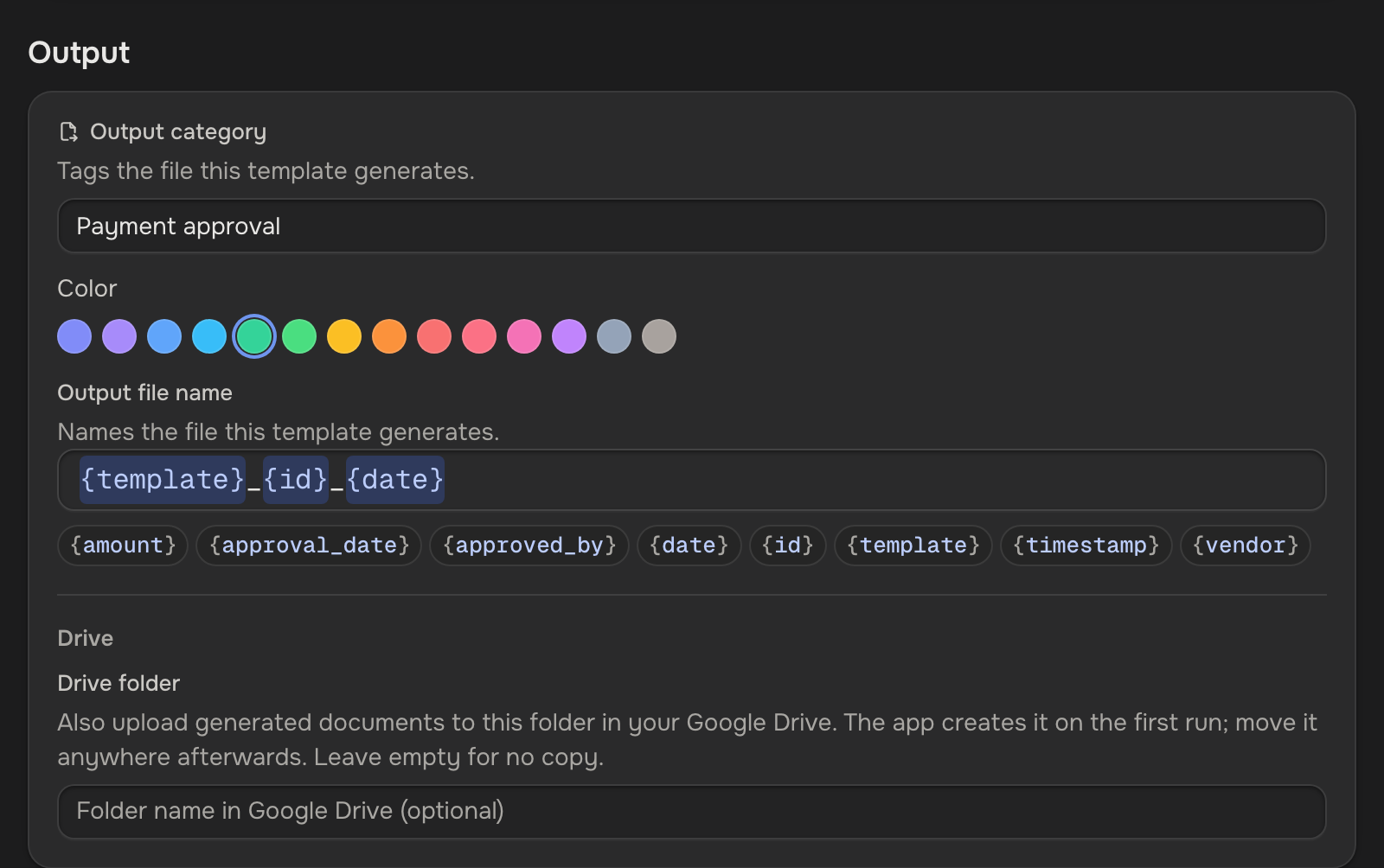
- In the template's settings, under Output, type "Bid" as the Output category. Click Back to template, then Save.
With a bid form, choose Upload document in step 1 and place the boxes on its lines.
Run it on the job
On Pro:
- Open the job's case from Bids.
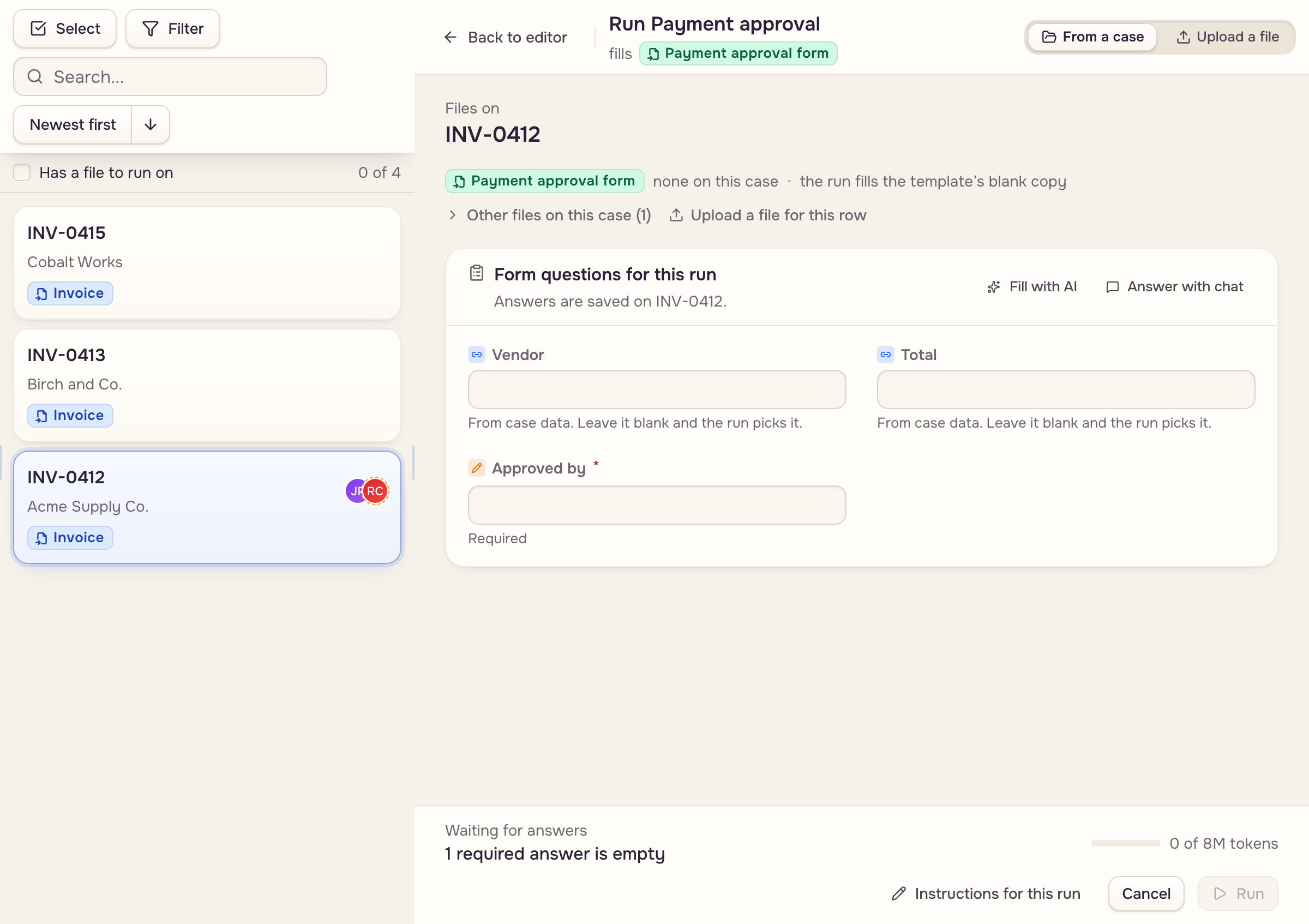
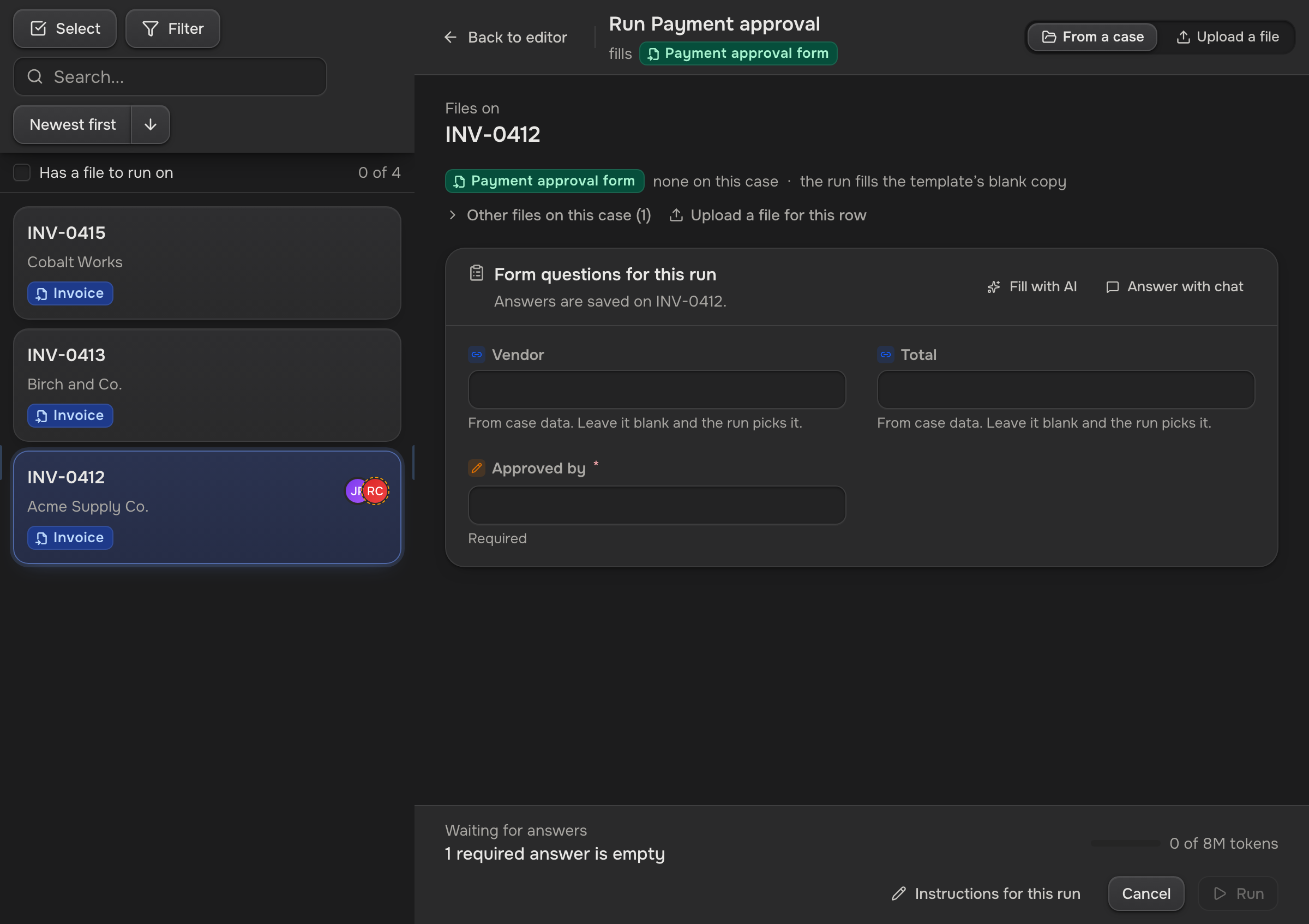
- Open Bid response under Templates and click Run. The case you had open is already picked.
- Type your figure under Form questions for this run and click Run.
The filled bid lands in the case's Documents, tagged Bid.
Email it
- In the case, open Case actions and choose Compose email.
- Fill in To and the subject. Under Attachments, keep the bid ticked.
- Click Open Gmail draft, check the draft in Gmail, and send it there.
The app never sends email: the bid goes out from your own address. Save as template… keeps this email for every bid (Email templates & drafts).
 The job's case
 Gmail draft
 Sent from Gmail
Next: Invoice the job.