Output file name & category
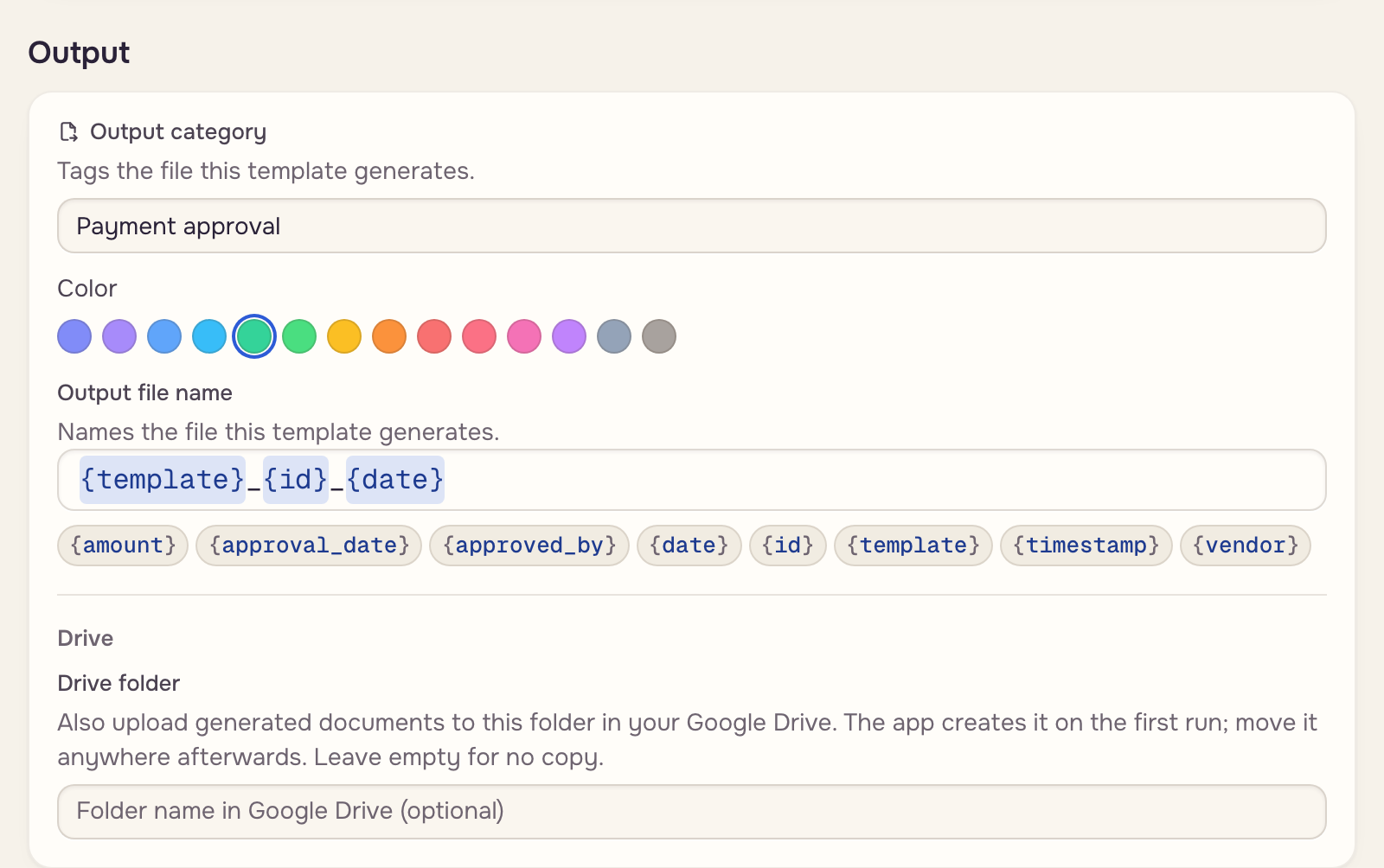
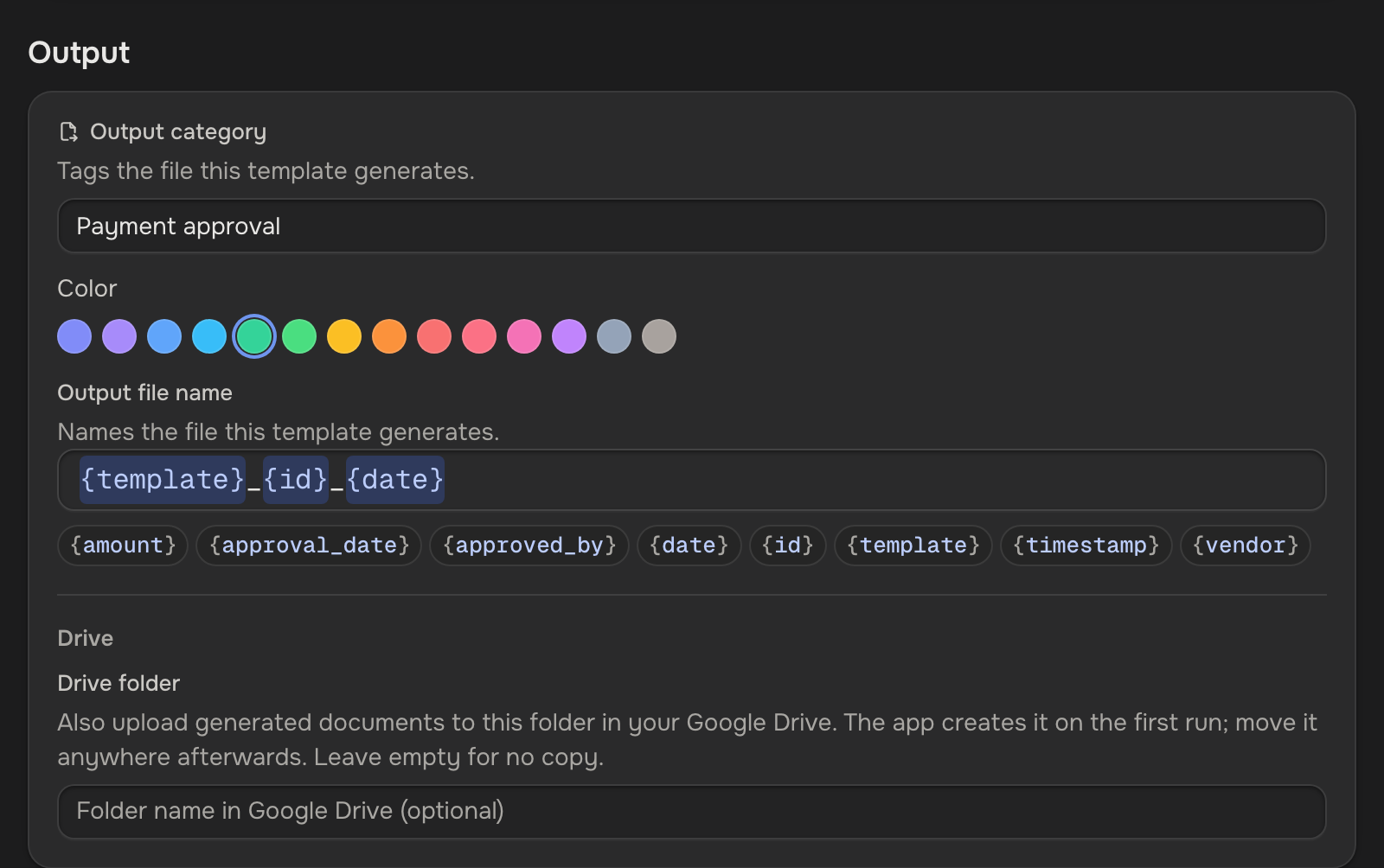
A template that fills a document saves it on the case under a name built from a pattern, like {template}_{id}_{date}, and tags it with a category. It can also save a copy to a folder in your Google Drive.
Click the template's name in the toolbar to open its settings. The Output section names the filled document, tags it and sends a copy to Drive; Save keeps the changes.
Tag the file
Output category tags every document this template makes: type a new name or pick one. Email templates attach, and templates read, files by category (File categories). The section is active once a field has a write zone; without one, the template makes no file.
 Filled document
 Payment approval
 Email template
Name the file
Type a pattern under Output file name; the chips add tokens:
{template},{id},{date}(the day of the run) and{timestamp}(its exact time)- one token per field, named after it, like
{vendor}
Spaces and symbols become underscores. A name the case already has gets a number, name (1).pdf; nothing is overwritten.
Keep a copy in Google Drive
A name under Drive folder makes every run save the document there too; the app creates the folder on the first run. Folder path adds subfolders from the same tokens, like id/Reports for one folder per case.
Filled copy The case
 Drive folder
Add {timestamp} to the file name when a case runs more than once, so the Drive copies do not share a name. A failed copy never stops the run; the case says why, such as Reconnect Google Drive.