Manage automations
Every automation shows whether it's on, what it does, and what it did lately. From the same screen you switch it off, run it on older emails or files, and see why a file didn't arrive.
Your automations are listed under Automations in the sidebar, each with a dot: green on, grey off, amber paused. Click one to open it.
On, off, or paused
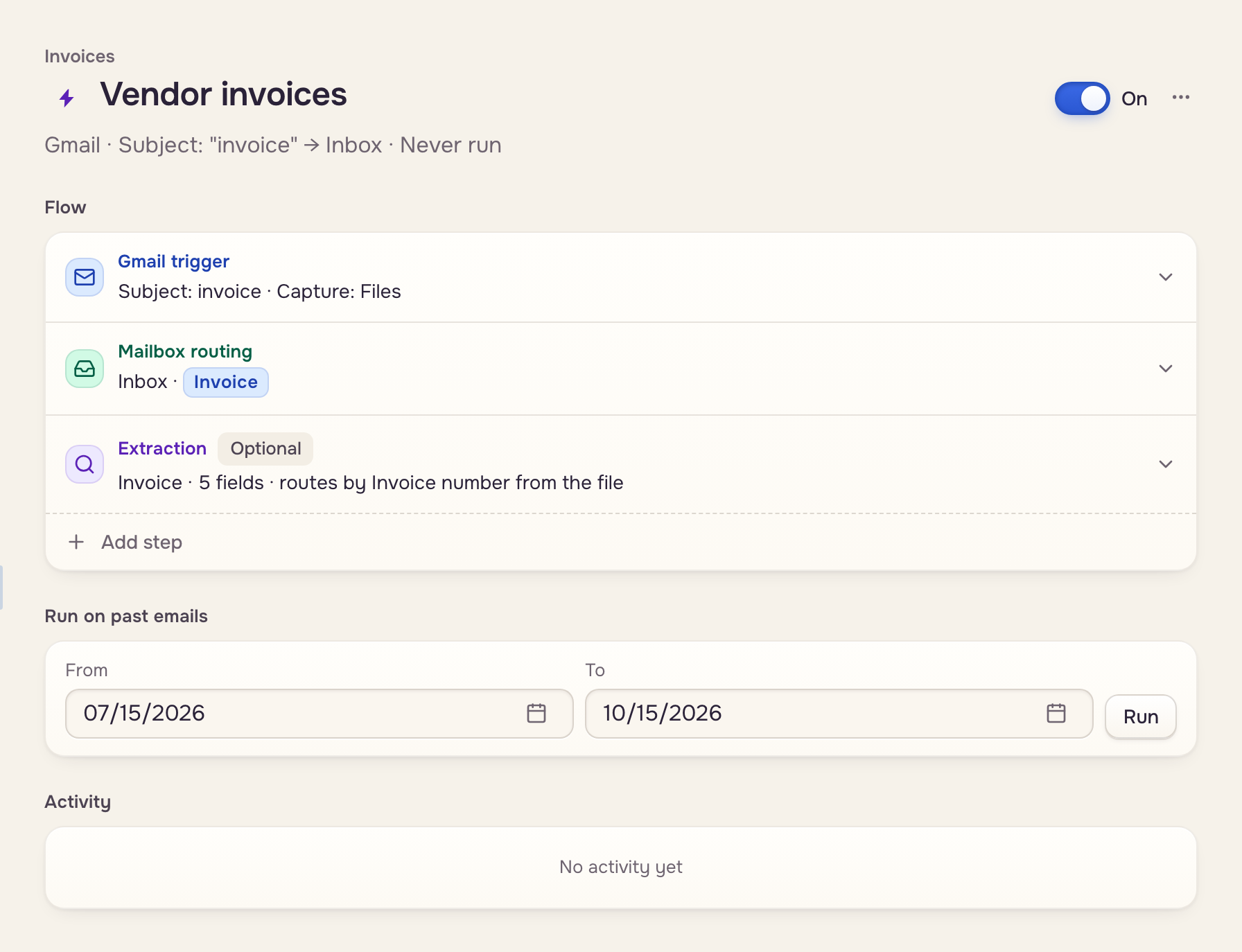
The switch beside the name turns it on or off. The line under the name says what it does and when it last ran. Anyone with Update cases in the workspace can make one; only its maker can change, switch, or delete it, from the ⋯ menu: Delete automation.
An automation that can't run pauses itself. It shows Auto-paused and why:
Run it on older emails or files
An automation handles only what arrives after you save it. For older items, pick dates under Run on past emails (or Run on past files) and click Run. Only the person whose Google account powers it can run it, on or off.
- 50 at a time: Continue · 50 more takes the next batch.
- Anything already in the app is left alone, at no AI cost.
- Email only: it then asks about those. Overwrite reads each file again, Save copies adds a numbered copy, New cases puts each on a new case.
 From and To
 50 at a time
 Their cases
Check what it did
Activity lists the 20 newest runs, each Processed, Skipped, or Error, with the reason, for 90 days.
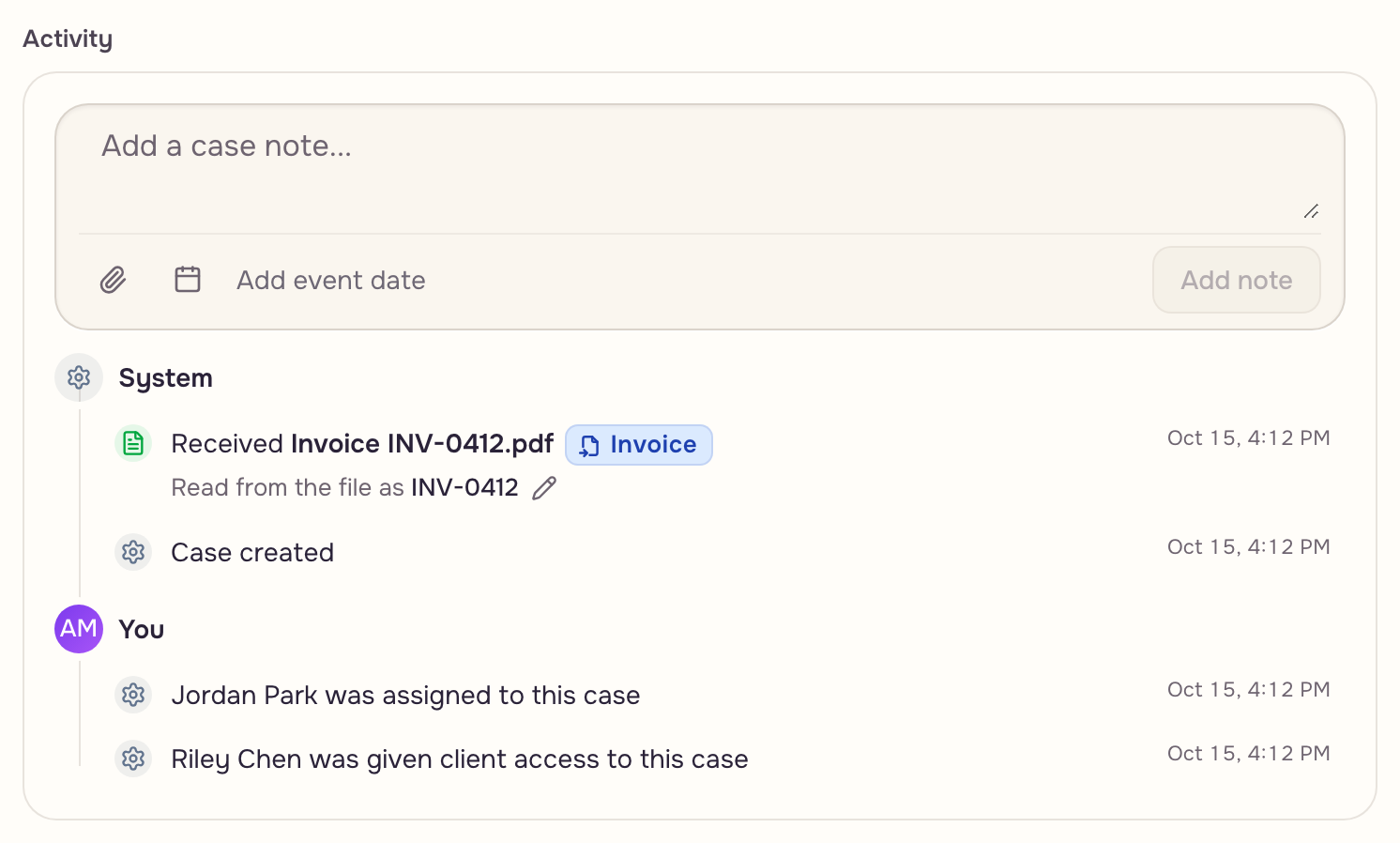
A file on the wrong case: open that case. Its Activity shows the ID the file was read as. Click the pencil to correct it, then Move file there. The file's menu in Documents also has Move to another case… and Start a new case from this file (Case IDs & history).