Core concepts & glossary
A workspace groups the work, templates shape documents, cases keep the record, and fields say what gets read or written. You change all of it in the app, never in code.
One plain definition per term. Follow the links for depth.
Workspaces and mailboxes
Workspace. The container for one document process: its cases, templates, file categories, automations, mailboxes, filters, charts, email templates and documents. The dashboard shows the active one. Workspaces belong to the owner's account, and the owner handles billing in Settings. A second workspace opens on Pro: Plans & limits. Only the owner or a Workspace admin saves Workspace settings or deletes the workspace; a deleted workspace sits in the trash for 30 days, and the owner restores it from Settings. More in Workspaces.
Mailbox. Where cases live. Every workspace has Inbox (where you land), Archived and Trash; add your own from the sidebar. Trash deletes its cases for good after 30 days. Deleting a mailbox you added moves its cases to another mailbox (Inbox by default) or to Trash. All mailboxes shows every case and cannot be renamed, deleted or reordered.
Templates and fields
Template. The blueprint for one document: sources plus fields. It belongs to one workspace and sets an Output file name and an optional Drive folder. Build one per document.
Source. A document in the template. The document bar shows Data first, then one tab per source. Several sources stitch into one PDF.
Field. One named thing the template handles. It has two lists:
- Input. Gets one value from one place. Its Comes from is The form (typed by a person), The document (read by the AI), A fixed value, The case (a value another document saved) or The delivery (the email or Drive folder that carried the file).
- Output. Makes a new value from the field's inputs. Its Kind is a Calculation, an AI answer, a Fixed value, or a Date or company detail.
Read zone. The spot on the page an input reads. Write zone. The spot a value prints. A value with no write zone stays on the case. Every value sits under a permanent key; renaming never moves data.
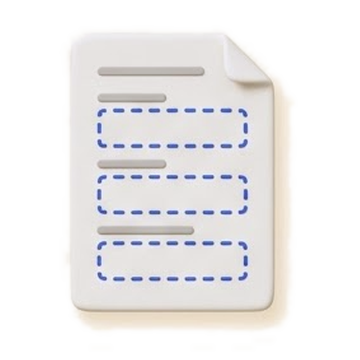 Read zone
 Input
Input Output
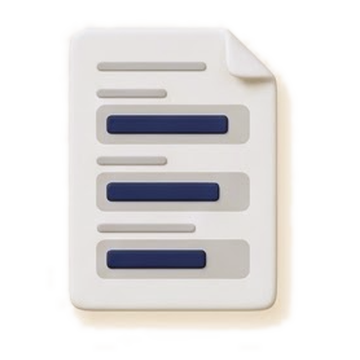 Write zone
Form. A template with form fields and no document. Teammates fill it with Run; clients fill it in the portal.
Batch field. Repeating rows, one per case, when a template runs across many cases.
Document reflows. Lets the AI reposition fields when a copy's layout shifts. Off by default.
Cases and people
Case. The record for one unit of work: files, data, notes, generated documents and an activity timeline. The timeline is assembled from notes, files and runs; there is no separate log.
Case ID. Unique within a workspace. Leave it blank and the app makes one. A file whose identifier belongs to another case prompts a merge: Case IDs & history.
Owner. The account. Handles billing and creates workspaces.
Workspace admin. A teammate who sees everything in that workspace and saves its settings.
Teammate. Added per workspace in Workspace settings > Team, with that workspace's visibility. Sees everything by default. Seats open on Pro.
Client. Sees nothing by default. You open a case to them with Edit visibility on their avatar. They sign in to the portal. One email can be a teammate in one organization and a client in another.
What you do with a case:
- Autofill. Fills a template from case data and saves the file.
- Extract. Reads a file again. A value you typed over stays yours.
- Generate. Saves answered inputs and generates the PDF.
- Compose email. A draft in your own Gmail with the attachments. You click send in Gmail. An email template fills it in.
Files, categories and automations
File category. A named, colored tag on files. You name it in an automation's routing row or a template's Output category; uploading a document creates one named after it. A file gets tagged when an automation ingests it, or a template generates it or runs on it. The tag ranks templates for a file, scopes what collaborators see, picks email attachments, and routes extraction and intake. Untagged files are normal. More in File categories.
Automation. A trigger (Gmail or Drive) with a Mailbox and a File category. A file whose category cannot be resolved is skipped. More in Automate document intake.
 File arrives
 CategoryTemplate
 Case
CaseImport. Past paperwork comes in through the AI assistant: click + and pick Import a folder or Import from Drive, or drop files on the chat. Up to 15 files at a time, each one a run; Open document on the card opens the result. More in Import from Google Drive.
Also in a workspace
Email template. Recipients, subject, message and attachment rules, filled per case into a Gmail draft.
Filter. Saved clauses over a mailbox. Build one with Add filter or Build with AI. Your active filters and sort are remembered per device.
AI assistant. Click Open AI assistant to build automations, import folders or ask about your cases.
Portal. The separate sign-in where clients see their cases, upload files and fill the forms you assign.
Configured, not coded
Everything above is set in the app. Change an input to come from The document and the next run reads it. Dashboard columns come from template fields.