People on a case
You can put a teammate or an outside client on one case. A teammate works the case in the dashboard. A client sees it in the portal, with only the files and details you allow, and fills the forms you pick.
Sharing
Updated 2 min read
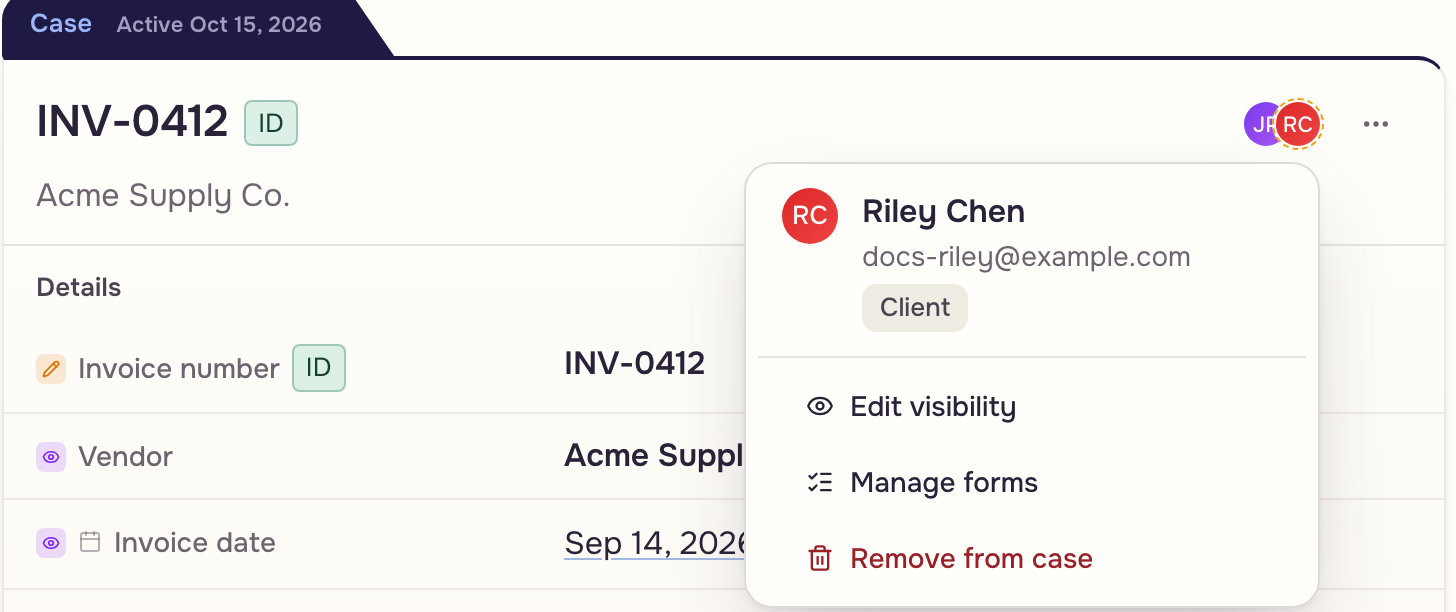
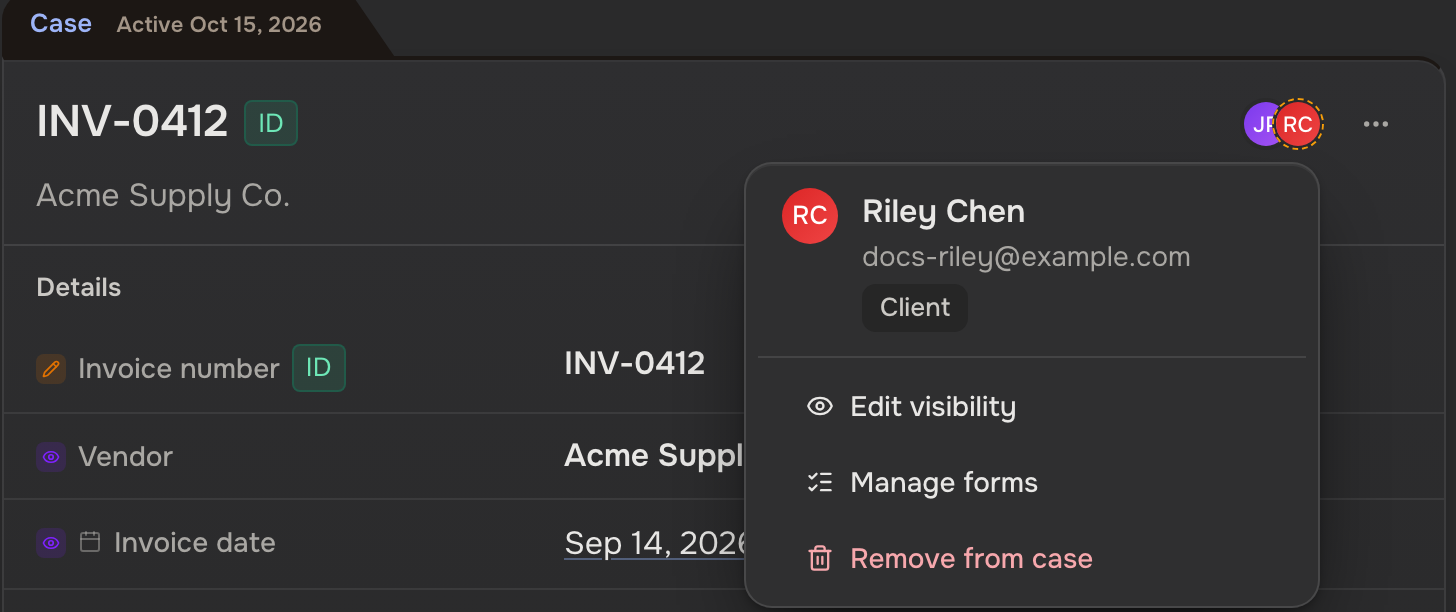
People on a case show as avatars at its top. A client's has a dashed outline. Hover to see who.
Add or remove someone
Opens on Pro. The owner and workspace admins do it.
- Click Case actions, the ⋯ at the case's top right.
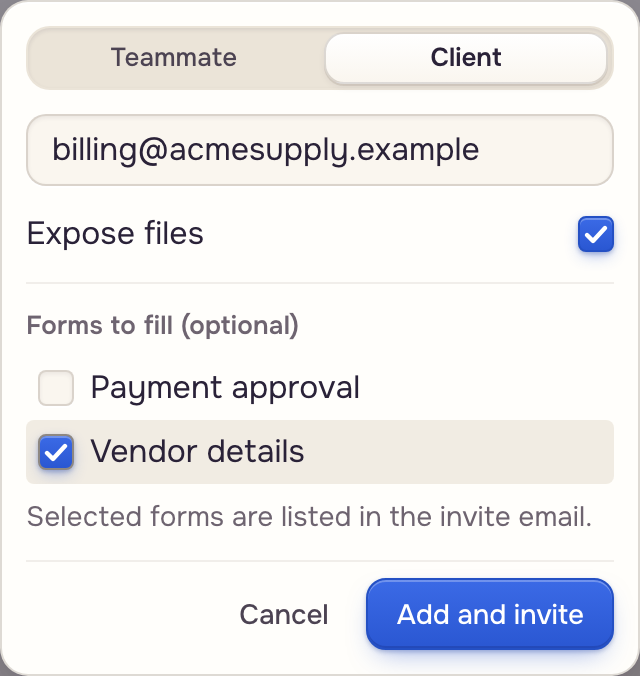
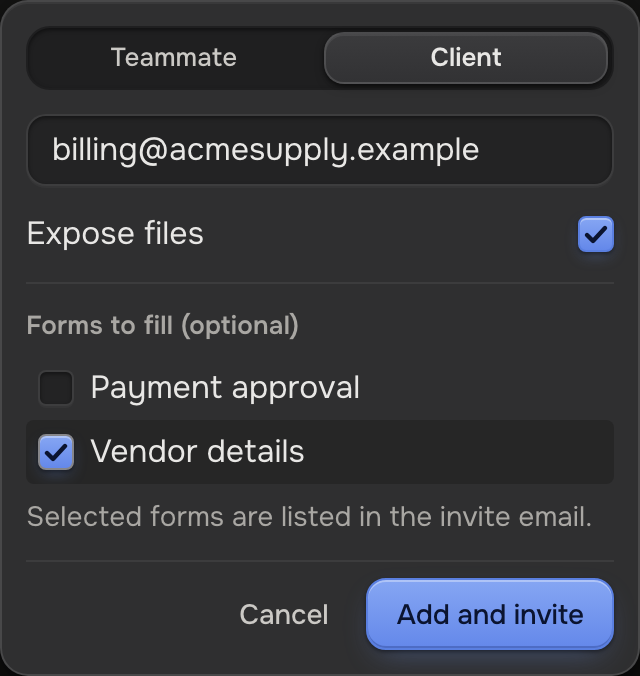
- Choose Add teammate or Add client.
- Type their email.
- For a client, tick forms under Forms to fill (optional).
- Click Assign for a teammate, or Add and invite for a client.
- They get an email with View case and the forms. The activity records it.
- A teammate must already be on the workspace's team (Teammates & access).
- Expose files shows a client the case's files. On by default; to change it, remove and re-add them.
- Avatar, then Remove from case, drops them at once. Removing a teammate from the workspace drops them from all its cases.
What they see
A teammate: their workspace settings. A client: the workspace's Clients settings, and nothing until set (The client portal).
 Workspace settings
 Baseline
 One case
- One person, this case: avatar, Edit visibility, tick, Save.
- A client's list opens on what they see now. Match the Clients settings again and they follow those here again.
- A teammate limited to assigned cases gets this case as soon as you add them.
Forms for a client
A form is any template with a Form field, a question. Avatar, then Manage forms, changes them later. Each tick saves at once and sends no email.
 A form
 The portal
 Case values