Case IDs & history
Every case has an ID, like an invoice number. Files an automation brings in join the case with the same ID. Every case also keeps a full history of its files, edits, notes and people, so you can see where each file came from and move it if it landed in the wrong place.
No two cases in a workspace share an ID, so a file that carries one has exactly one place to go.
 A file arrives
 Its ID
 INV-0412
Where files go
Automations sort files by ID, and so does the AI assistant when no case is open. A file uploaded into an open case stays there. The template's ID field says where to look: the email's subject, the Drive file's name, or the document itself.
A case with an auto tag takes the first real ID a later read finds. If another case already has it, a banner offers Merge into that case: every file moves over and the stray case is deleted.
What a new file changes
A value someone typed or cleared by hand is never overwritten.
To read a file again, open it from the case's Documents and choose Extract (or Re-extract) from More actions.
When a file lands on the wrong case
A case's Activity says how each file's ID was read, like Read from the file as INV-0412.
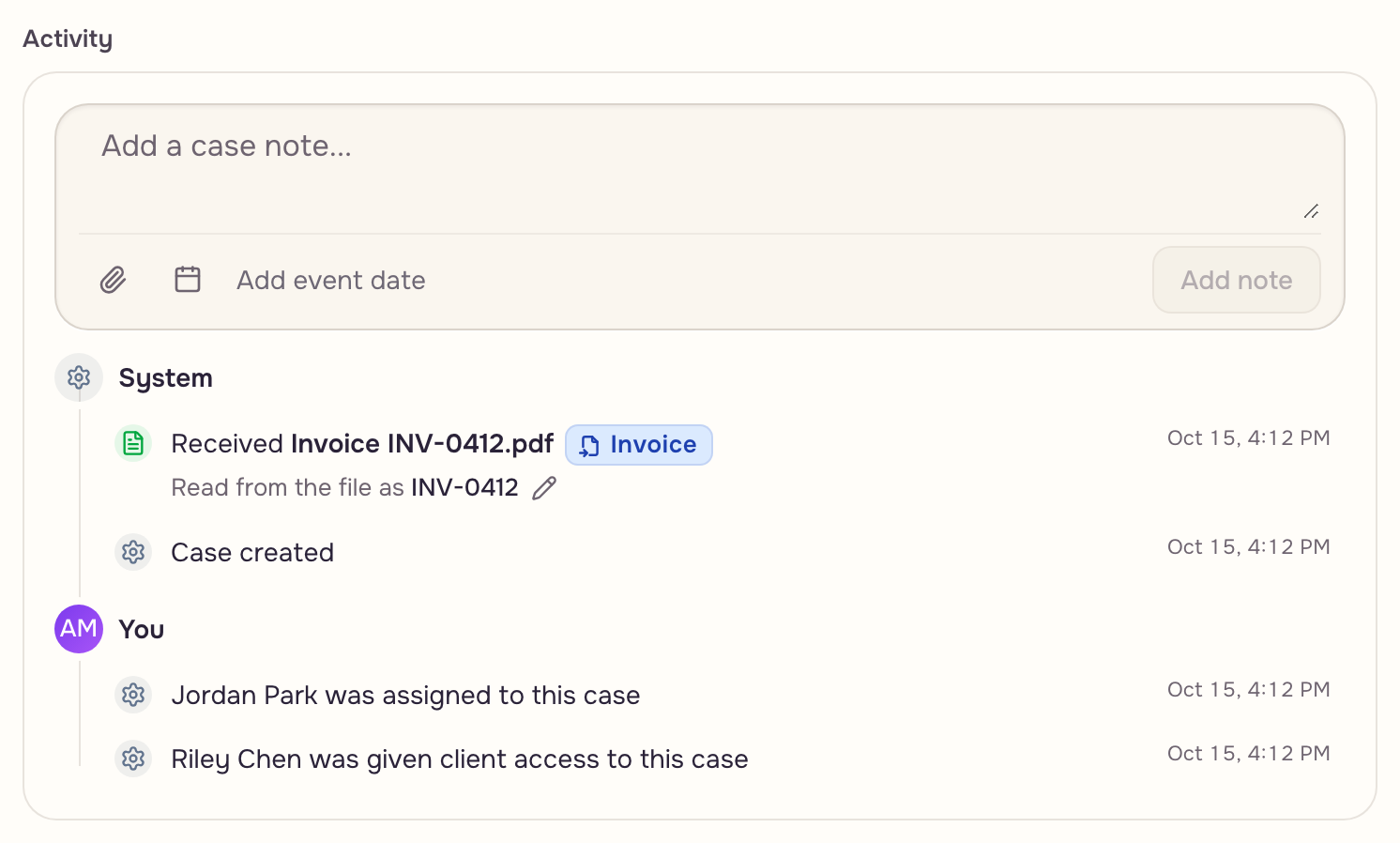
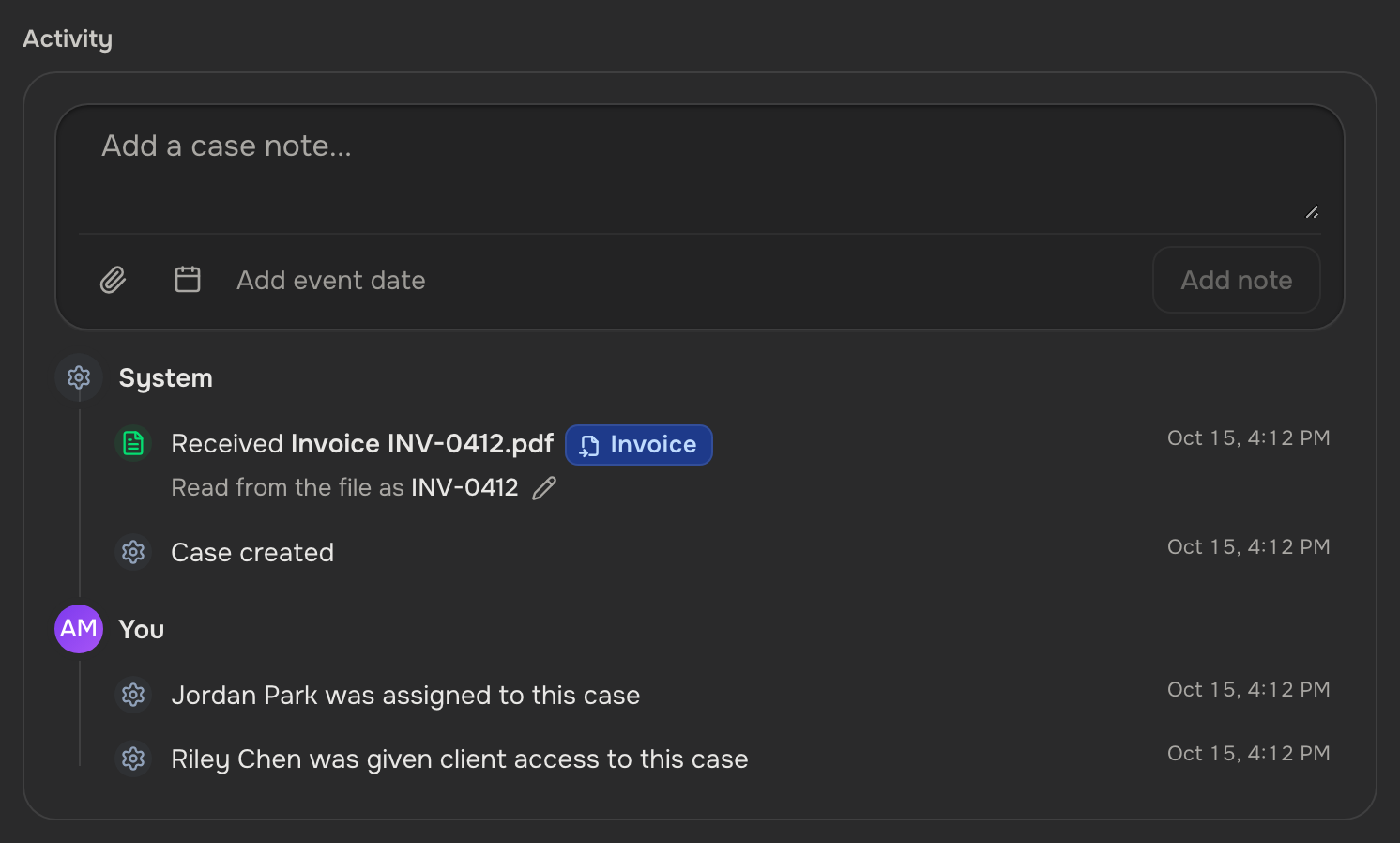
- Click the pencil, type the right ID, and click Save. If a case has that ID, click Move file there; if none does, Move to new case.
- Or, in Documents, open the file's menu and choose Move to another case…, then click the right case. Start a new case from this file is in the same menu.
- Or ask the AI assistant to read the file's ID again. It shows the fix and applies it when you type yes.
A case left empty by a move is deleted, unless someone added anything to it by hand.
Rename a case
Open Case actions, choose Edit case, change the Case ID, and click Save changes.
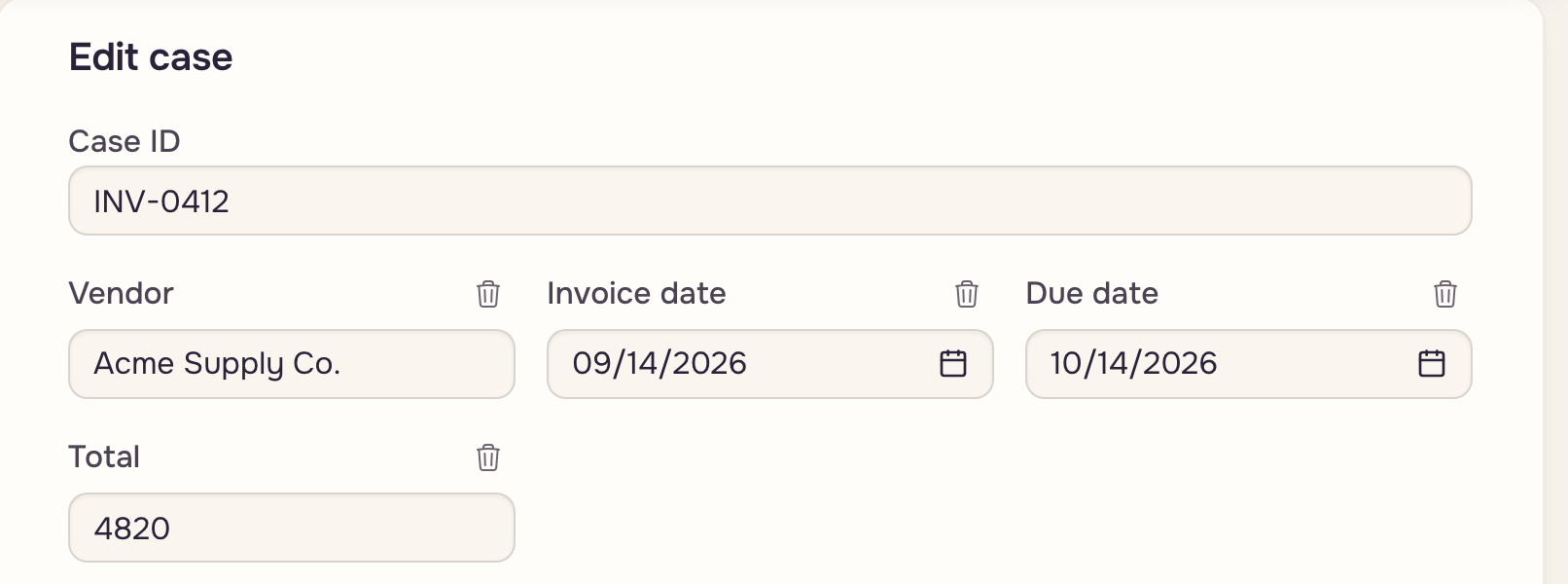
If another case has that ID, choose Merge into existing, or take the next free ID instead.
Every case keeps its history
Activity lists everything, newest first: files received, generated or uploaded, template runs, value changes with the old and new value, people added or removed, and notes.
Anyone who can add activity can write a note, with a date and attachments. Notes are the only rows you can delete. A teammate who can't see a file category doesn't see the rows about its files.