Assemble the transmittal
Build a batch template for the transmittal: a cover sheet with one row per finished job. Tick the jobs on the dashboard, run the template from the bar, and the same transmittal is saved on every job you ticked.
Tutorials
Updated 2 min read
At the end of a billing period, one transmittal lists every finished job. You tick the jobs; the app fills one row for each.
Template
The documents
Marked up
The values it captures
Build the template
- Click + beside Templates, choose Start from scratch, then Blank page. With a transmittal form, upload it instead.
- Name the template "Transmittal" in its settings.
- In Add field, open More field types (the arrow at the end) and choose Batch. Name the field "Jobs".
- Under Schema fields, click Add schema field for each column: "E-Number", "Address" and "Scope of work". Open each one and pick the matching case value under Case data key (field ID).
- Drag the first row's boxes into place. Under Placements, click + beside Rows once per extra row: each new row lands under the last.
- Under Output in the template's settings, type "Transmittal" as the Output category. Then Save.
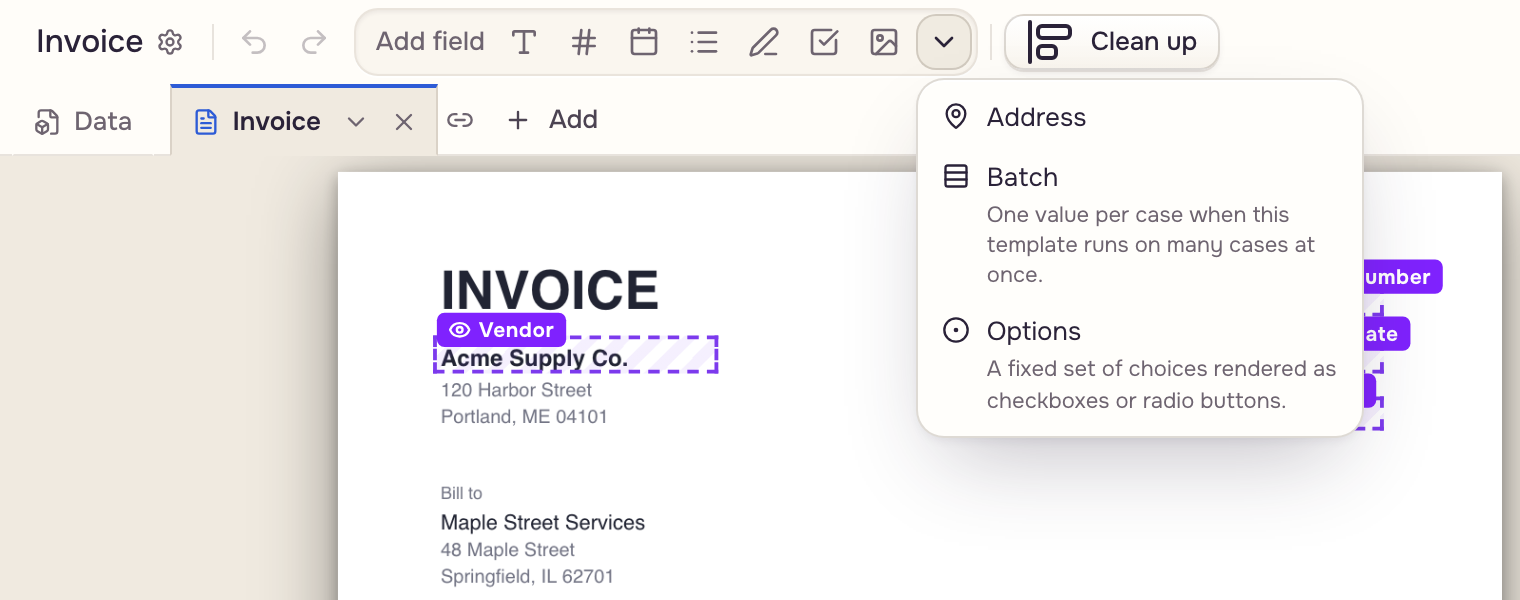
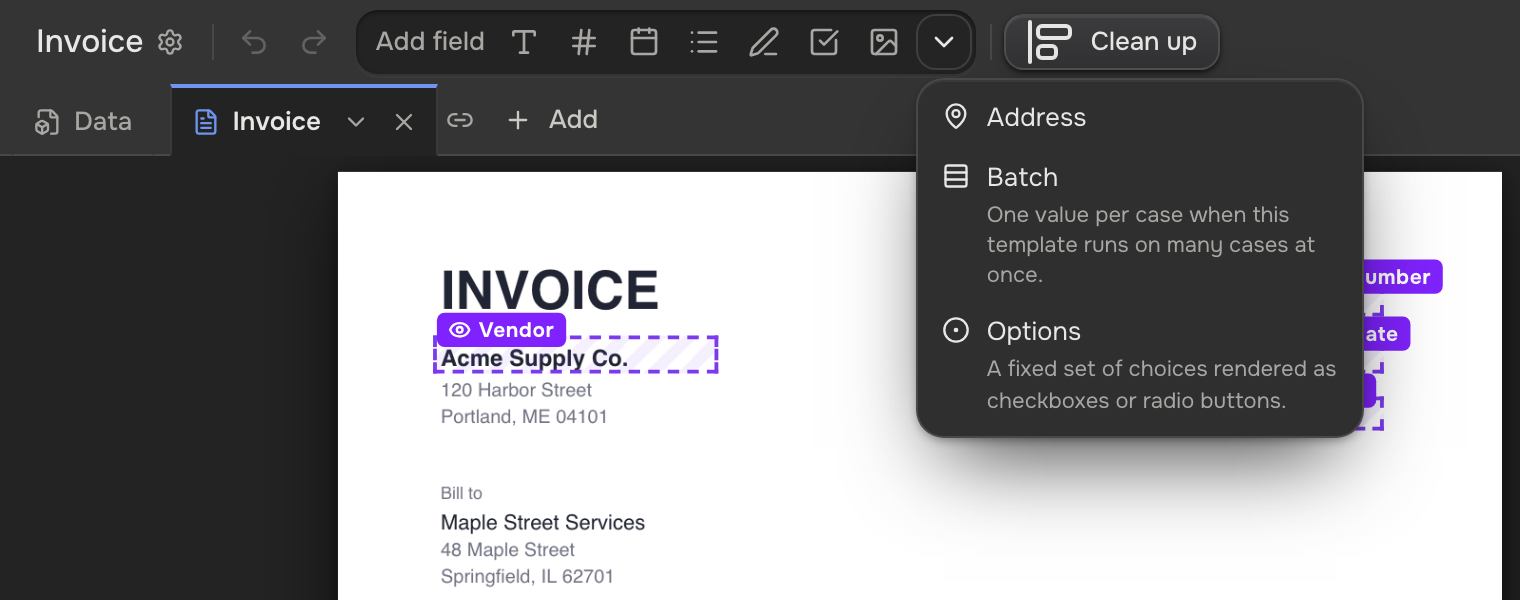
Rows fill in the order you tick the jobs. Row order (optional) on the field can state another order, like by address.
Run it on many jobs
On Pro:
- Open the mailbox with the finished jobs and click Select.
- Tick the jobs in the order you want them listed.
- In the bar above the list, pick Transmittal under Template... and click Autofill. The picker appears once the workspace has a batch template.
- Select files for batch can append each job's invoice after the cover sheet. Click Generate batch.
The transmittal is saved on every job you ticked, tagged Transmittal (Batch templates).
 Ticked jobs
 One transmittal
 Every ticked case