Import from Google Drive
A Drive automation watches one Google Drive folder. Each new file in it is filed on its case, and a template can read it, the same as an emailed attachment.
Your team or your clients drop documents into a shared folder. Point an automation at it. New files are picked up shortly after they land.
 Watched folder
 Picked up
 Its case
Set it up
- Connect Google Drive in Settings, under Account. The automation reads your own Drive.
- Open Automations in the sidebar and click the + beside it.
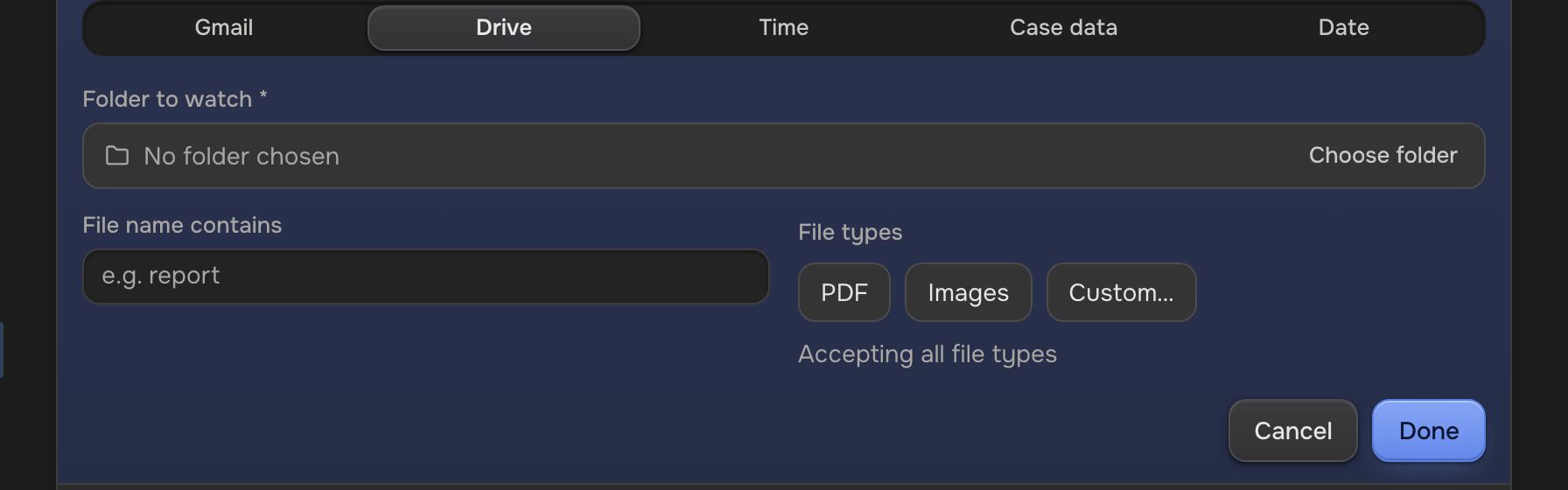
- Open the trigger row and pick Drive.
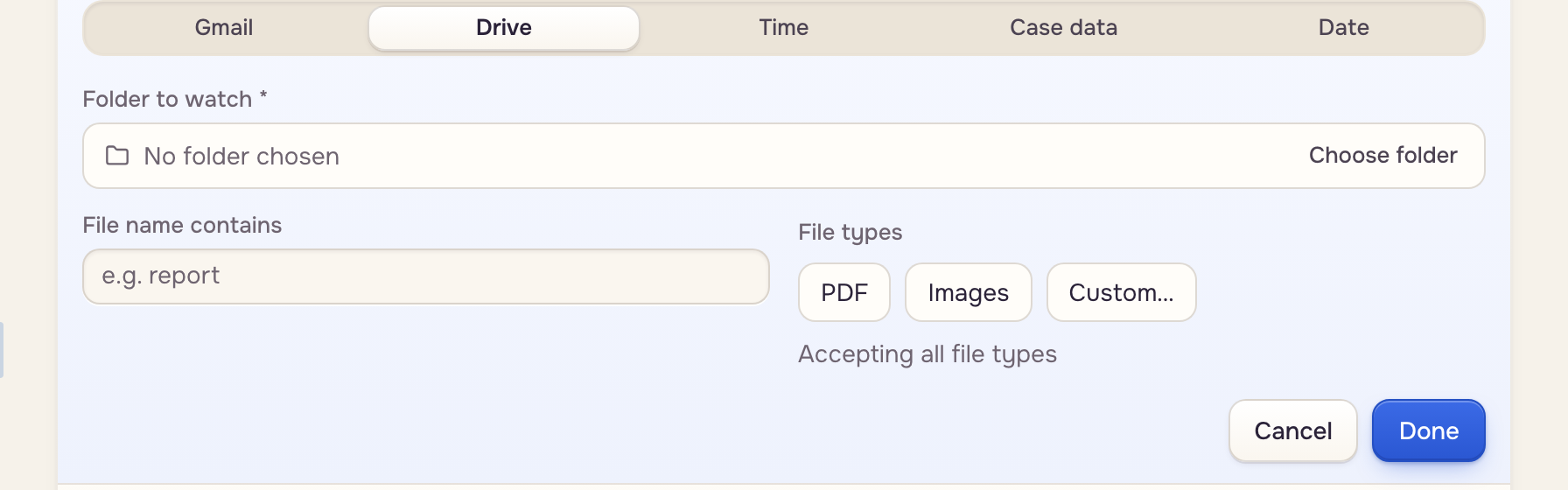
- Click Choose folder, open the folder, and click Watch this folder. For a folder shared with you, paste its link and click Use link.
- To take only some files, fill in File name contains or File types.
- Open Mailbox routing, pick the Mailbox, and name the File category.
- To have a template read each file, click Add step and choose Extraction.
- Click Save.
Which case a file goes to
The template's ID field decides, read inside the file or off the delivery. Only files directly in the watched folder count; a folder inside it needs its own automation.
Files already there
The automation picks up new files only. For the rest, use Run on past files on the saved automation. A file already on its case is skipped, even after an edit; to read it again, open it on the case and choose Re-extract. Files the app itself saves to Drive, like a template's copies, are never picked up.
 Already in the folderTheir cases