Capture an Invitation to Bid
Build a template that reads an Invitation to Bid into a case, keyed by its E-Number. Then add an automation that does it for every invitation email.
Tutorials
Updated 2 min read
The first template only reads. It finds four values on the invitation and saves them on the job's case for the later templates.
Template
Your form
mark up
Your template
Build the template
- Open Templates in the sidebar and click +. Choose Upload document.
- Pick your invitation PDF, set Name to "Invitation to Bid" (also the file category every invitation gets), and click Upload & add to template.
- Click Untitled template in the toolbar, set Name to "Invitation to Bid", and click Back to template.
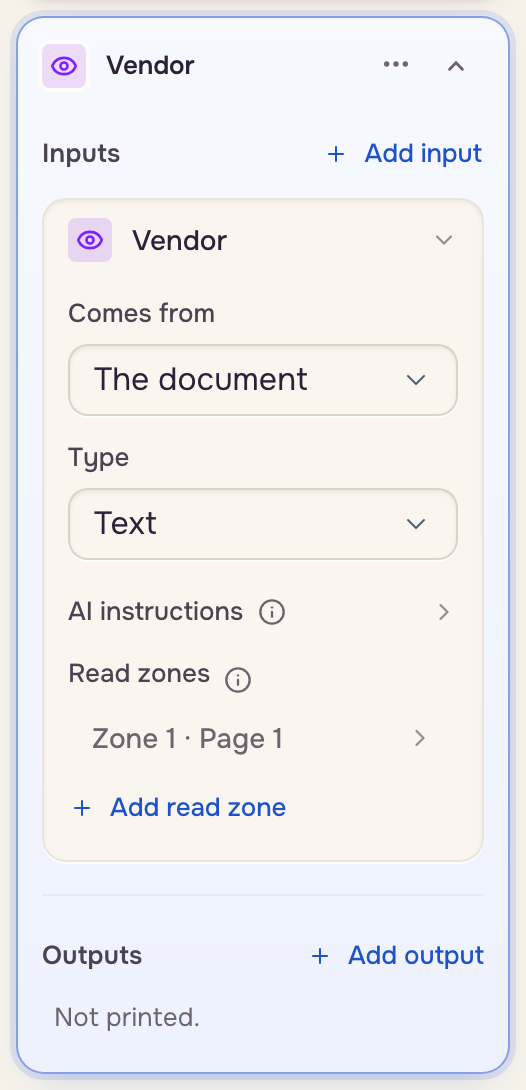
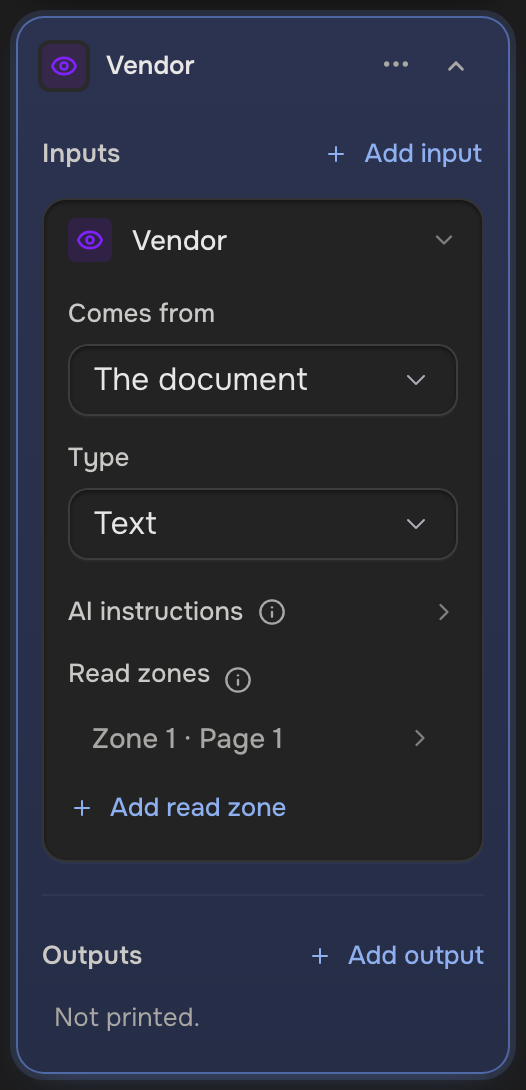
- Click the Case ID field every template starts with and rename it "E-Number". Under AI instructions, add "The E-Number starts with E, like EQ28416."
- In Add field, add a Text field "Address", a Date field "Bid due date" and a Text field "Scope of work". Set each one's Comes from to The document.
- This template prints nothing: in each new field's Outputs, open the Places row's menu and choose Delete output.
- Click Save.
Test it
Click Run, choose Upload a file, drop in another invitation, and click Run. A wrong value wants a hint under that field's AI instructions (AI extraction & instructions).
 An invitation
 Four values
 Case EQ28416
Catch every invitation automatically
On Pro, an automation reads each invitation as it arrives in Gmail.
- In Settings, under Account, turn on Gmail.
- Click + on the sidebar's Mailboxes row, type "Bids", and press Enter.
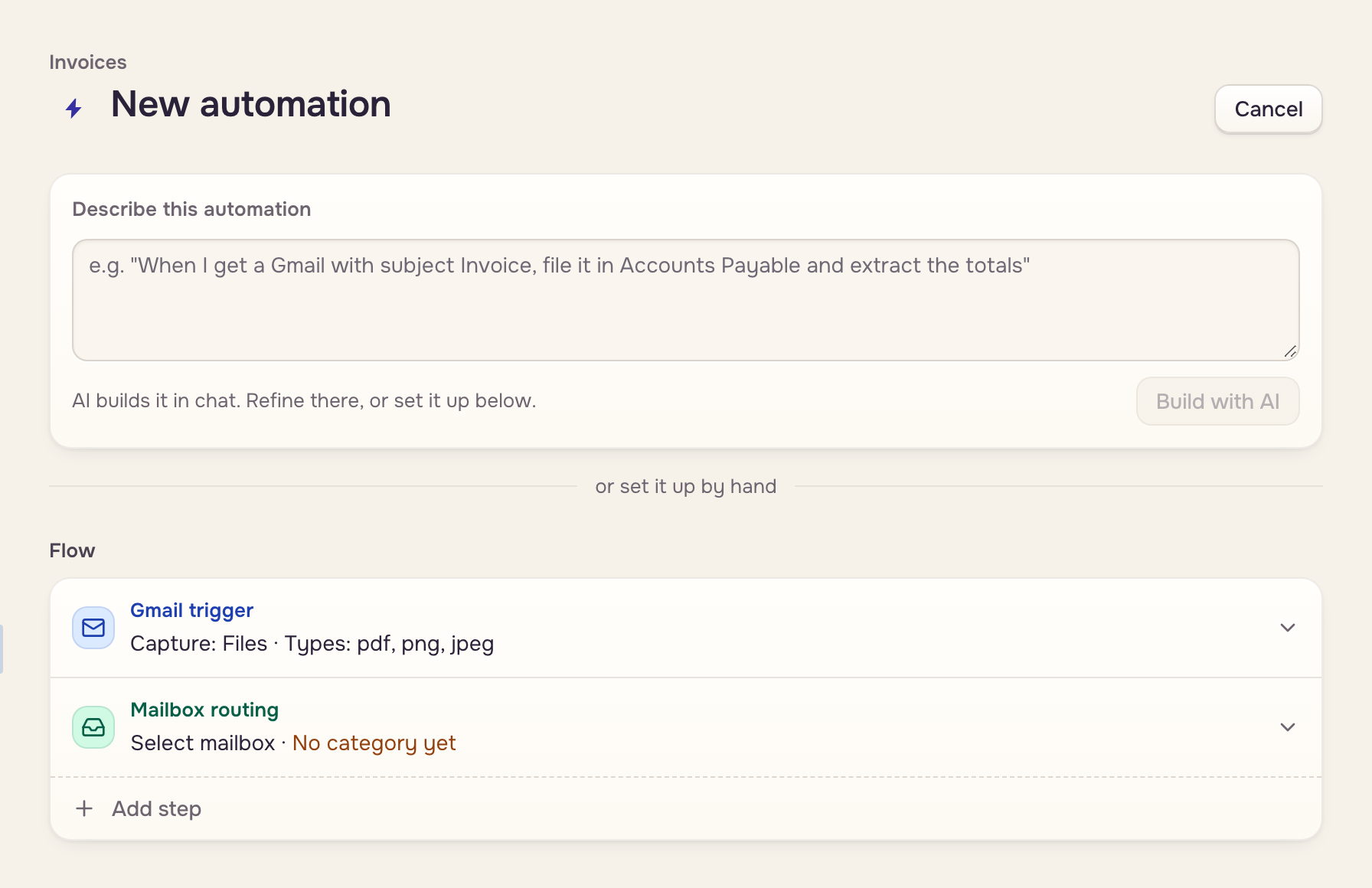
- Click + beside Automations and name it "Invitation to Bid".
- Open Gmail trigger, set Subject contains to "invitation to bid", and click Done.
- Click Add step, choose Extraction, set Template to Invitation to Bid, and click Done.
- Open Mailbox routing, set Mailbox to Bids, and click Done. Click Save.
Automation
Gmail
Google Drive
Upload
triggers
Automation
TriggerGmail trigger
DocumentInvitation to Bid
MailboxBids
files it
Its case
Forward yourself an invitation: it shows under the automation's Activity, and its case appears in Bids.
Next: Respond with your bid.