Automate document intake
An automation watches your Gmail inbox or a Google Drive folder. Each file that arrives is filed on its case, and a template can read it, so nobody downloads, uploads, or types.
You tell it what to watch, which mailbox the case goes to, and which template reads the file.
Build an automation
Automations open on Pro (Plans & limits). They read your own Gmail or Google Drive, connected in Settings under Account. Saved before that, one waits, paused, until you connect.
- Open Automations in the sidebar and click the + beside it.
- Describe it under Describe this automation and click Build with AI; the assistant asks you to confirm. Or by hand:
- Open Gmail trigger and fill in Subject contains or Sender contains. Every filled filter must match. Click Done.
- Open Mailbox routing. Pick the Mailbox new cases go to and name the File category the files get. Click Done.
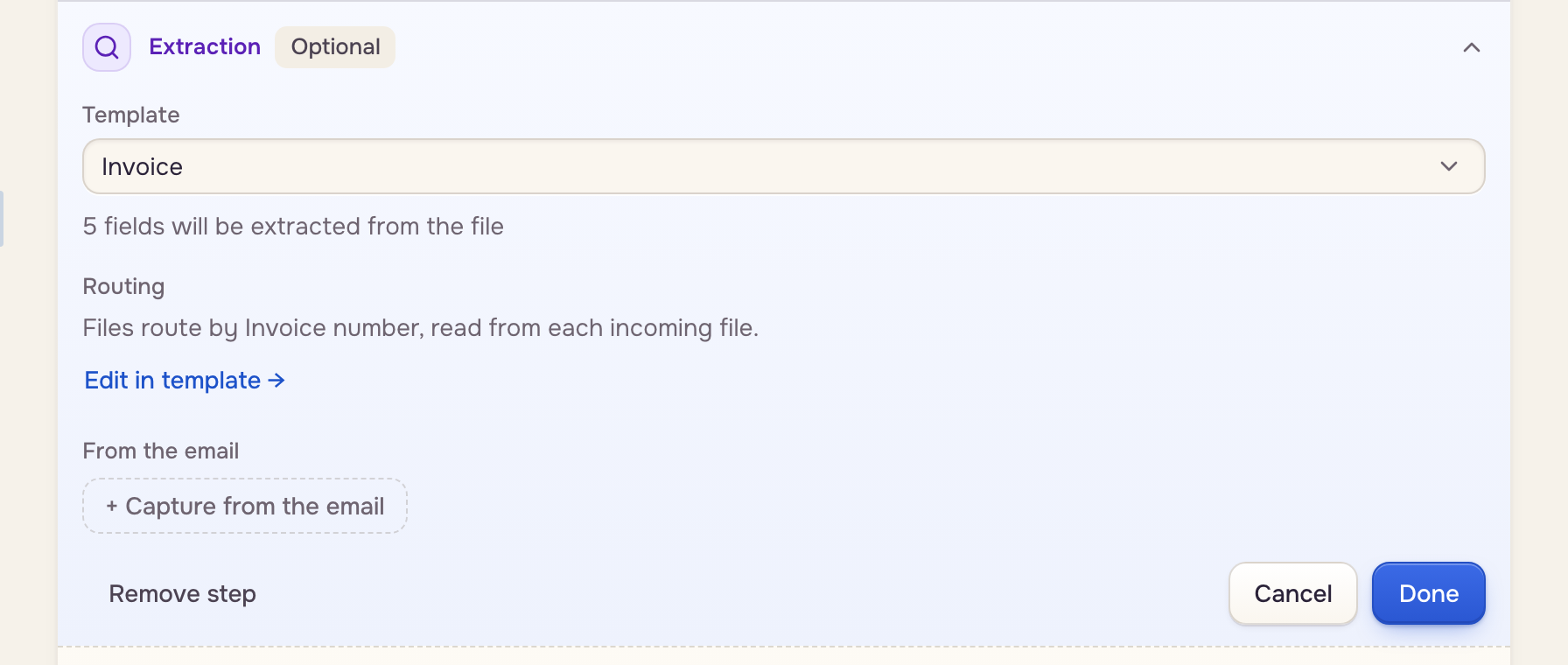
- To have a template read each file, click Add step, choose Extraction, and pick the Template.
- Click Save.
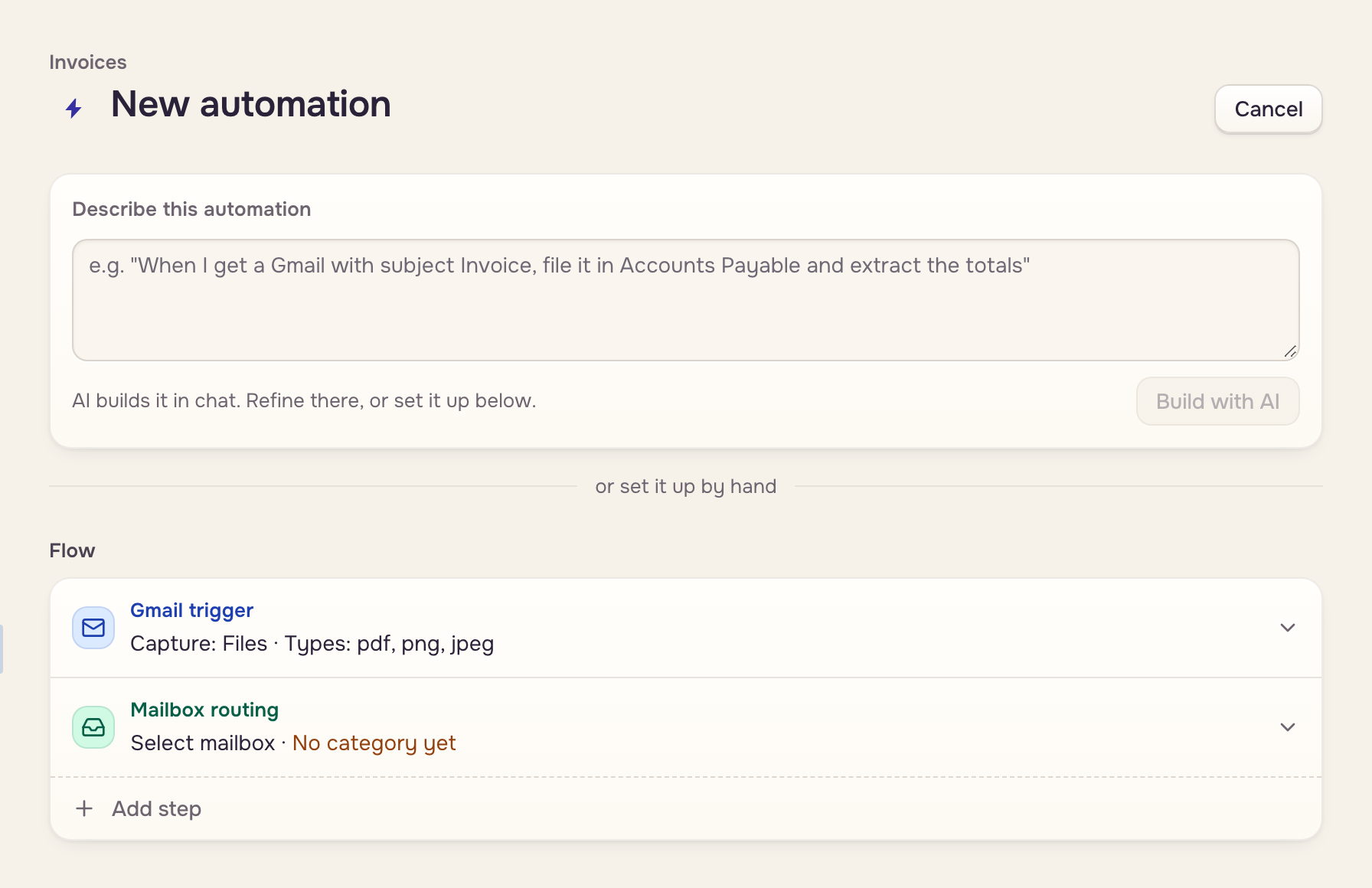
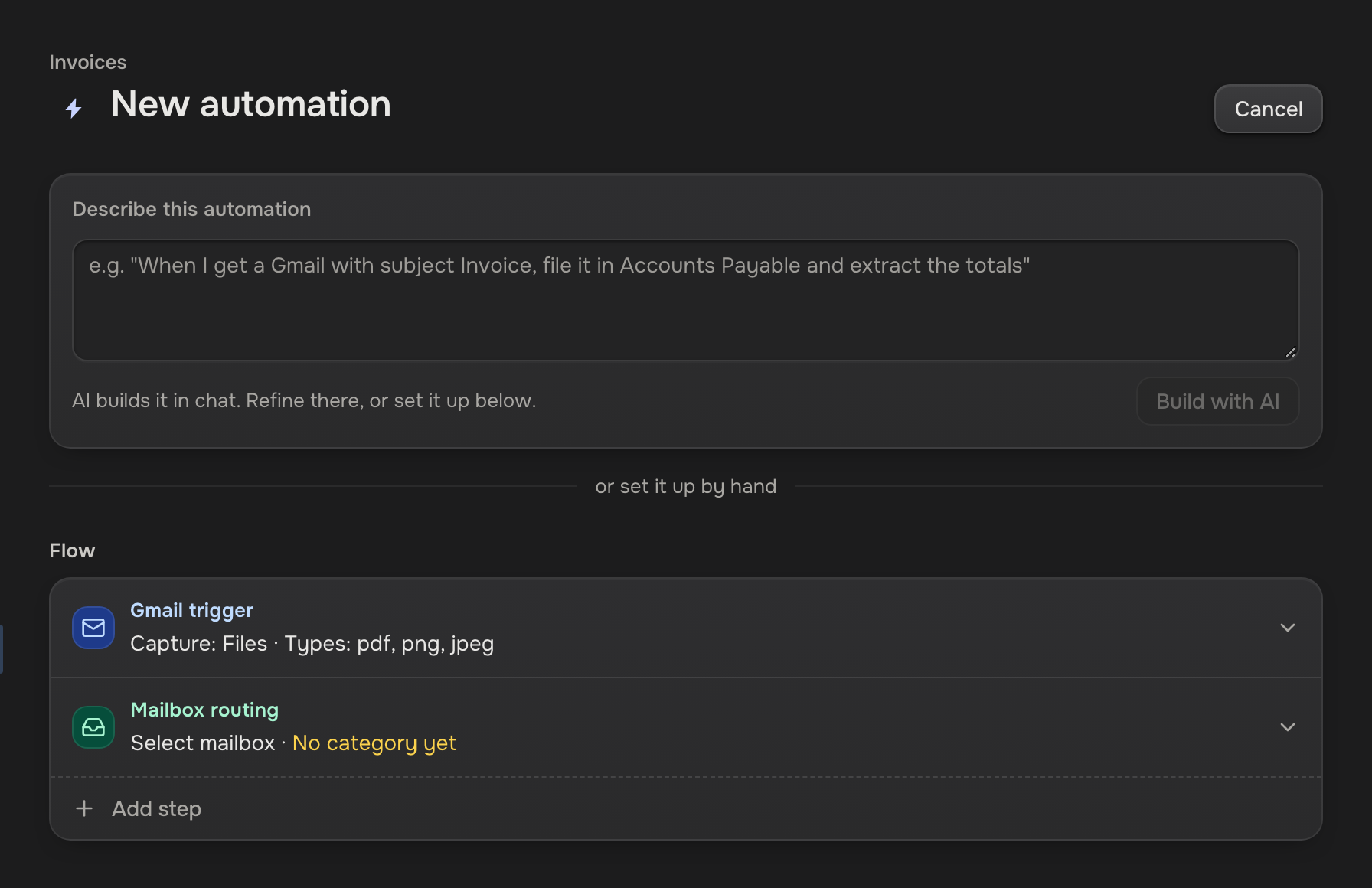
Two automations can't share a name or watch the same thing; Save says so. Mail from before you saved: Run on past emails (Manage automations).
Where each file goes
The ID decides. With an Extraction step, the template reads it off the file, such as an invoice number.
- A known ID joins its case. A new ID starts one.
- No ID, or no Extraction step: each email starts its own case, marked auto. Add an ID field to the template to change that.
- A file already on its case is skipped.
 A file arrives
 Its ID
 Its case
The Extraction step's Routing line says where the ID is read from: the file, or the email's Subject line, Sender address, or Message body (Fields & value sources).
What you hear about
The bell rings for a new case, and for a file that could not be processed. Reading a file spends AI tokens; with none left, the file is saved but not read.
A file arrivesNew case You hear