Invoice the job
Build an invoice template that reuses the job's case values and asks only for what is new: the final charge and the completion date. Run it on the case, and the invoice lands beside the invitation and the bid.
The invoice needs the bid's E-Number and address plus a few new facts. The case holds the old ones, so you answer only the new ones.
Build the template
- Click + beside Templates, choose Upload document, pick your invoice form, name it "Invoice", and click Upload & add to template. With no form, use Start from scratch and Blank page.
- Name the template "Invoice" in its settings.
- Rename the Case ID field "E-Number" and, in its Outputs, click Add output and choose Print.
- Add a Text field "Address" and a Number field "Bid amount". Set each one's Comes from to The case and pick the case value with the same name.
- Add a Number field "Total charge" and a Date field "Completed". Set both to The form and tick Required.
- Drag each box onto its line.
- Under Output in the template's settings, type "Invoice" as the Output category. Click Back to template, then Save.
A value the app can work out, like a trip fee that depends on the bid amount, is an output that states the rule: Calculations & automatic values.
 The job's case
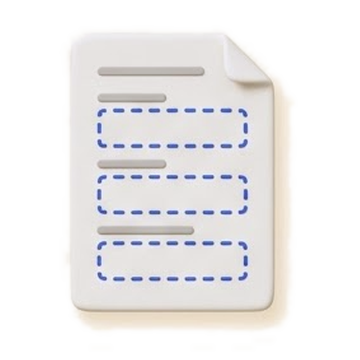 Invoice template
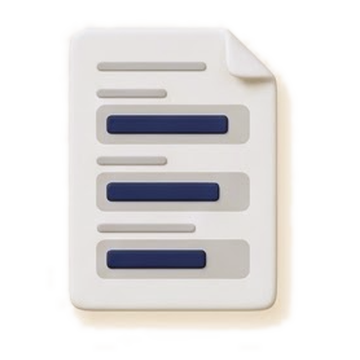 Invoice
Run it on the job
On Pro, open the job's case, open Invoice under Templates, and click Run. Answer the two questions and click Run again.
Keep finished jobs apart
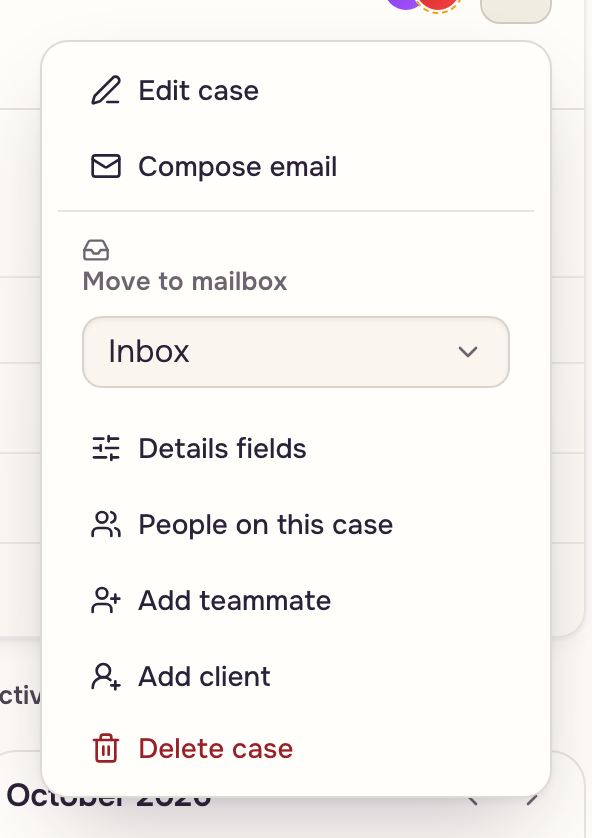
Add an "Invoiced" mailbox (+ on the Mailboxes row). Then open Case actions and pick it under Move to mailbox (Mailboxes & saved filters).
Next: Assemble the transmittal.