Templates
A template is your form with its blanks marked. It tells the AI where to find key information, what to do with it, and where each value lands on the page. Every document you run it on fills the same way.
Sources are the documents in the template. Fields are the values it reads or prints.
Create a template
Open Templates in the sidebar (on a phone, in the menu) and click + (New template). Pick a starting point:
- Upload document: a PDF or Word file. Add a filled copy of a PDF and the app places the fields for you.
- Start from scratch: an empty template. Add a blank page, a document or a form field from + Add.
- From a document on file: a document already in this workspace.
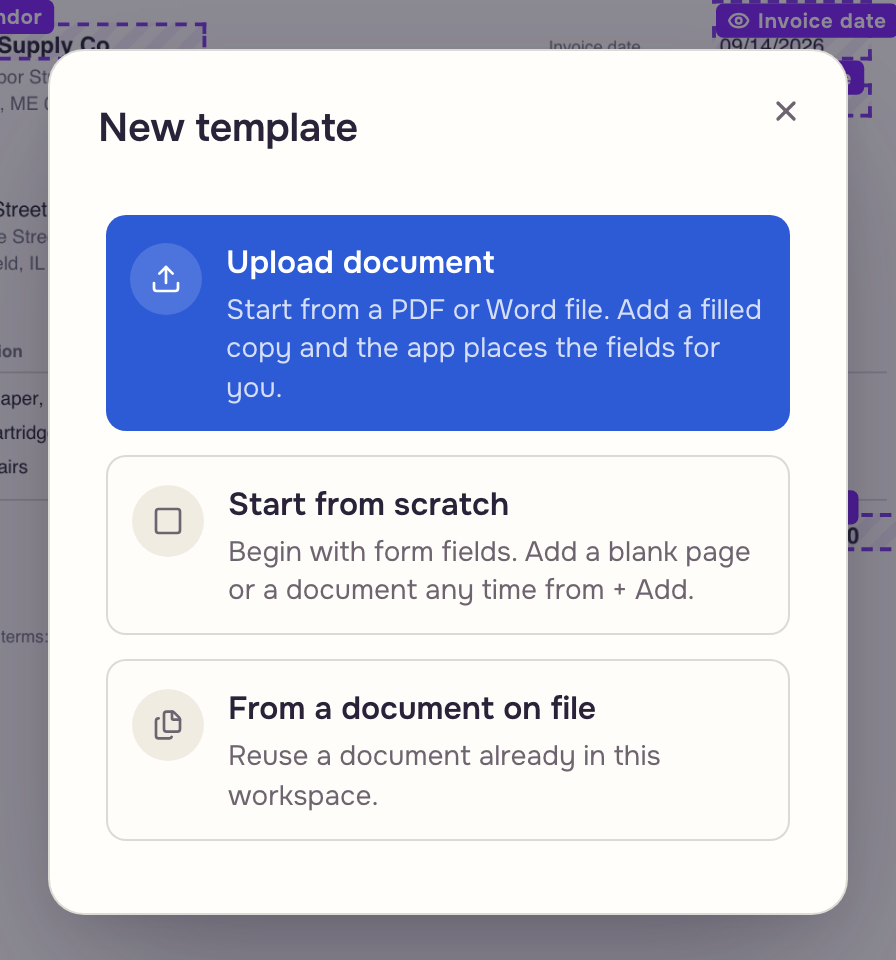
It opens in the editor and joins the sidebar's Templates list. Click its name in the toolbar to name it in Name; it starts as Untitled template. A name another template in the workspace carries is refused with an already exists message. A Word file places fields as paragraph anchors instead of drawn boxes. Edits stay local until you click Save.
Add a source
The document bar above the canvas lists the sources. Data is always first and cannot be removed. Click + Add for Upload new file, Blank page or Sources from this workspace.
 Your sources
 One output
Removing a document asks you to confirm; a blank page goes at once. Combining & reflowing documents covers the rest.
Add a field
Pick a type from the Add field group in the toolbar: Text, Number, Date, Select, Signature, Checkbox or Image. The arrow at its end holds Address, Options and Batch. The field lands on the page with one write zone.
A field is two lists:
- Inputs get a value. Each one says where it Comes from: The form (a person types it), The document (the AI reads it), A fixed value, The case (a value another document saved) or The delivery (the email or Drive folder that carried the file).
- Outputs make a new value from the inputs: a Calculation, an AI answer, a Fixed value, or a Date or company detail.
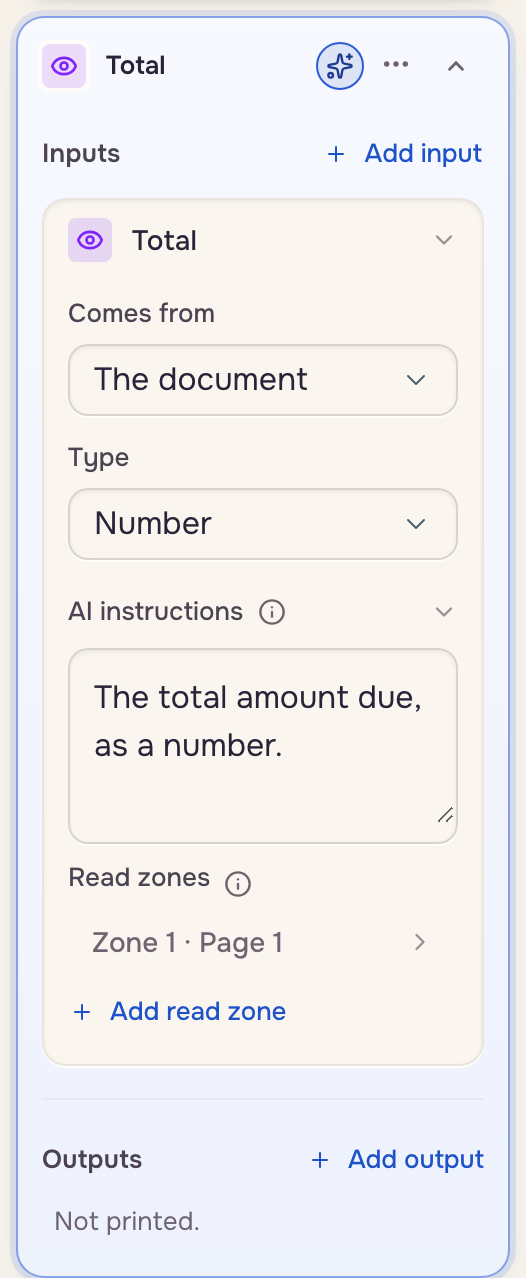
Every input and output keeps its value under a stable key, so renaming never moves data. On a template with no document, a new field comes from the form.
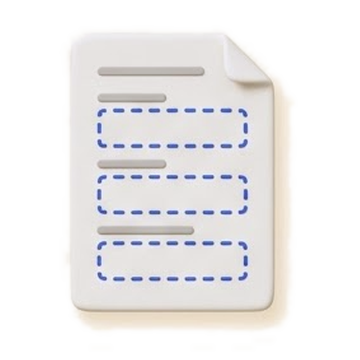 Read zone
 Value on the case
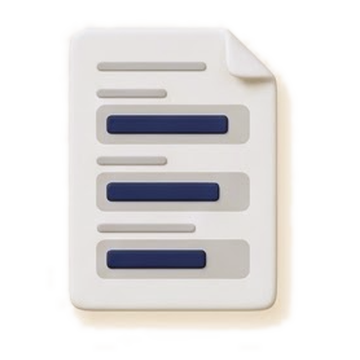 Write zone
Fields & value sources covers every type and source, including the identifier field that routes files to the right case.
Place it and save
Drag a write zone to where the value belongs. Pull a corner to resize it. The value prints at those exact coordinates on every run.
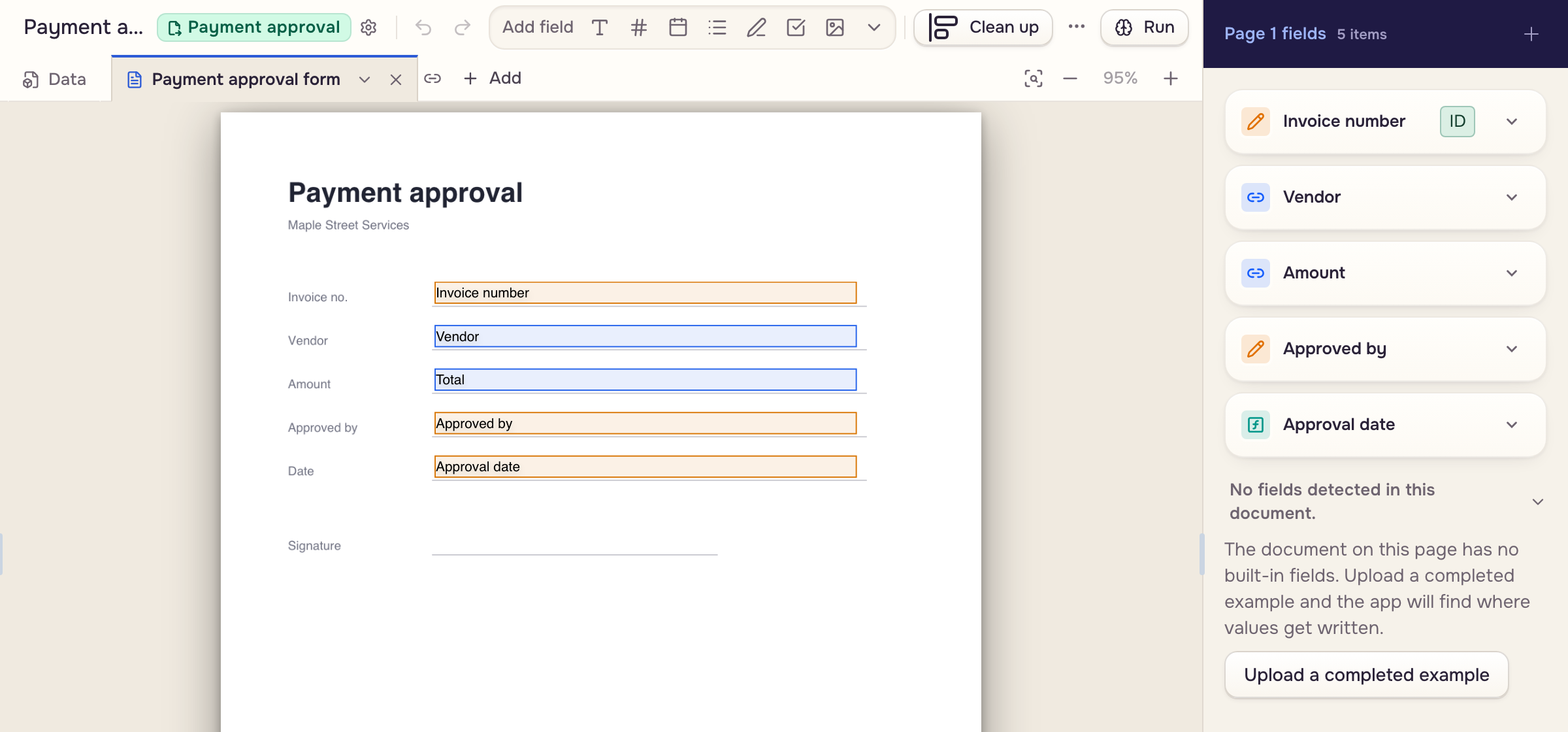
Click Save in the toolbar. Undo and redo are Cmd+Z and Cmd+Shift+Z. The next run uses what you saved.
A PDF with its own form fields lists them under Detected fields, ready to switch on. A filled copy drafts the fields too: Build from a completed example.
Template settings
Click the template's name in the toolbar. Three sections:
- General: Name, and the read-only Reads from chips.
- Fill: Document reflows, only on a template that generates a file.
- Output: Output category, Output file name and Drive folder.
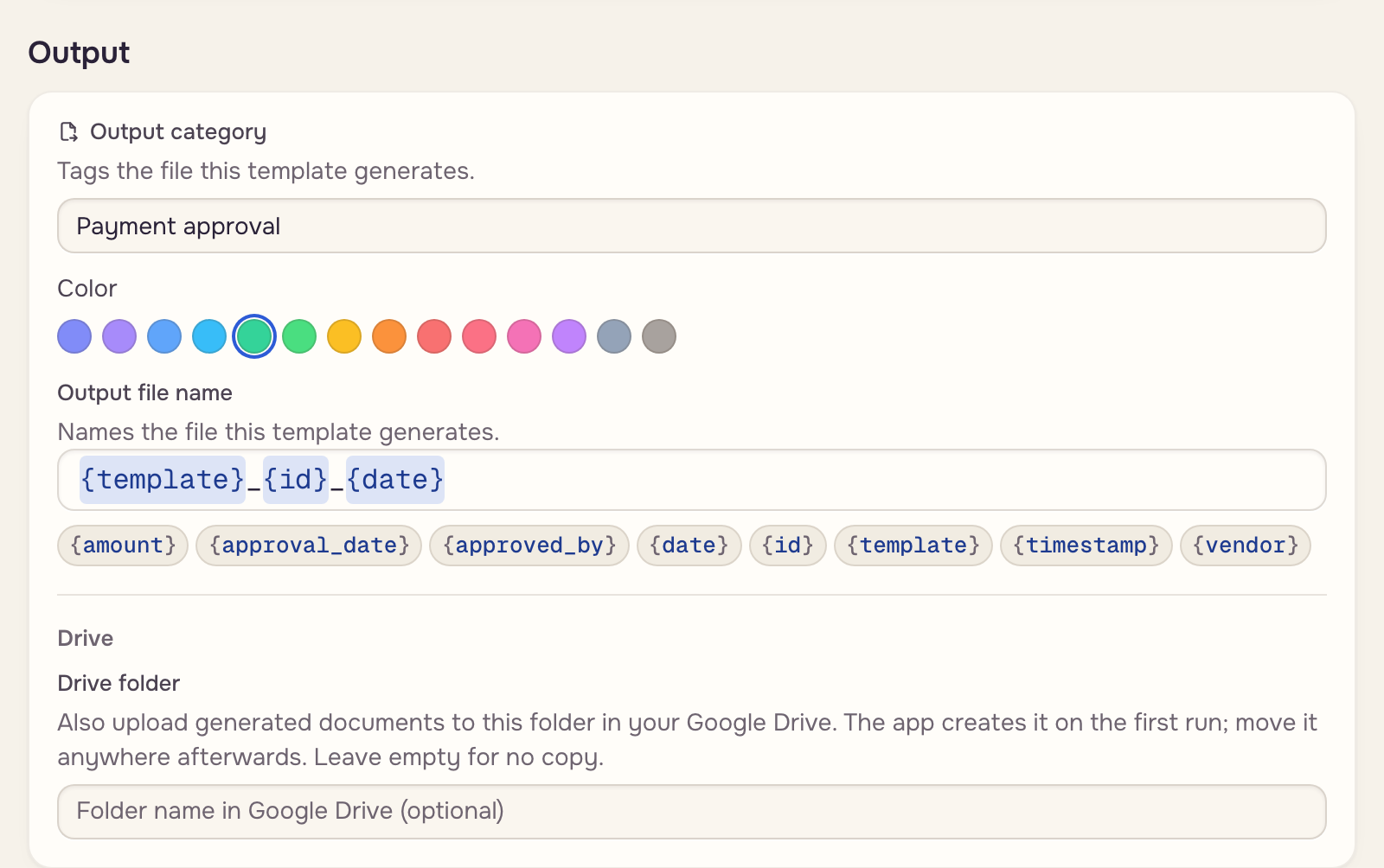
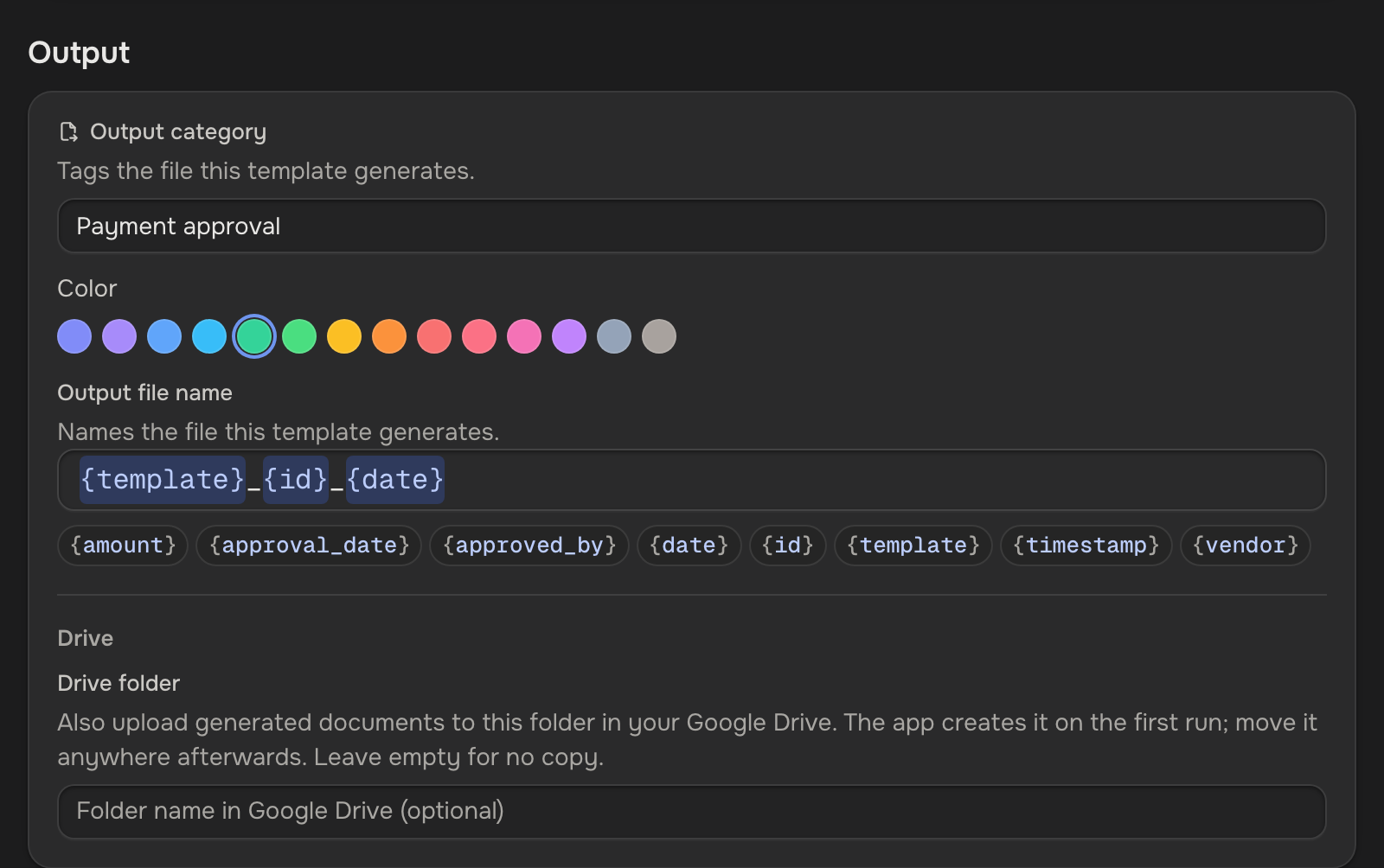
There is no Save here: the editor's Save keeps these too. Back to template returns you. The template's AI instructions live behind the Data tab's chevron, not here. Output file name & category covers the name tokens.
Run it
Run sits in the toolbar on every tab. The case you last ran on, or last had open, is already picked. Run on one of its files, upload a file, or Use the sample document. The Values card on the Data tab shows what the run captured.
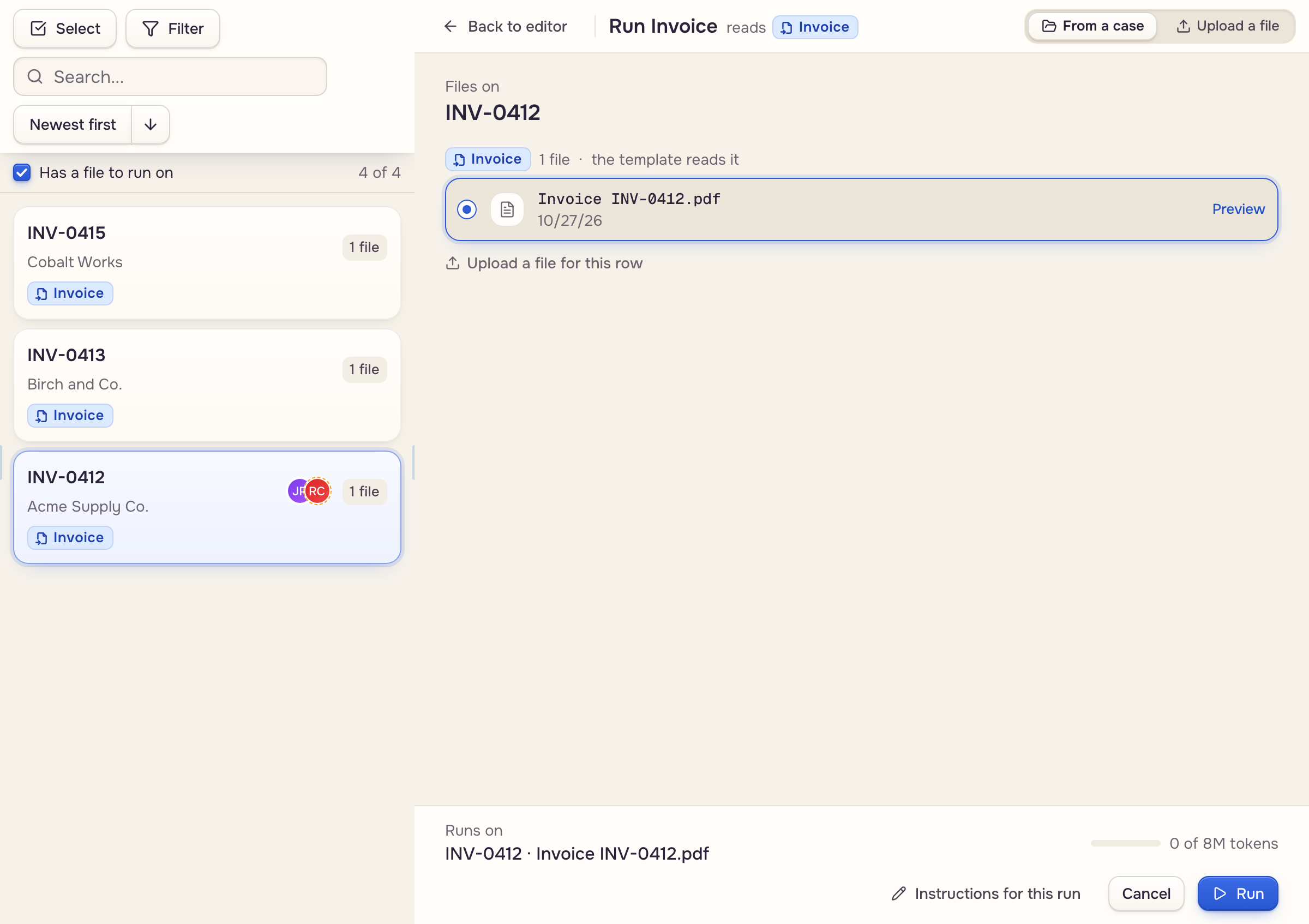
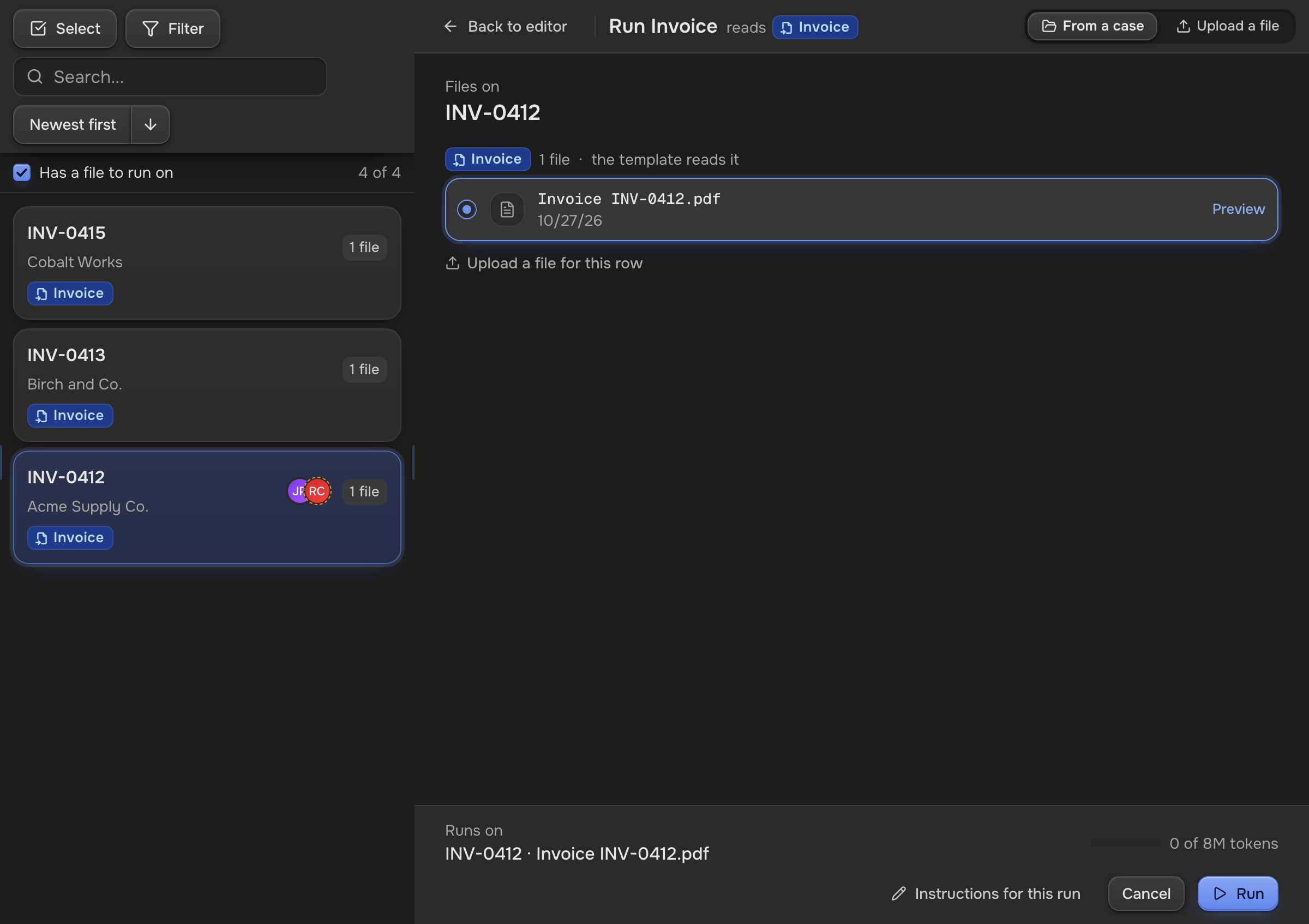
A template with form fields and no document is a form. Run it: pick a case, answer, click Save answers. Clients fill it in the portal. Preview the values without a case shows what it would save.
Your templateFilled copy The case
Run a template covers per-run instructions, re-running, and how extracted values and edits merge. The tutorial builds and runs one end to end.