Build from a completed example
If you have a copy of the form that someone already filled out, the app can build the fields for you. It compares the filled copy with the blank form, finds every spot where a value was written, and places a field there.
Placing every field by hand takes time on a long form. A filled copy shows the app where the values go. You review what it built and save.
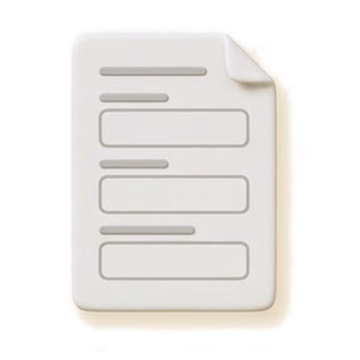 Blank form
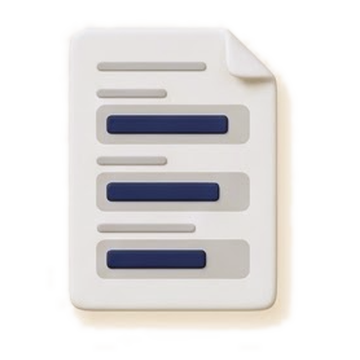 Filled copy
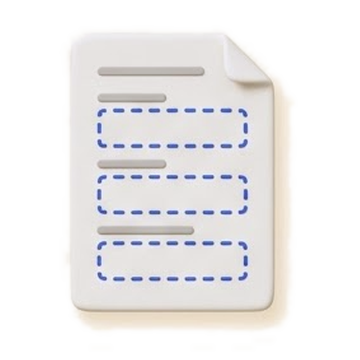 Fields placed
Start from a filled copy
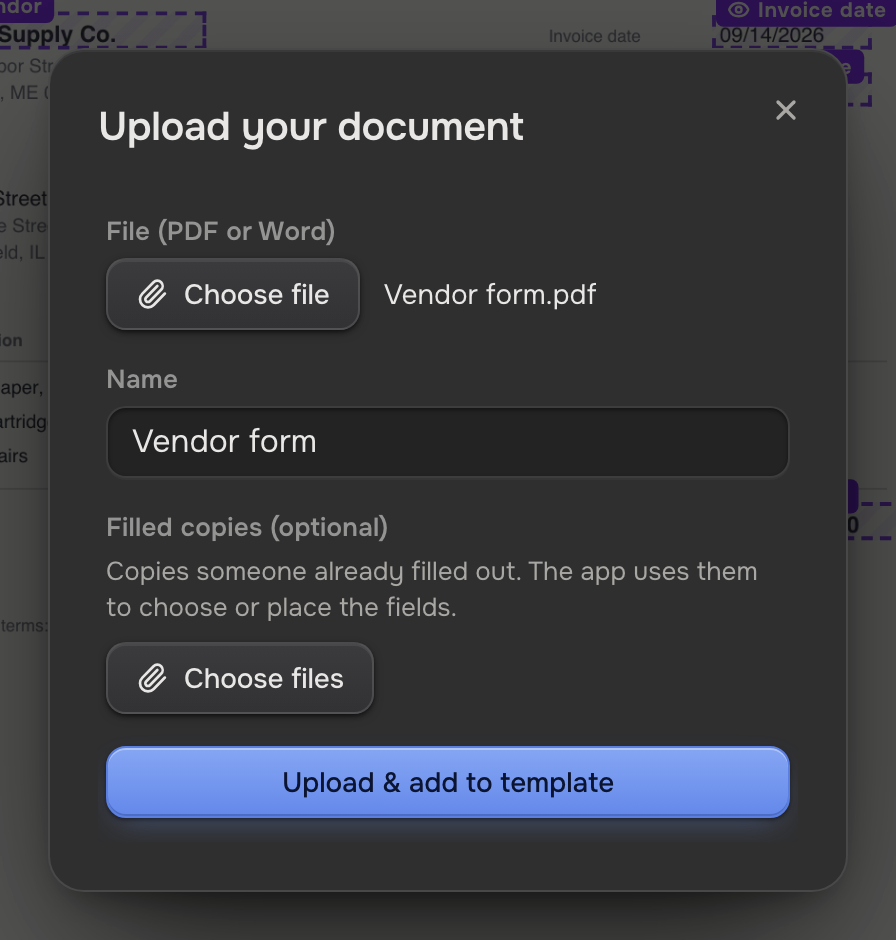
Bring the filled copy along when you create the template:
- Click + beside Templates in the sidebar and choose Upload document.
- Pick the blank form under File (PDF or Word).
- Add one or more filled copies under Filled copies (optional).
- Click Upload & add to template.
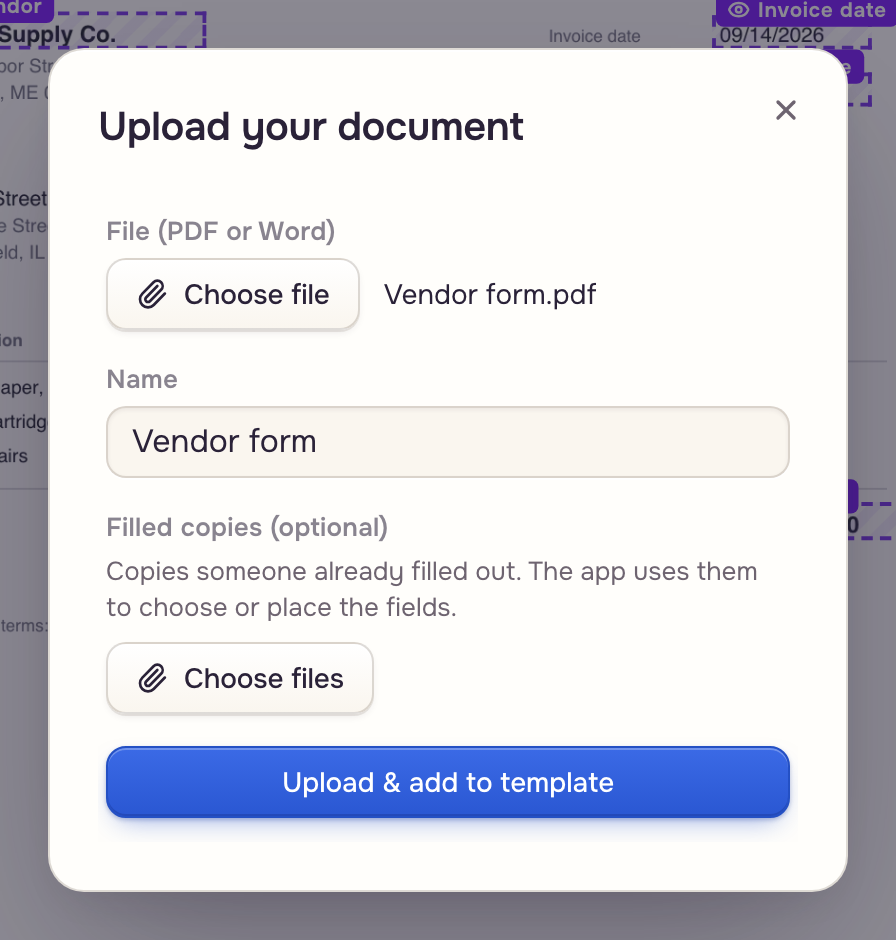
For a template you already have, click Upload a completed example under the field list (shown for a PDF without fillable boxes), then Find the fields. The copy must be a PDF of the same form, under 12 MB and 60 pages.
What you get
The app adds a field for each value it found and says how many. Review them on the page, fix anything that is off, and click Save.
Fillable boxes, and the chat
A PDF with its own fillable boxes lists them under Detected fields below the field list: tick a box to make it a field, or Select all. A filled copy switches on the boxes it used.
Or attach the blank form and a filled copy to the AI assistant and ask for a template. It builds and saves the template, then links you to it.