The dashboard & workspace
A workspace holds one document process: its templates, cases, mailboxes, automations and team. The dashboard is the view onto it: every case in a list, and the same cases as a calendar, a map and charts, drawn from the fields your templates read.
The dashboard opens on Pro. Free and Lite see it read-only, with a banner that says so (Plans & limits).
What you see
The sidebar names the active workspace and lists its Mailboxes, Templates, Email templates and Automations; a section's + adds one, and the gear opens Workspace settings. Templates, Email templates and the gear show only to the owner and workspace admins. More workspaces open on Pro (Workspaces).
The Details view lists one row per case: its ID, the subtitle field and category tags you pick in Workspace settings, and the people on it. A dot marks Unseen updates until you open the case. Click a row to open it; Create new starts a blank one.
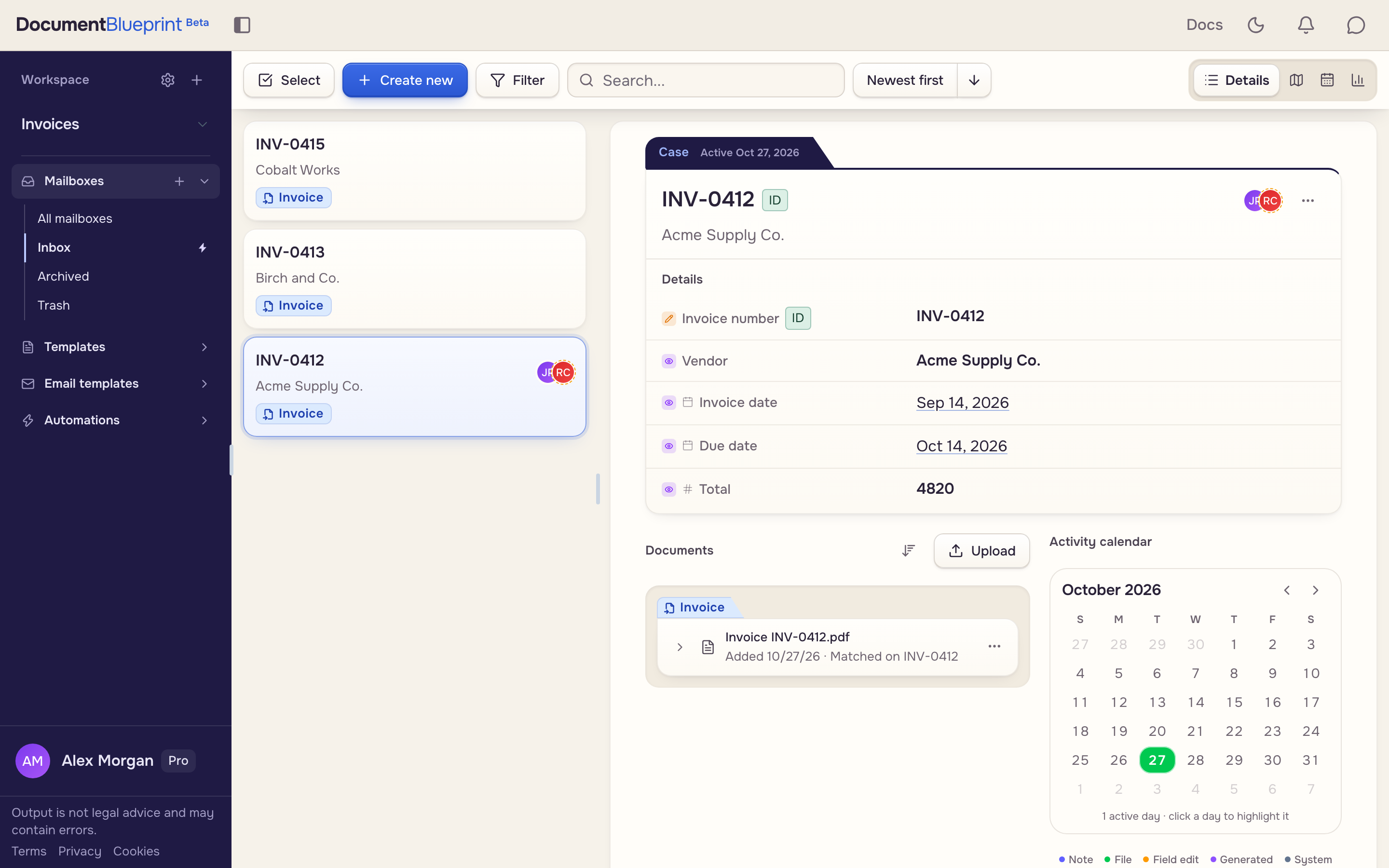
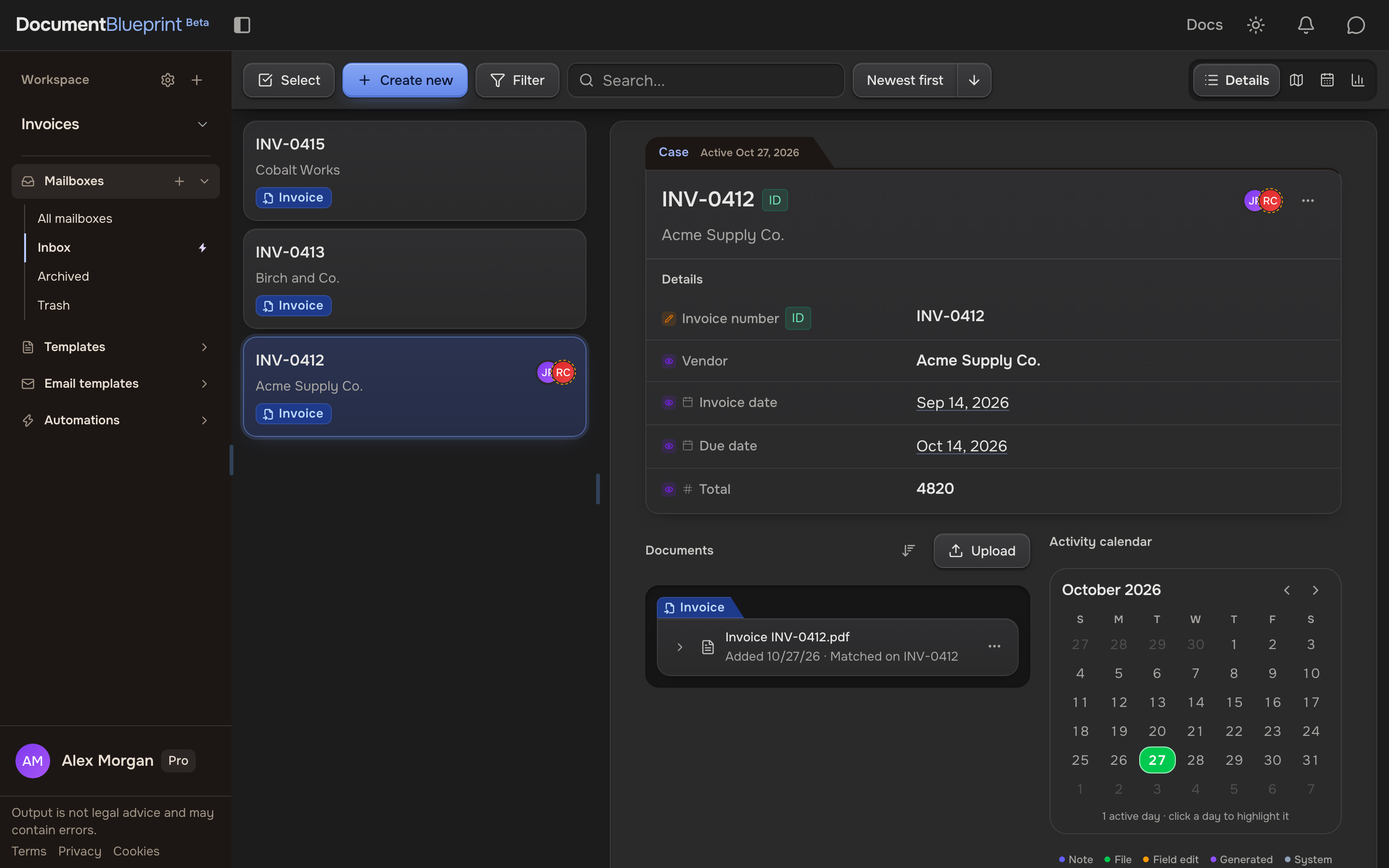
The list holds up to 5,000 cases across all mailboxes, and every view shares that set. Load more cases reveals more, and a narrower mailbox reaches older ones. An empty workspace reads No cases yet; a search with no match reads No cases found.
Mailboxes
Every case sits in one mailbox: Inbox, Archived, Trash, or one you add with the +. All mailboxes shows them all. Trash deletes a case for good after 30 days, and Delete everything in Trash empties it now, after asking.
Nothing moves a case by itself. Use Move to mailbox under Case actions, the batch bar's Move, or an automation, which files arriving files in a mailbox or moves idle cases after a number of days (Mailboxes & saved filters).
 A file arrives
 Inbox
Inbox Archived
Search, filter and sort
Search..., Filter and the sort live in the toolbar, and they narrow Map, Calendar and Analytics too.
- Filter opens the side panel: saved filters are pills, and one click switches one on. Add filter builds a new one by hand (Select column…, Select operator) or from a sentence (Build with AI) (Mailboxes & saved filters).
- The sort starts on Newest first: pick Date created, Last updated, Case ID or a field under Case data…, and flip it with the arrow. A date sort never hides a case; a case-data sort drops the cases without that field and says how many. Distance appears once you share your location and a field holds addresses.
Both are remembered per device.
 Every case
 Over $2,000Two cases
Four views
The rail at the right end of the toolbar switches views. Your fields decide what each can show.
- Map: a pin opens its case in a card, Open case opens it in full, and Fullscreen or Exit fullscreen sizes the map.
- Calendar: a busy day shows a count per field; click it to see every date. Date fields picks the fields, Export .ics exports the month.
- Analytics: the gear opens Charts. Add chart, then pick Group by, Metric and Aggregation. A text group ranks one bar per value, a date group draws over time, and the pie keeps the five largest groups and folds the rest into Other. A chart never adds across cases.
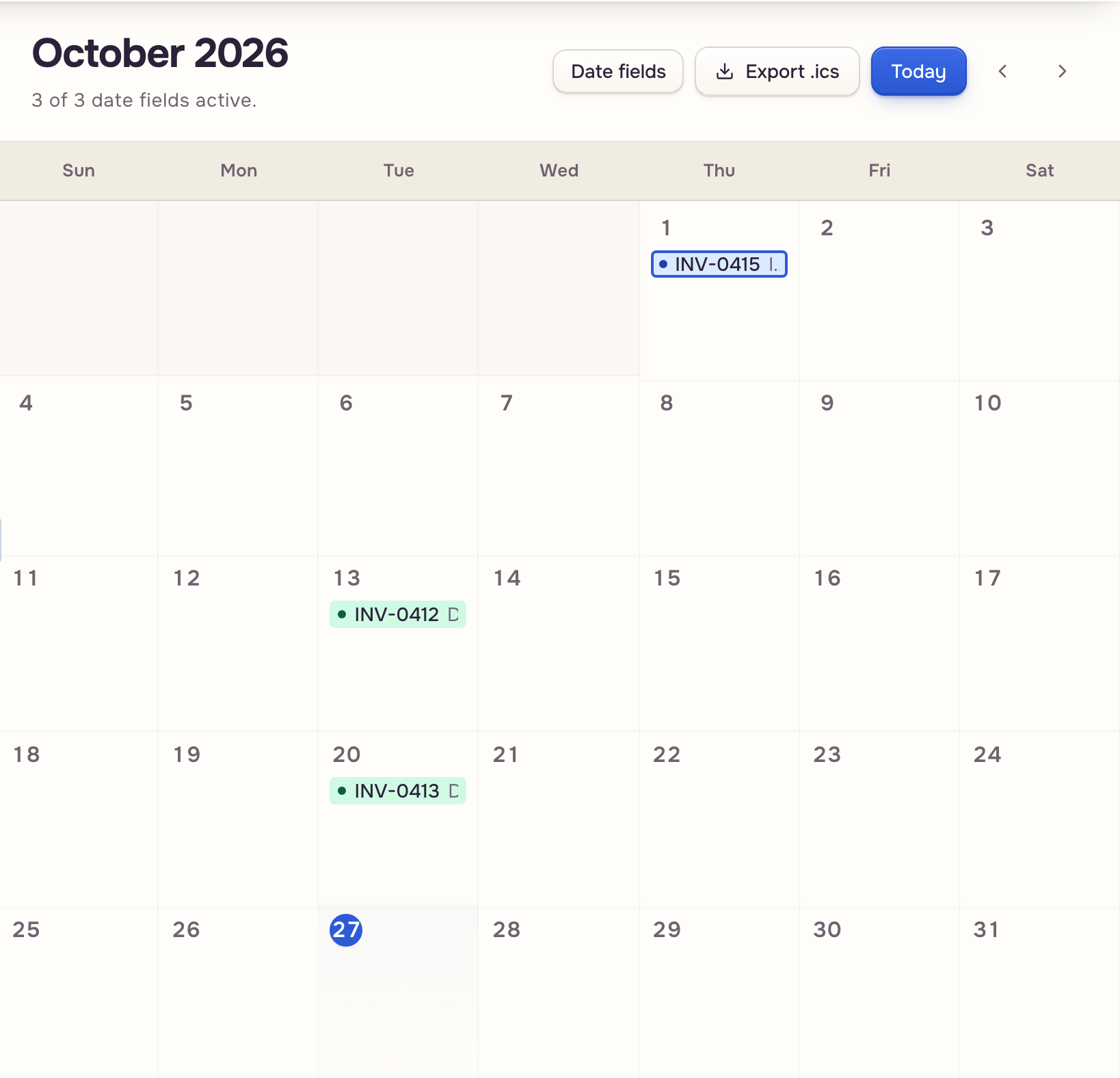
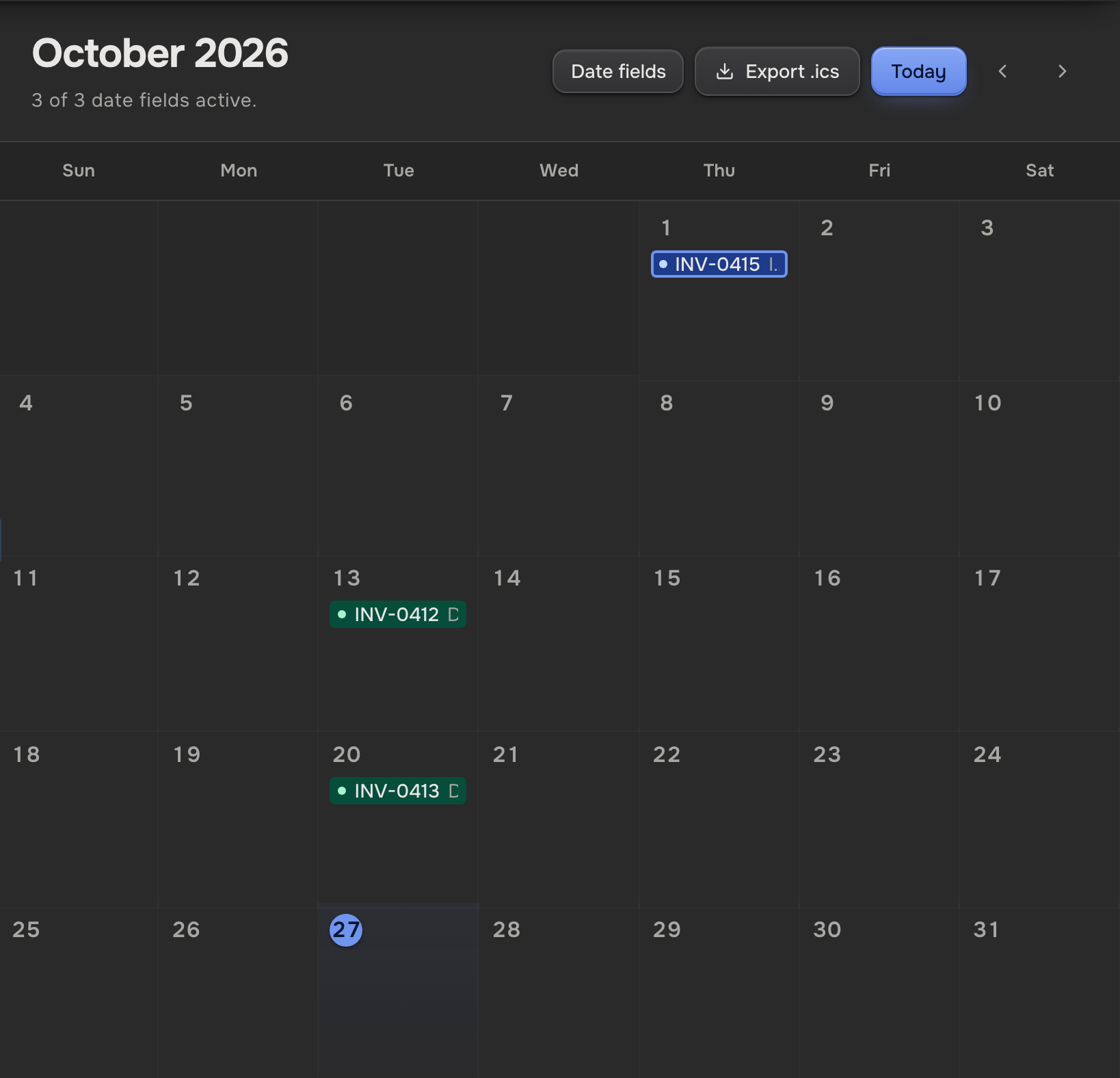
A workspace admin can withhold a view from a teammate: it turns grey and offers Request access (Teammates & access). On a phone the views are a bottom tab bar, List, Map, Calendar and Analytics; tap a case to open it and Cases to go back. A desktop too narrow for both, say with the AI assistant open, does the same. Hide sidebar, Docs and Open AI assistant sit in the header.
Work on many cases
Click Select, then tick cases in the order you want them. Select all ticks every case the list holds after your search and filter, drawn or not. Done clears the selection.
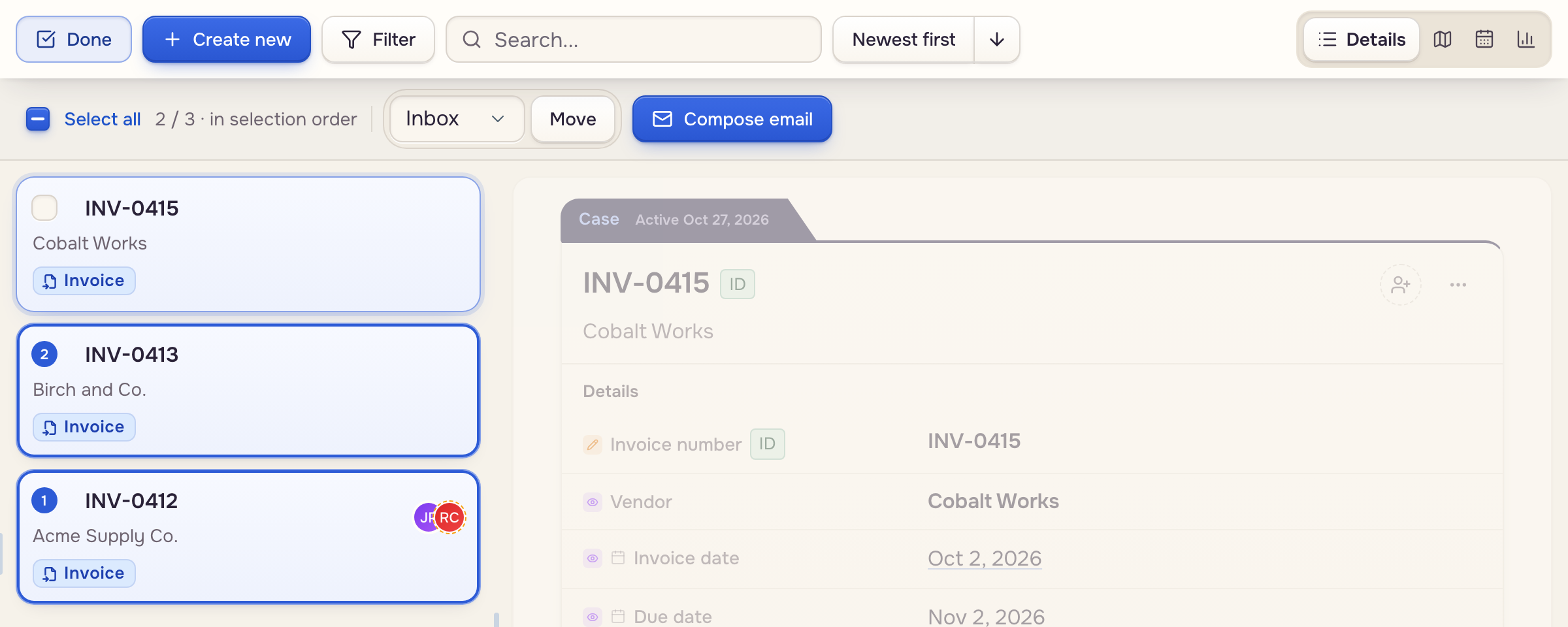
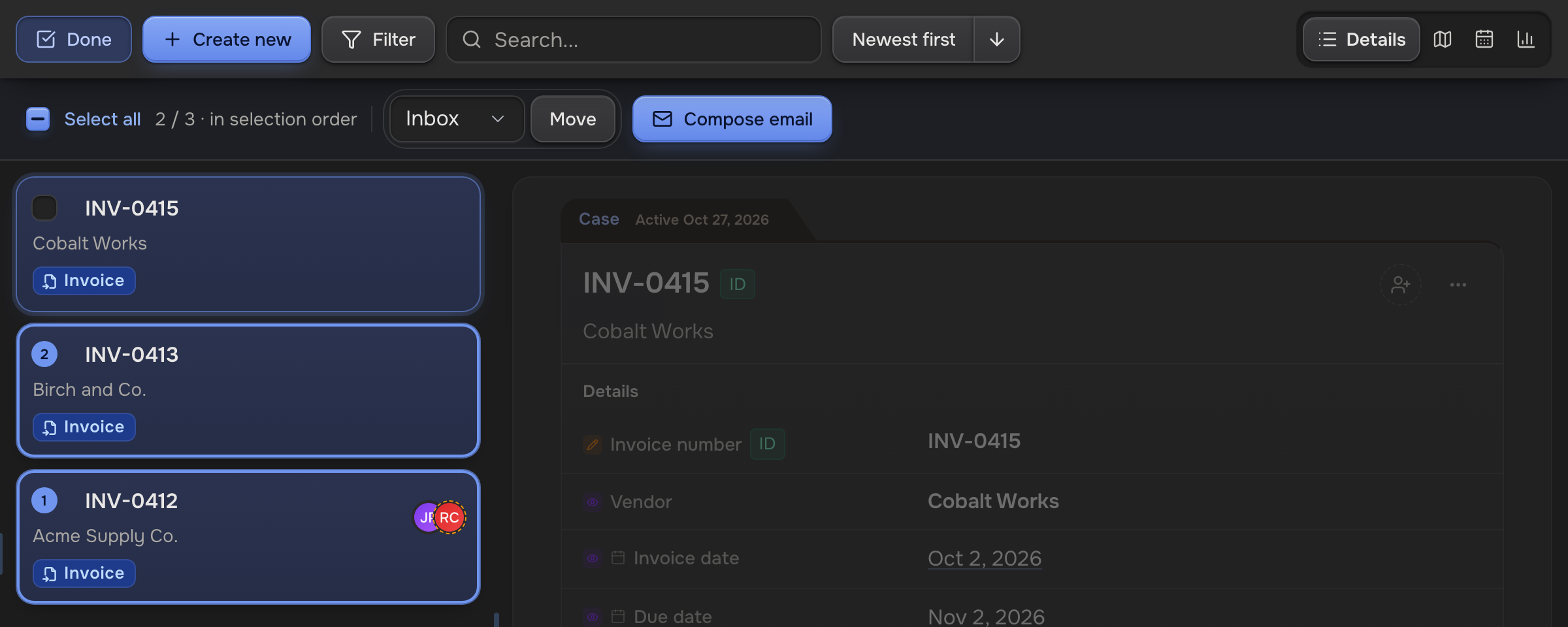
- Move files them in the mailbox beside it, up to 500.
- Compose email writes one email about the group, up to 1,000 cases. It opens in place of the case details: rows wear their number, a click adds or removes one, and Back to email returns to it. Cancel restores your selection; Open Gmail draft puts the draft in your Gmail (Email templates & drafts).
- Autofill shows when the workspace has a batch template: pick it under Template... to fill one document from up to 24 cases (Batch templates).
- Bring up to date reads new values into the ticked cases (Bring cases up to date).