Cases & case data
A case is the record for one unit of work: its files, the values read from them, the documents made from it, and everything that happened. Each value is saved under a key that never changes, so renaming a field later never moves the data.
Every template run saves its values to a case, and the next document reads them back. Cases open on Pro; Free and Lite keep a run as a temporary case marked Expires {date}. Upgrade to keep it. (Plans & limits).
Where cases come from
An automation takes a file from Gmail, Google Drive or an upload, reads its ID and files it: a known ID joins that case, a new one starts a case. A CSV, XLSX or DOCX list dropped into the AI assistant starts one case per row, up to 200 rows and 15 MB.
 A file arrives
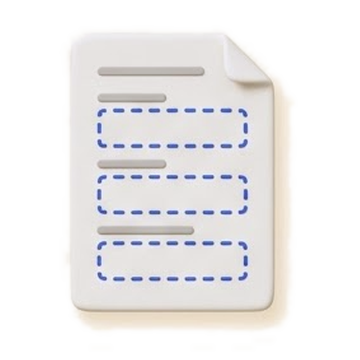 Your template
 Its case
By hand, click Create new: set a Case ID (Auto-generated if left blank), add values with Add field, and click Create case. Uploading a file saves the draft at once. The case lands in the mailbox you are viewing, or in Inbox from All mailboxes, Archived or Trash. An edited draft asks Discard new case? before it goes.
Inside a case
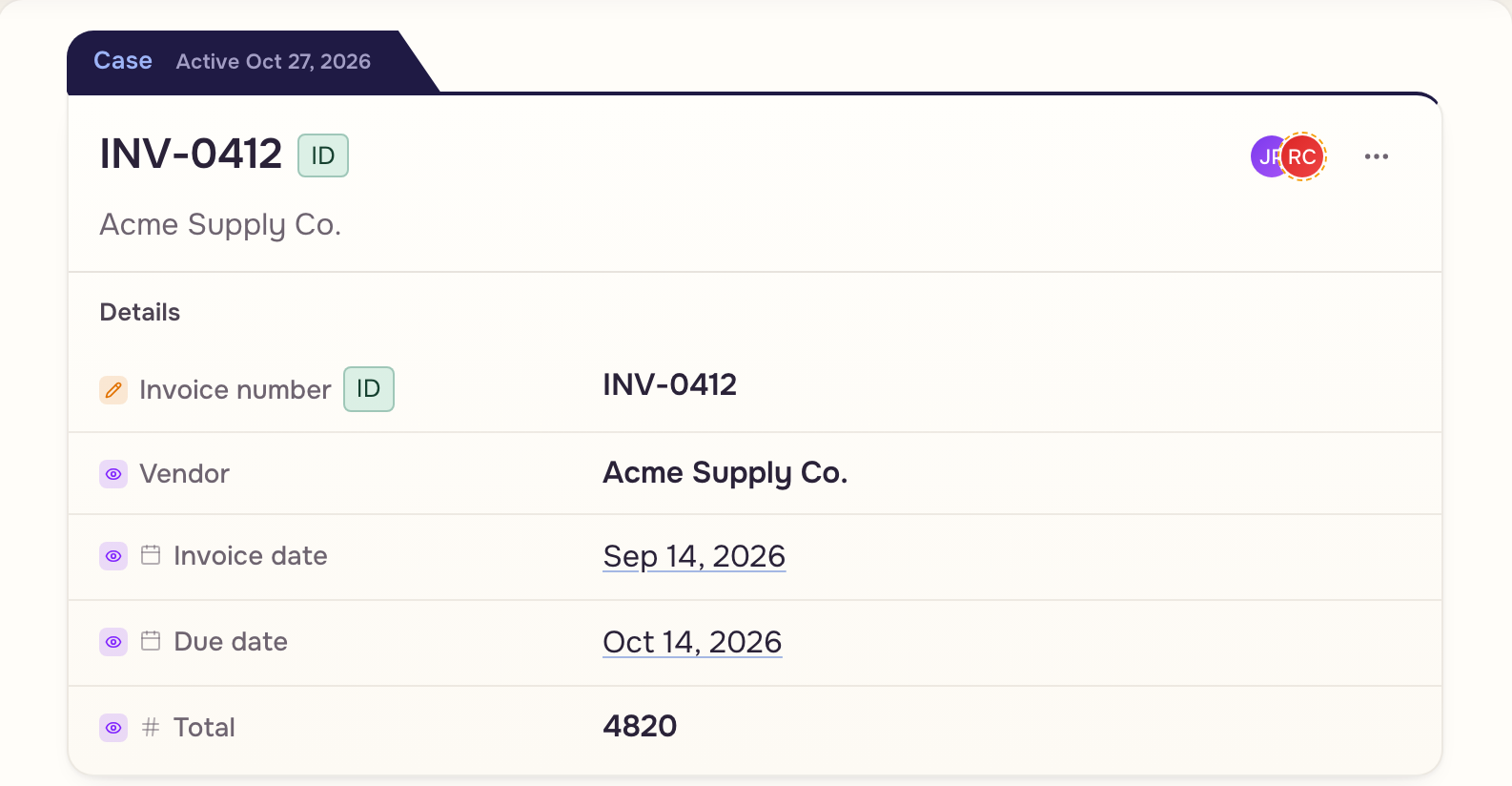
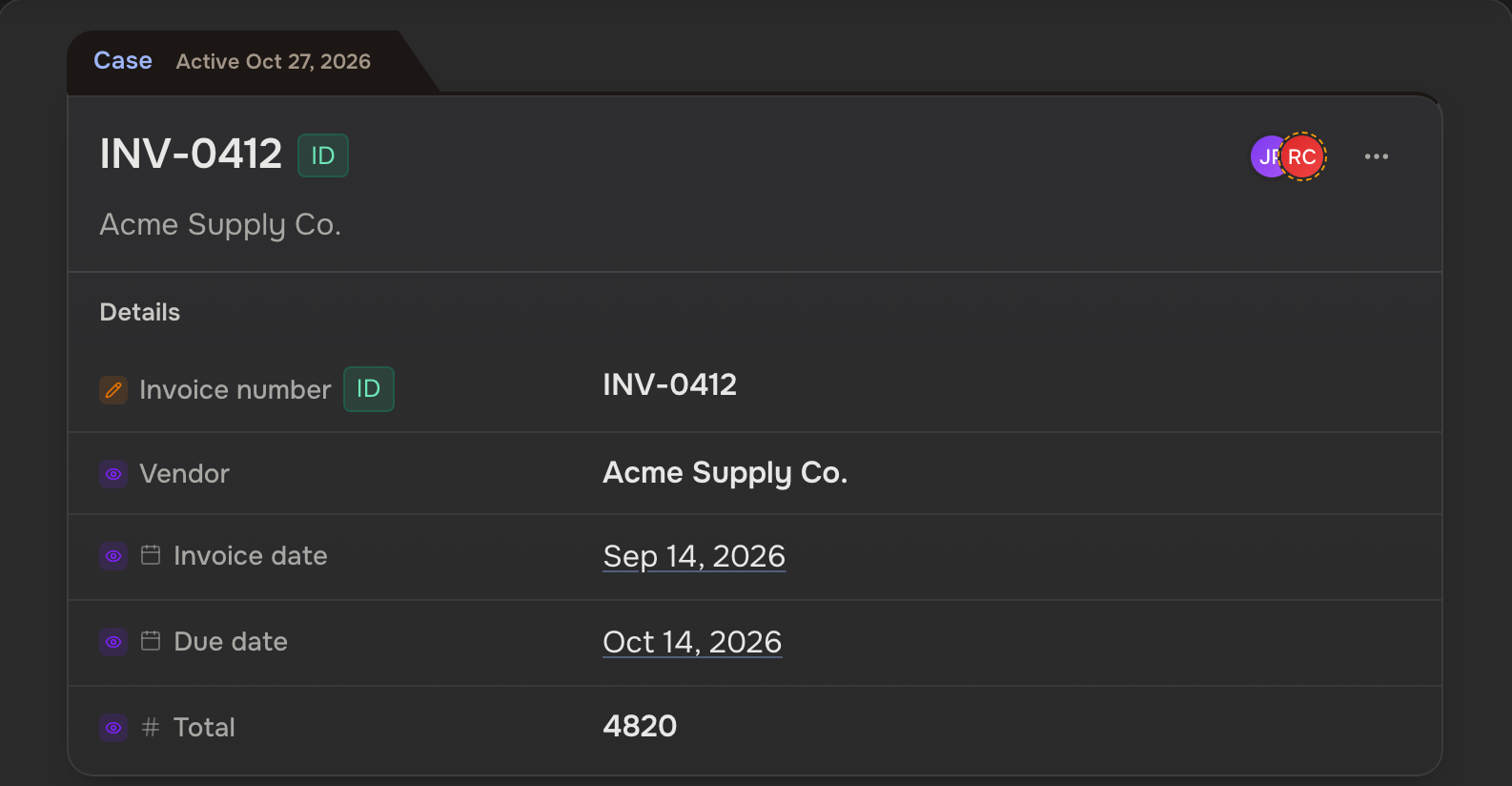
The title block holds the ID, the subtitle and the people on the case. Case actions, the ⋯, holds Edit case, Compose email, Move to mailbox, Details fields, People on this case, Add teammate, Add client and Delete case (People on a case).
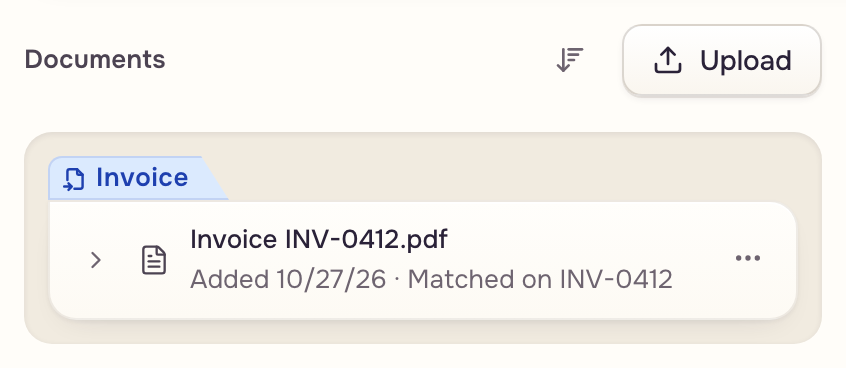
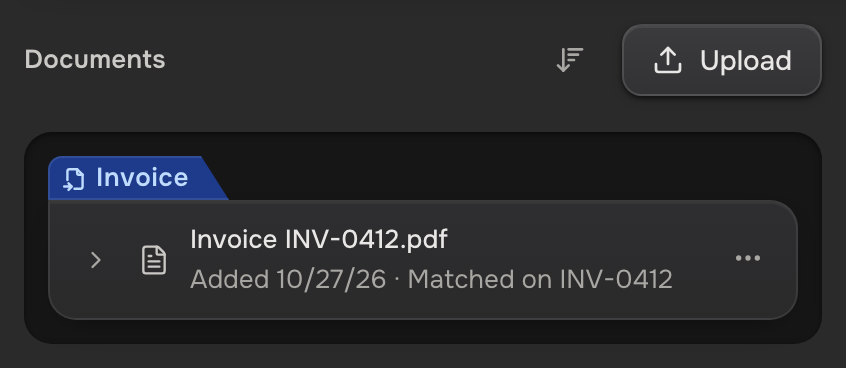
Documents is one flat list of the case's files, received and generated alike, with Upload. A file's menu offers Share, Link to document…, Move to another case…, Start a new case from this file and Delete.
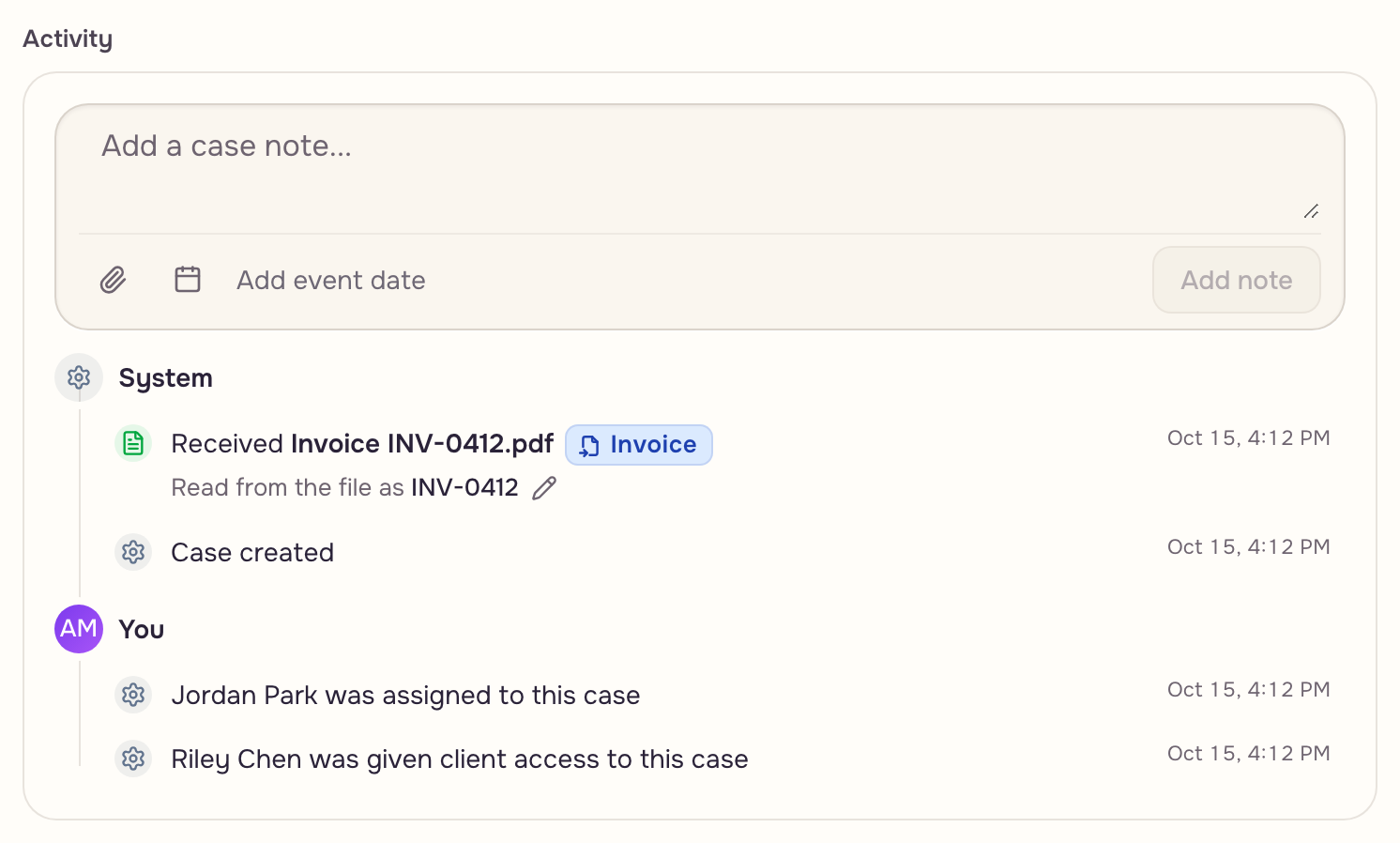
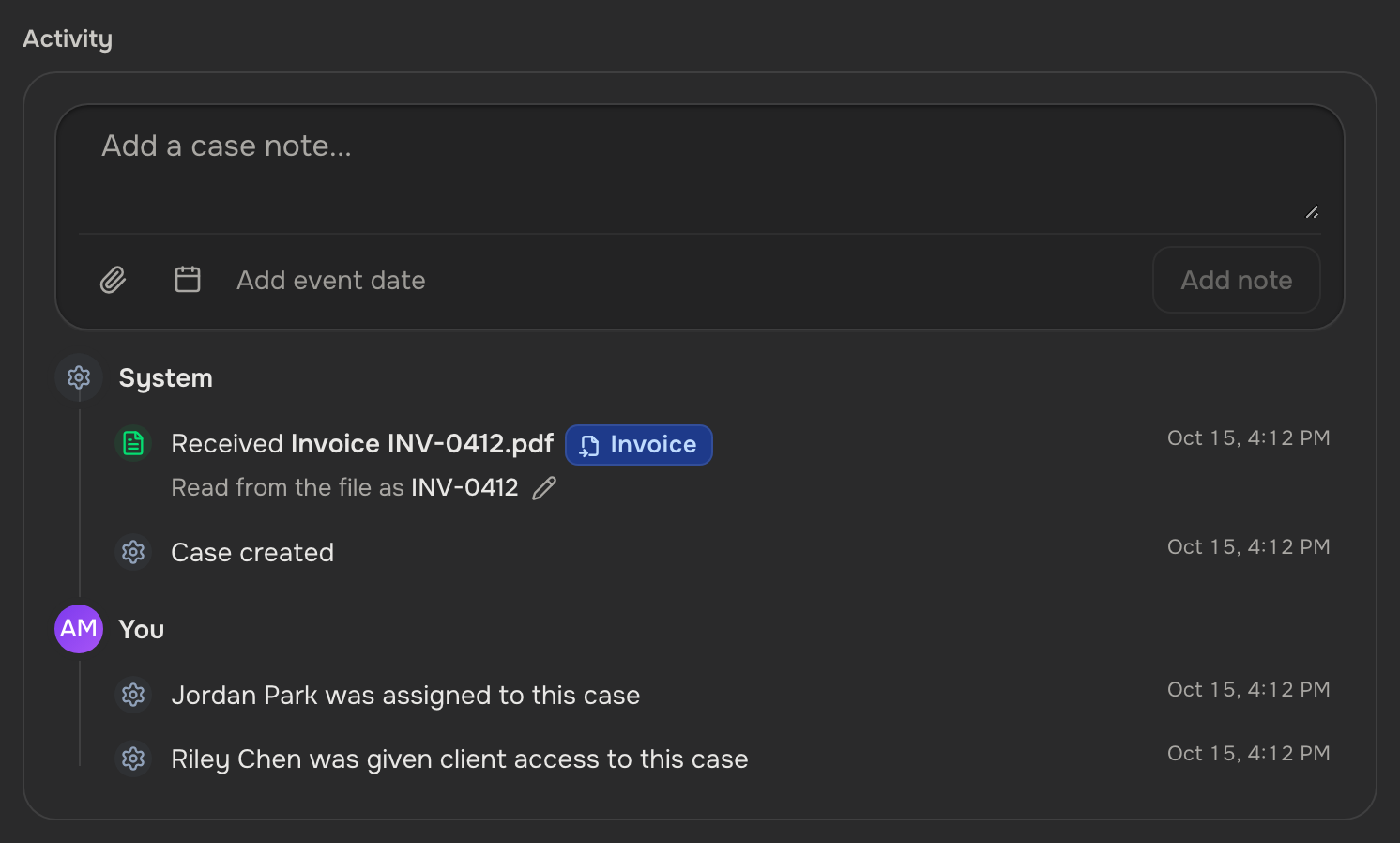
Activity is the record: files, runs, value changes with old and new, people, notes. Only notes can be deleted (Case IDs & history).
The case ID
A field with the ID type sets it. No two cases in a workspace share one; that is how a file finds its case. A case without a real ID wears an auto tag until a read finds one.
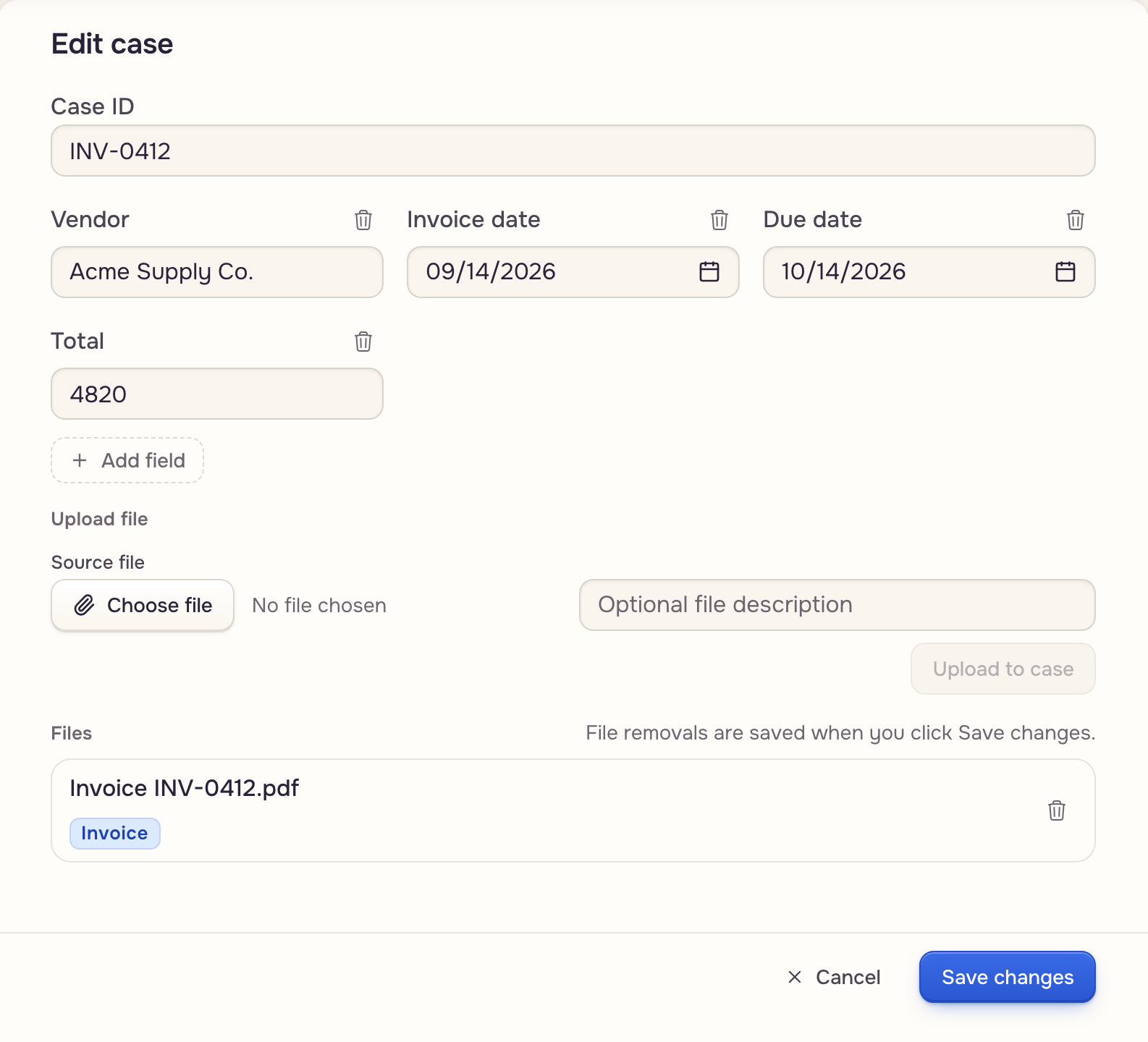
To rename a case, open Edit case, change the Case ID and click Save changes; a taken ID offers Merge into existing or the next free ID. A file on the wrong case is fixed from Activity: the pencil beside the ID it was read as, then Move file there or Move to new case (Case IDs & history).
Where each value comes from
Every value wears the tag it wears in the template preview:
- Extracted, an eye: read from a file, or from the email or Drive folder that delivered it.
- User input, a pencil: a person typed it.
- Computed, ƒ: a calculation, an AI answer, or a date or company detail.
- Static, a stamp: a fixed value from the template, hidden until you show it.
Details fields in Case actions ticks which values show (Show all for all), for you alone, per workspace in this browser; its Role visibility row is where the owner and admins set what teammates see (Teammates & access). Values are saved by key, so renaming a field or a column leaves them in place. A value pulled from The case is looked up fresh each run, never saved.
Change a value
Edit case gives each field its template's control: a calendar, a number box, a checkbox, the run form's choices. Repeating rows are a table with Add row and live totals. Save changes saves it all. Add field saves at once and never replaces a filled value.
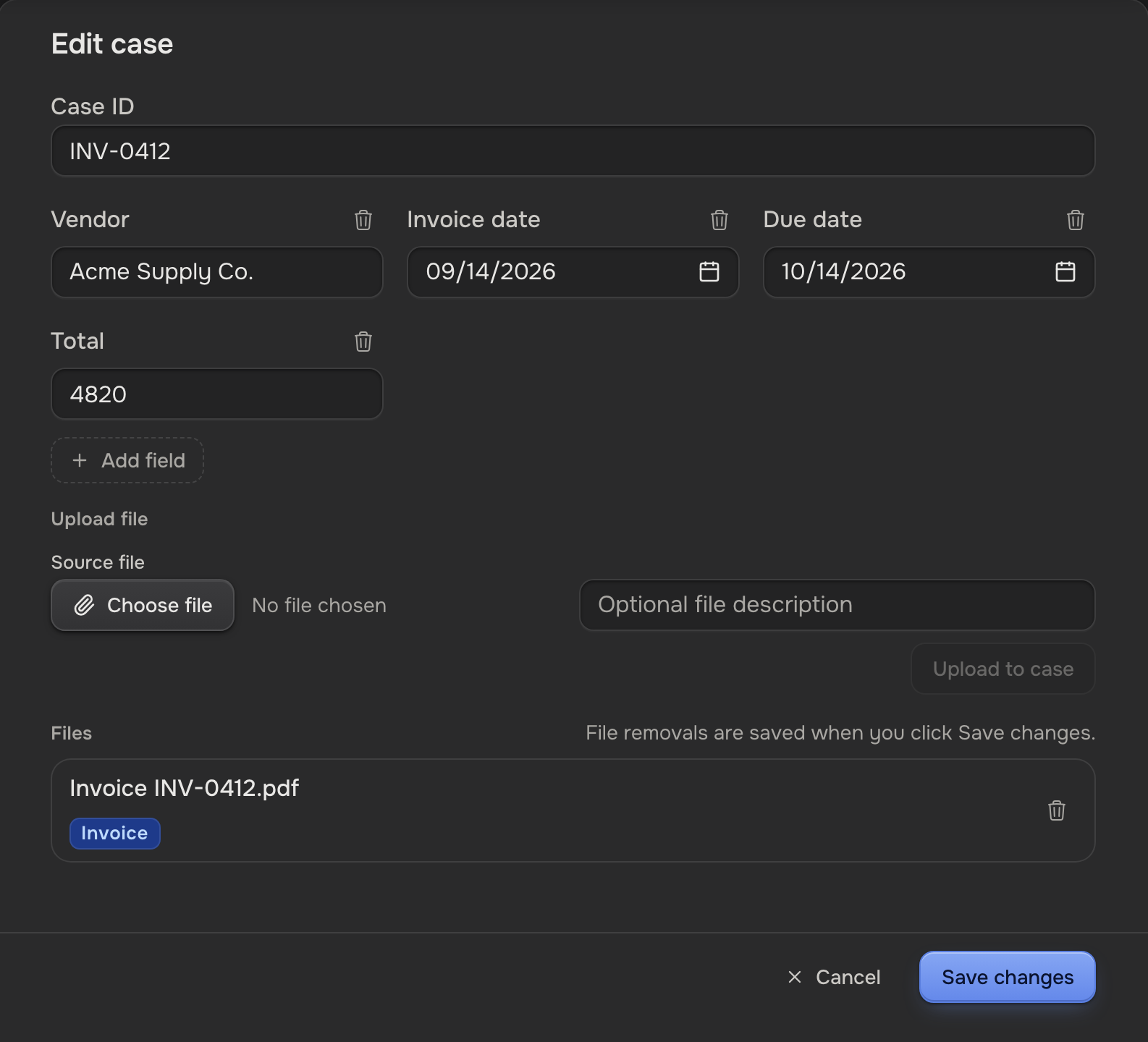
Changing a read value flips it to User input and pins it: later reads leave it alone, and clearing pins it empty. Re-extract under the file's More actions refreshes the rest. The clock beside a value shows who changed it, from what, and when; clearing adds a Cleared {field name} row to Activity. A date keeps the document's wording in a popover; an address gets Open {field name} in Google Maps. A Batch field repeats per case in a document made from several cases, and stays off this list (Batch templates).
When a file and the case disagree
A read you start, with Extract or a run that reads a file, stops when the file's value differs from the case's. This file has different values lists them side by side. Per value, choose Use the file's value, Keep the case's value, Keep both, label the file's value or Keep both, label the case's value. Set every row to applies one choice to all; Keep everything as it is, or closing, changes nothing. A typed value starts on Keep the case's value.
The file says The case saysWhat the case keeps
Kept values show under Kept values below the details, with their label, file and who kept them; no template reads them, and the trash button deletes one. Automations and the AI assistant never ask: they leave typed values alone and update the rest.
Archive and delete
Archived keeps a finished case for good. Delete case in Case actions deletes it after a confirmation. To keep it 30 days first, choose Move to mailbox, then Trash.
Finished case Archived
 Trash, 30 days