Fields & value sources
A field is one value your template handles. Its inputs say where the value comes from: the document, a question, a fixed value, the case, or the email or folder that delivered the file. Its outputs say what the field makes from it and where it prints.
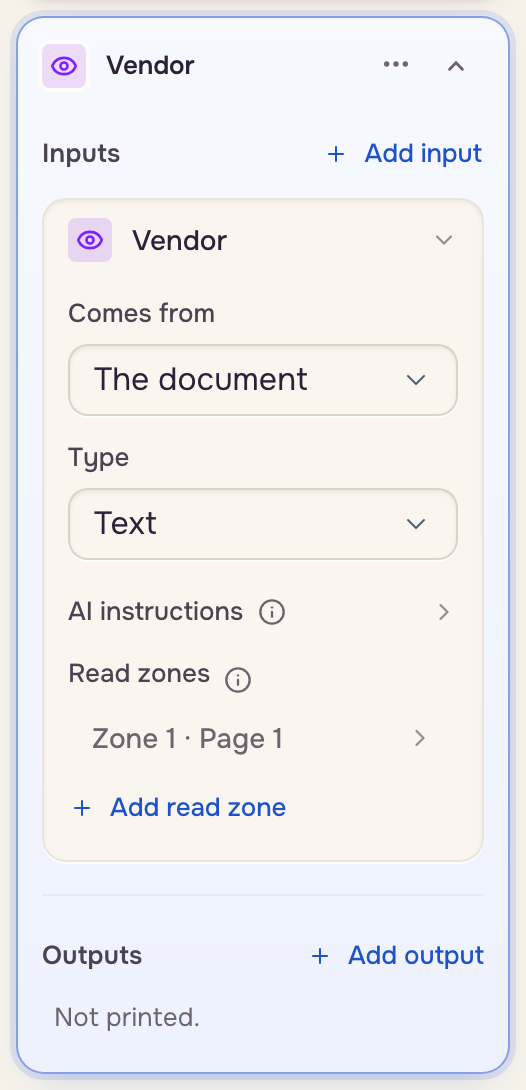
Fields sit on the right of the editor, one card per field on the page in view. Click one to open it.
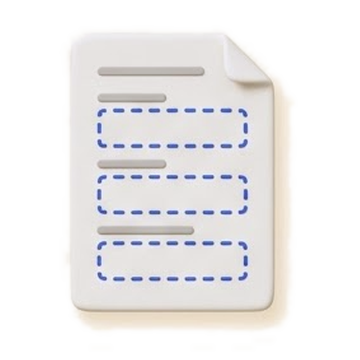 Your document
 Input values
 Outputs
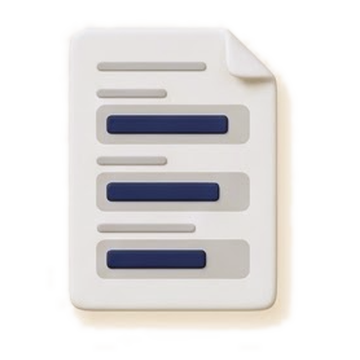 Filled copy
Read a field card
- Inputs: where each value comes from.
- Outputs: what the field makes from them, and where it prints.
Each row carries one word: Read, Asked, Fixed, From case or Delivery on an input; Calculated, AI, Fixed or Auto-filled on an output; Places on an input printed as it is. A printer mark means the value is written into the document.
Pick where a value comes from
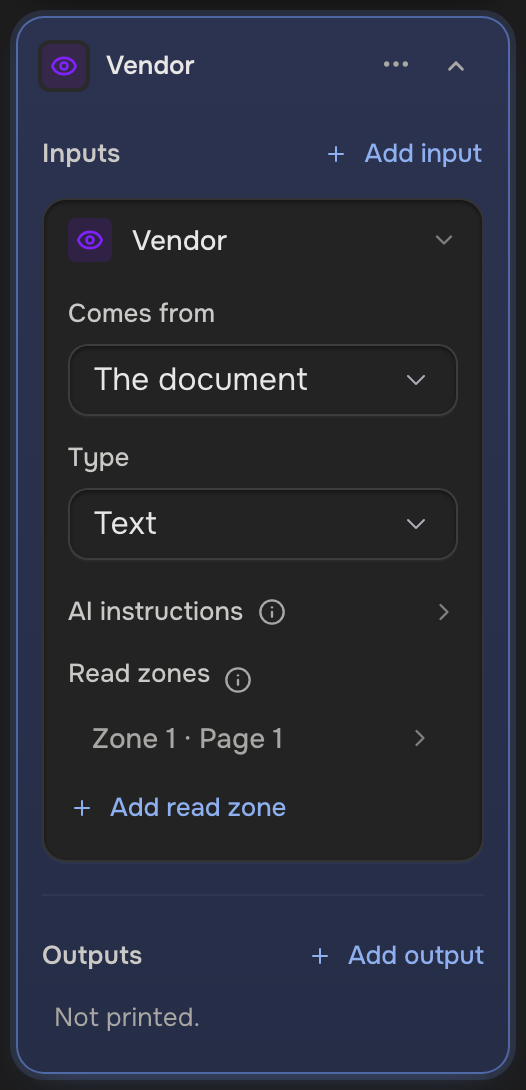
Open the input and pick what it Comes from.
- The delivery reads one part: Subject line, Sender address, Message body, File name, Folder name, Date added to Drive or Date last changed. Take part of it (optional) keeps a piece; a message body always needs it. An uploaded file has no delivery.
- The picker appears once the template has a document or a blank page. A template with no document is a form, and every field comes from The form.
Pick a type
Type decides how a value looks and prints: ID, Text, Date, Number, Phone, Link, Checkbox, Signature, Select, Radio group, Checkbox group, Address or Image.
The ID field
A new template starts with a Case ID field, marked ID: the case's identifier, such as an invoice number, read off the document. Files with the same ID land in the same case.
 A file arrives
 Its ID
 Its case
Set any input's Type to ID to use it instead. How cases merge covers two files with one ID.