Make your template smarter
Three things make a plain template smarter: AI instructions that steer what the AI reads, source tabs that join several documents into one output, and batch fields that fill one row per case.
A template that stamps values onto a PDF gets you most of the way. Pick what yours needs next. New to fields, Inputs and Outputs? Start with Core concepts.
Steer extraction with AI instructions
An input whose Comes from is The document needs a signal: a read zone (Add read zone), an AI answer output, or a rule under AI instructions. With none, it reads nothing.
The type shapes the read. A Date returns a real date or nothing, never a guess, and keeps the document's wording. A Select ignores its options; they constrain the form only. Write what the type cannot say in the instruction box.
The Data tab's chevron appears only when the template reads from a document.
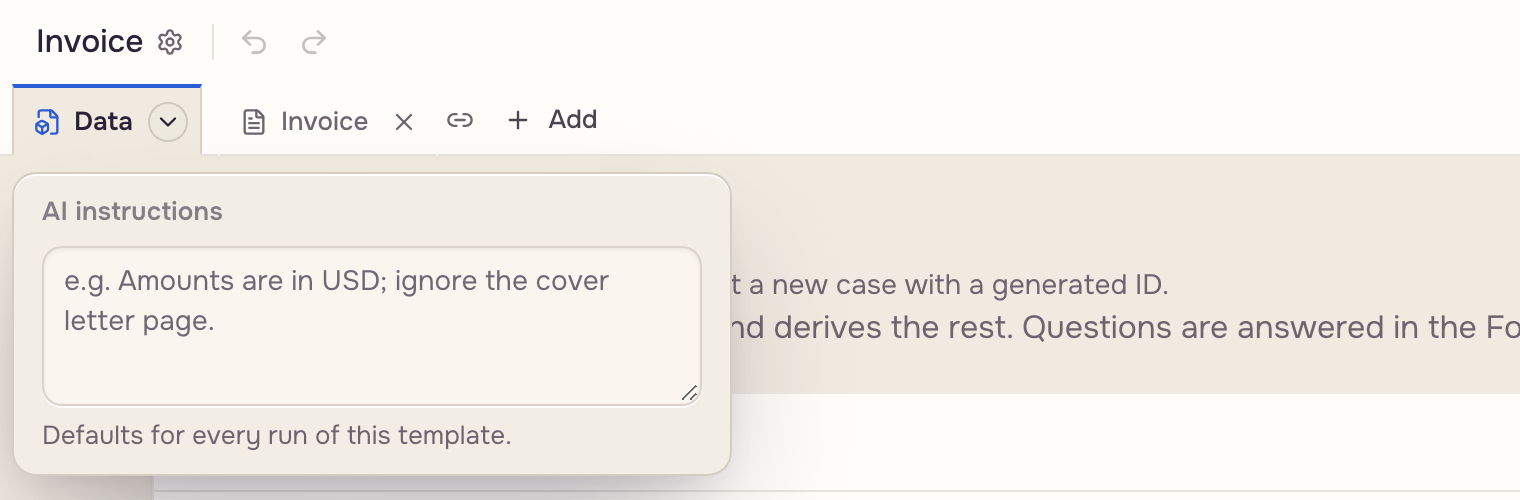
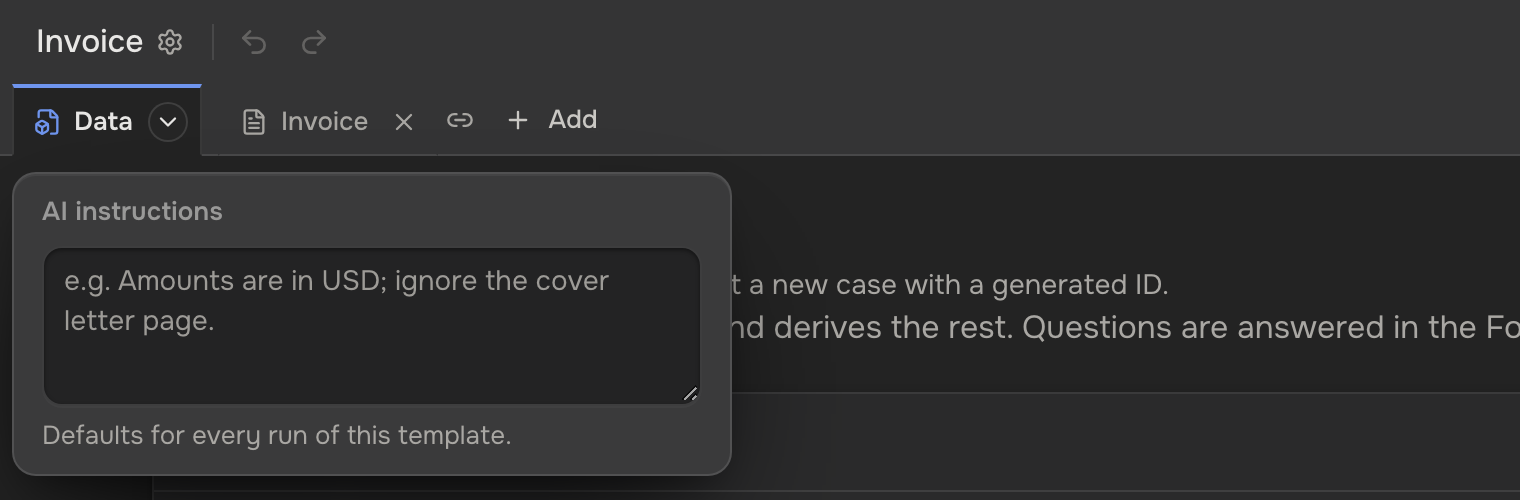
Test a read from Run: a case's file, an upload, or Use the sample document. AI extraction & instructions covers the four layers and the model picker.
Assemble documents with source tabs
One output often spans several files. Click + Add in the document bar: Sources from this workspace, Upload new file or Blank page. A document uploads once and serves every template in the workspace.
 Two sources
 One PDF
Removing a document asks you to confirm; a blank page goes at once.
When a document's layout shifts between copies, turn on Document reflows in the Fill section of template settings (click the template's name). It shows only on a template with a write zone. It is off by default and costs one extra AI call per fill.
 Shifted copy
 Anchors
 Filled copy
A field whose anchor it cannot find prints at its usual spot, and the run names it. Combining & reflowing documents has the bar layouts and anchors.
Capture repeating rows with batch fields
A Batch field turns a template multi-case: one run fills one row per case. It fans out over cases; it does not collect line items inside one case.
 Checked casesOne row per case
Build the row under Schema fields with Add schema field; each column's Comes from is Read, Asked or Fixed. Set the row count with the Rows: stepper under Placements. A table holds at most 200 rows and 1,000 zones, and the add controls stop there. A run with more cases than rows refuses to start; rows no case fills stay empty. Row order (optional) defaults to the selection order.
Anyone can author a Batch field. Running one opens on Pro (Plans & limits); without it the Batch autofill drawer offers the upgrade. On the dashboard, Select all the cases, then Autofill on the batch bar. Batch templates covers the bar and own-document runs.