Email templates & drafts
The app writes emails about your cases and puts them in your own Gmail as drafts. You review each one and click Send in Gmail. An email template saves the recipients, message and attachments an email starts from.
The app never sends email. It writes a draft from your cases and files; you send it from your own Gmail.
 Checked cases
 Gmail draft
 From your Gmail
Before your first email
Opens on Pro. Connect Gmail once: Settings, Account, turn on Gmail. The app only asks to create drafts.
Write an email
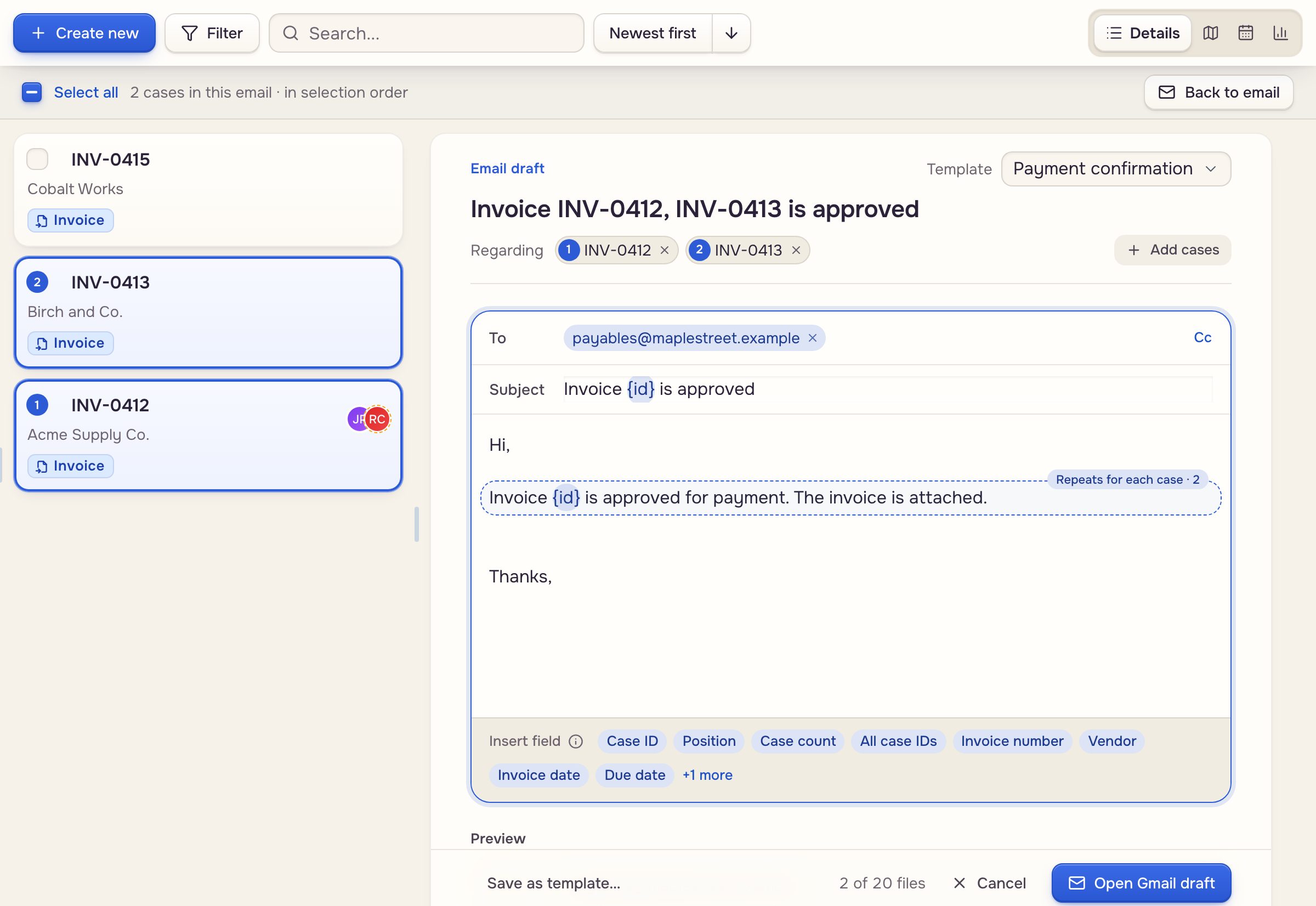
- Open a case: Case actions, Compose email. For several: Select cases, tick them, Compose email in the bar.
- Tick more cases in the list to grow the same email.
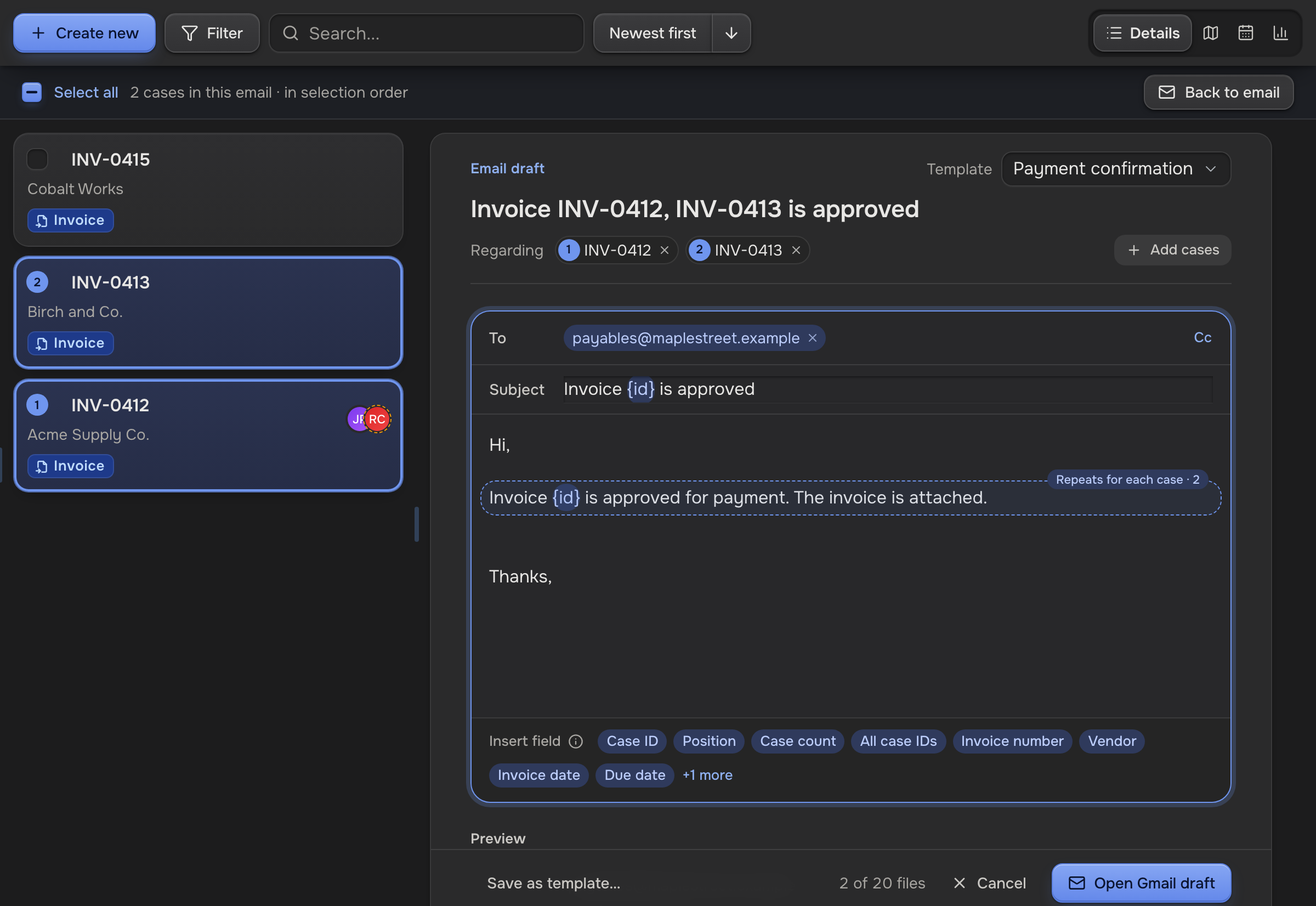
- Pick a Template or write your own. Insert field drops a case value at the cursor. A paragraph with one repeats for each case.
- Under Attachments, tick files and pick Attach or Link for each.
- Click Open Gmail draft. Gmail opens on the draft.
- Link opens only for people who can open the case in the app. For anyone else, Attach.
- Cancel closes without a draft.
Email templates
Owners and admins keep them under Email templates in the sidebar: + for a new one, or open one and click Edit. A template holds To, Cc, Subject, the message, and Attachments rules: All case files, one file category, or Case uploads and note attachments; Attach or Link; a Rename to… pattern if you want one. Click Save template.
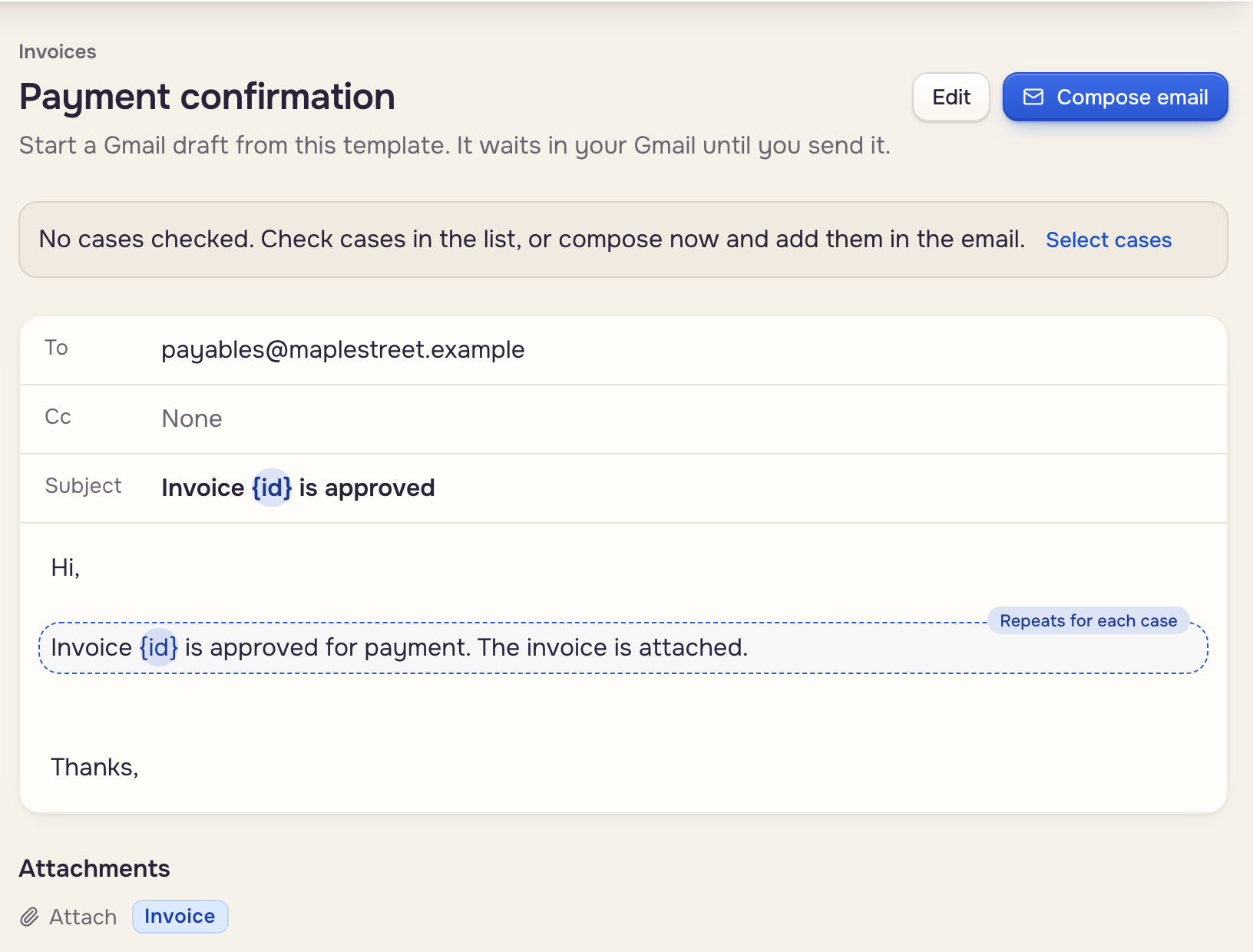
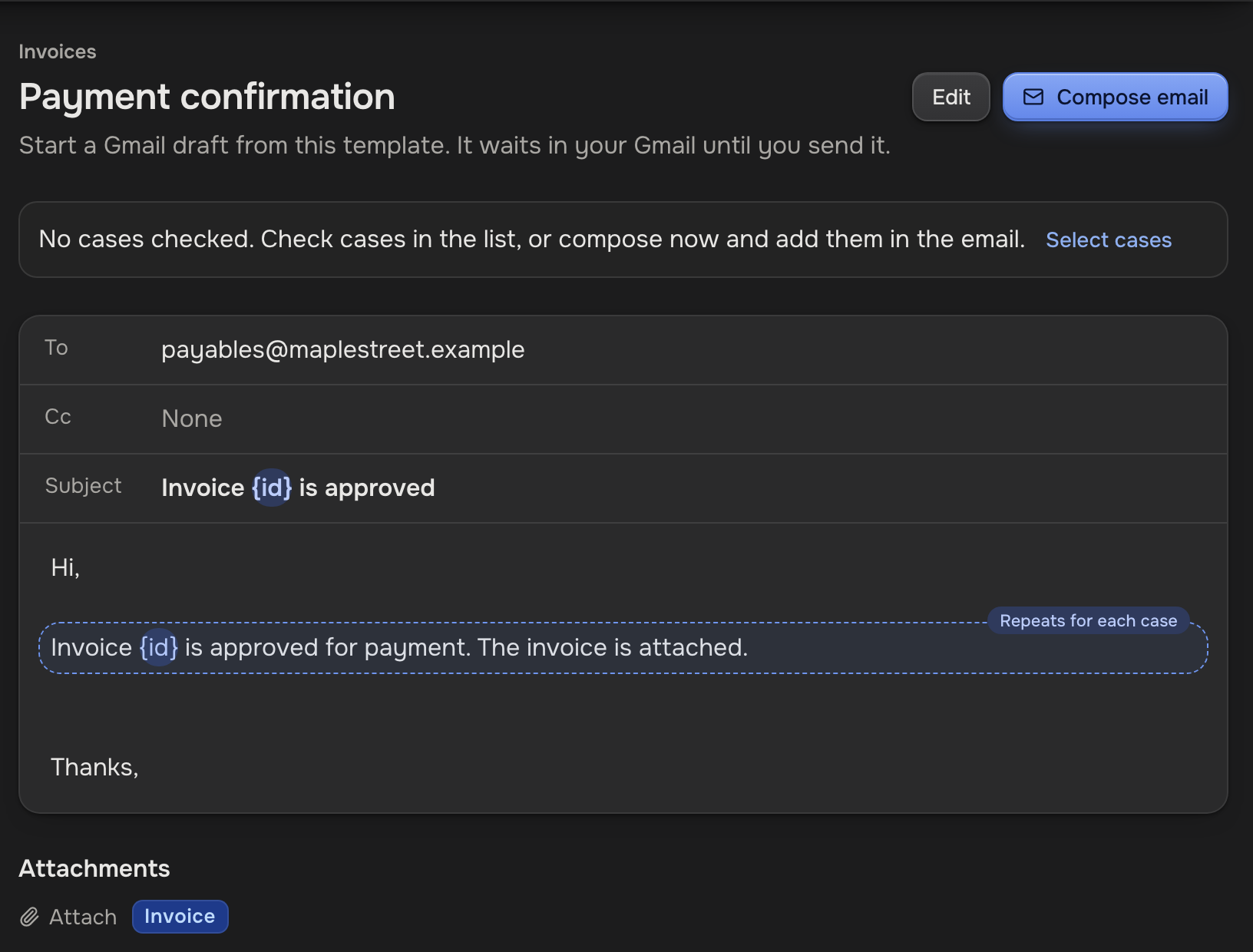
- Compose email on a template starts an email from it.
- Owners and admins keep an email as a template with Save as template…. Teammates pick one from the Template menu.
Limits and fixes
One Gmail draft holds:
- Connect your Gmail to compose: click it.
- Uncheck some files: over 20 files.
- Over 22 MB: switch files to Link.
- Gmail didn't open: a blocked pop-up. The draft waits in Gmail Drafts.