Combining & reflowing documents
One template can join several documents and blank pages into a single PDF. Each one is a tab in the bar above the page, and the tabs print in order, left to right.
Some paperwork goes out as a packet: an invoice, a cover letter, a signature page. Put all three in one template. Each document is a tab in the bar above the page.
The Data tab always comes first. It holds the template's values and questions and adds no pages.
Add a document or a page
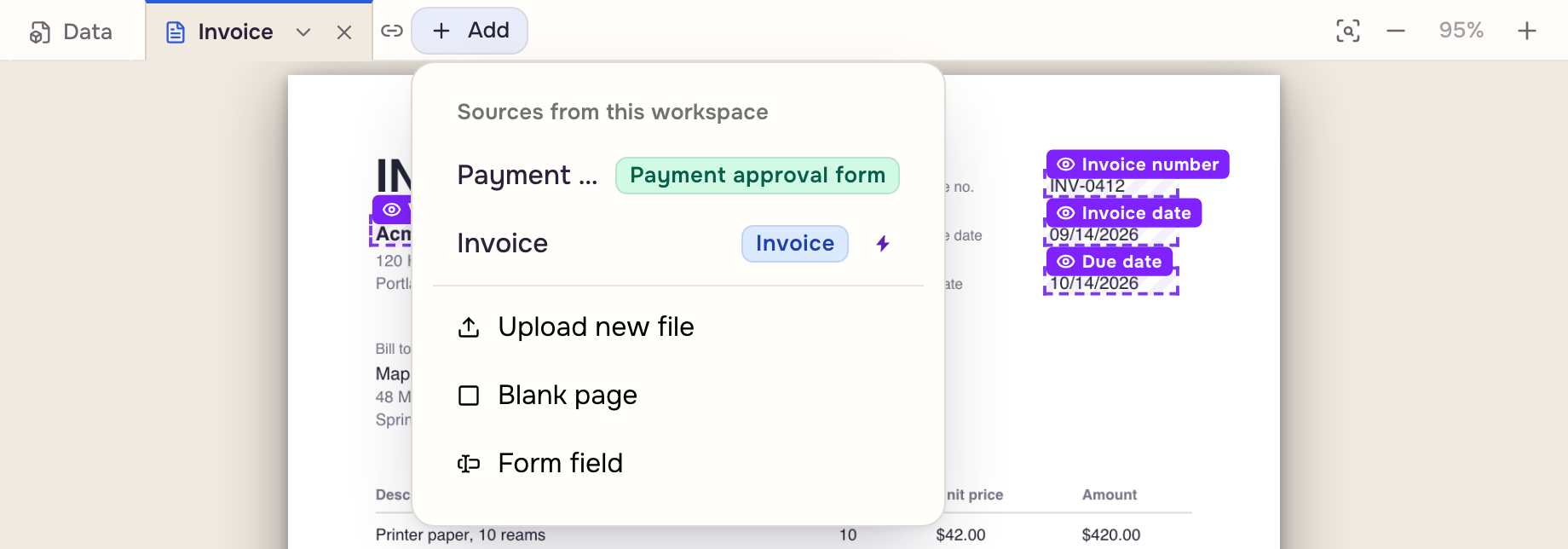
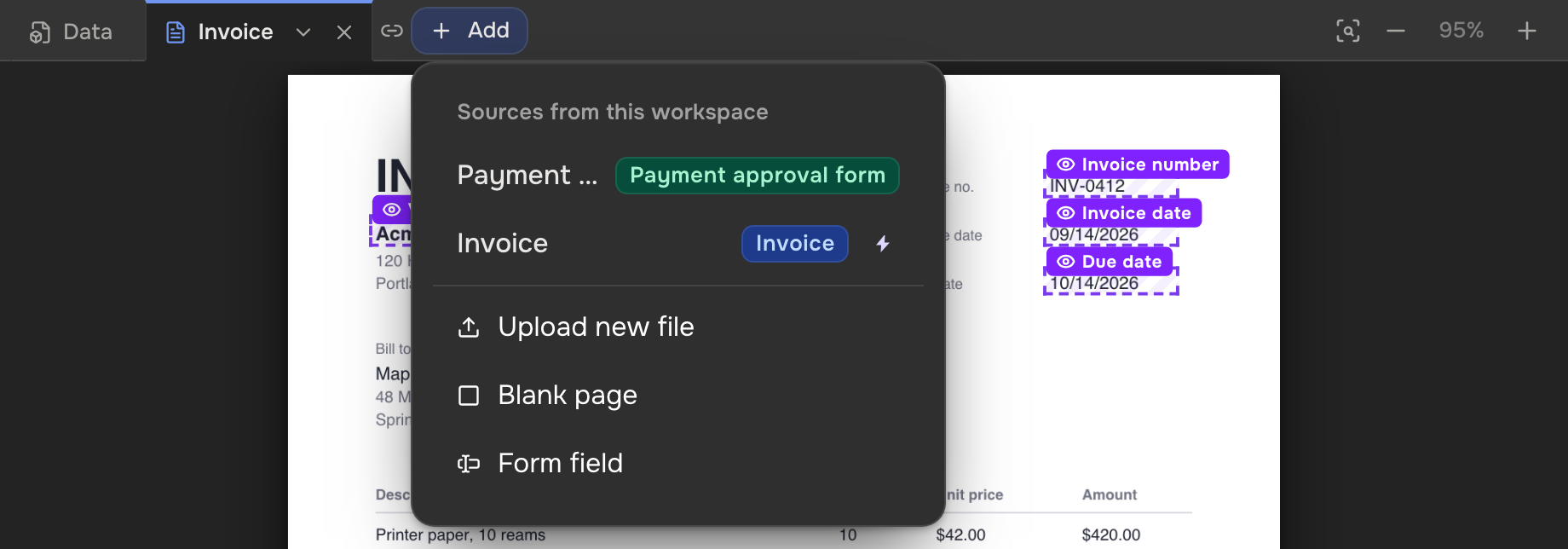
Click + Add at the end of the tabs and pick one:
- Sources from this workspace: a document already uploaded.
- Upload new file: a new PDF or Word file.
- Blank page: an empty page for fields.
- Form field: a question for the Data tab. It adds no page.
Drag a tab sideways to reorder. Fields stay with their document.
Settings for one tab
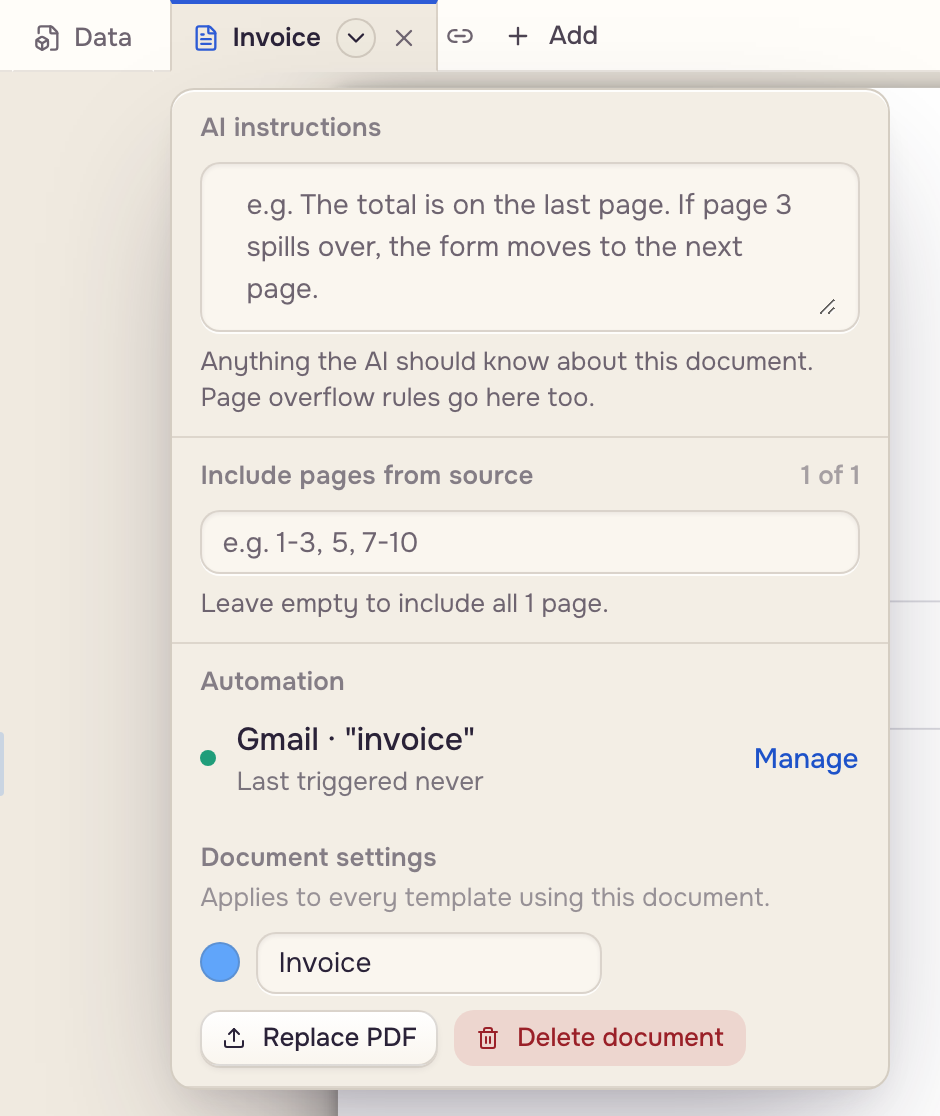
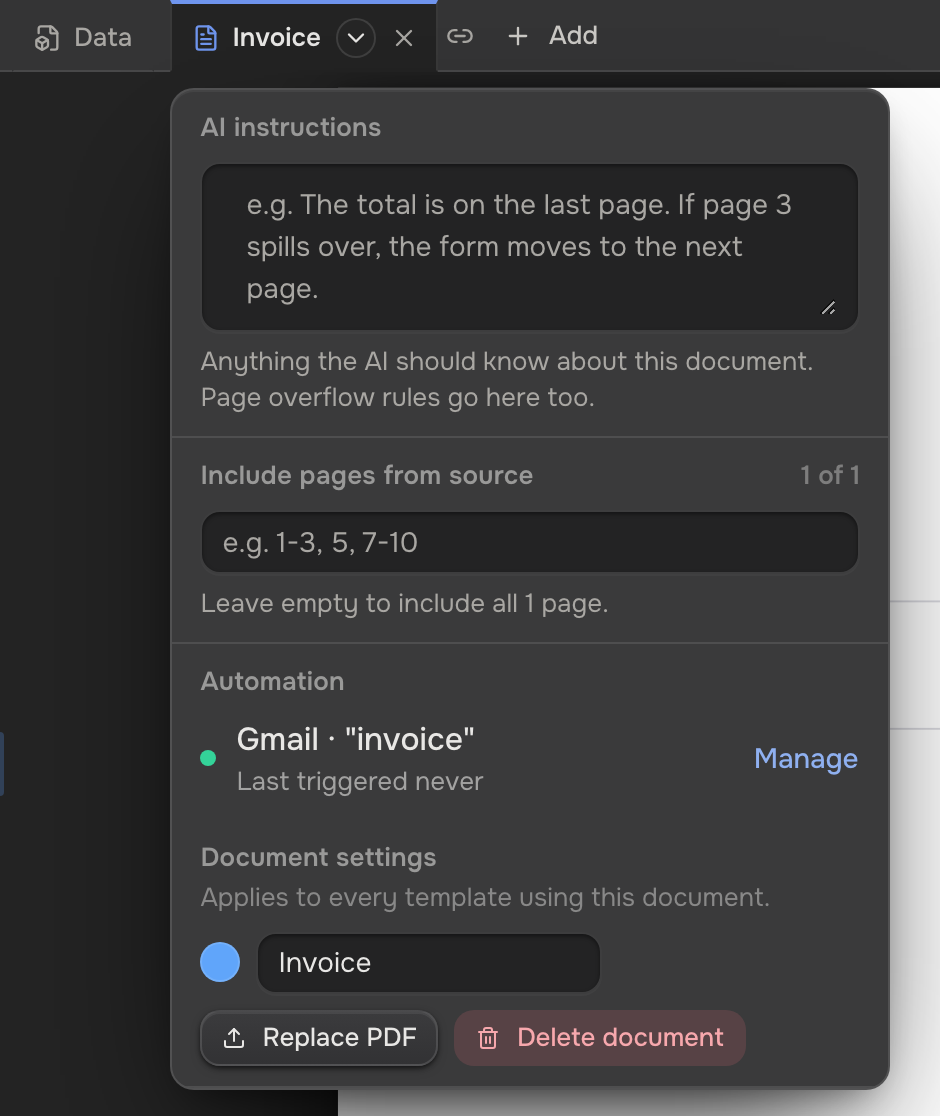
Click a tab, then the arrow beside its name:
- AI instructions: what the AI should know about this document, page overflow rules included ("if page 3 spills over, the next form moves to page 4").
- Include pages from source: some pages only, like
1-3, 5. - Automation: the automation that feeds this document, with Manage.
- Document settings: the name, the color, Replace PDF, Delete document. These apply to every template using the document, save at once, and need the right to manage templates.
Click a tab's × to take it out of this template. With fields on it, the app asks first; the fields stay.
One document, many templates
A document belongs to the workspace, not to one template. Upload it once, and any template adds it from Sources from this workspace. It also names a file category, so files an automation reads with it land under that name.
 One document
 Any template
 Its file category
- Replace PDF swaps in a new version under the same name. Documents made from the old file count as out of date (Bring cases up to date).
- Delete document takes it out of every template. Its pages turn blank under a Missing source tab: remove that tab and add another document.
When the layout moves
Some documents shift from copy to copy: a longer table pushes the signature line down. Document reflows has the AI find each field's spot on each new copy, for a few more AI tokens per run.
- Click the template's name in the toolbar to open its settings.
- Under Fill, tick Document reflows.
- Click Back to template and Save.
 A copy that shifted
 Each field's anchor
 Placed where it is now
Each write zone then offers an Anchor hint (optional), like "on the line under the signature block". A field the AI cannot place prints at its usual spot, and the app names it.