The client portal
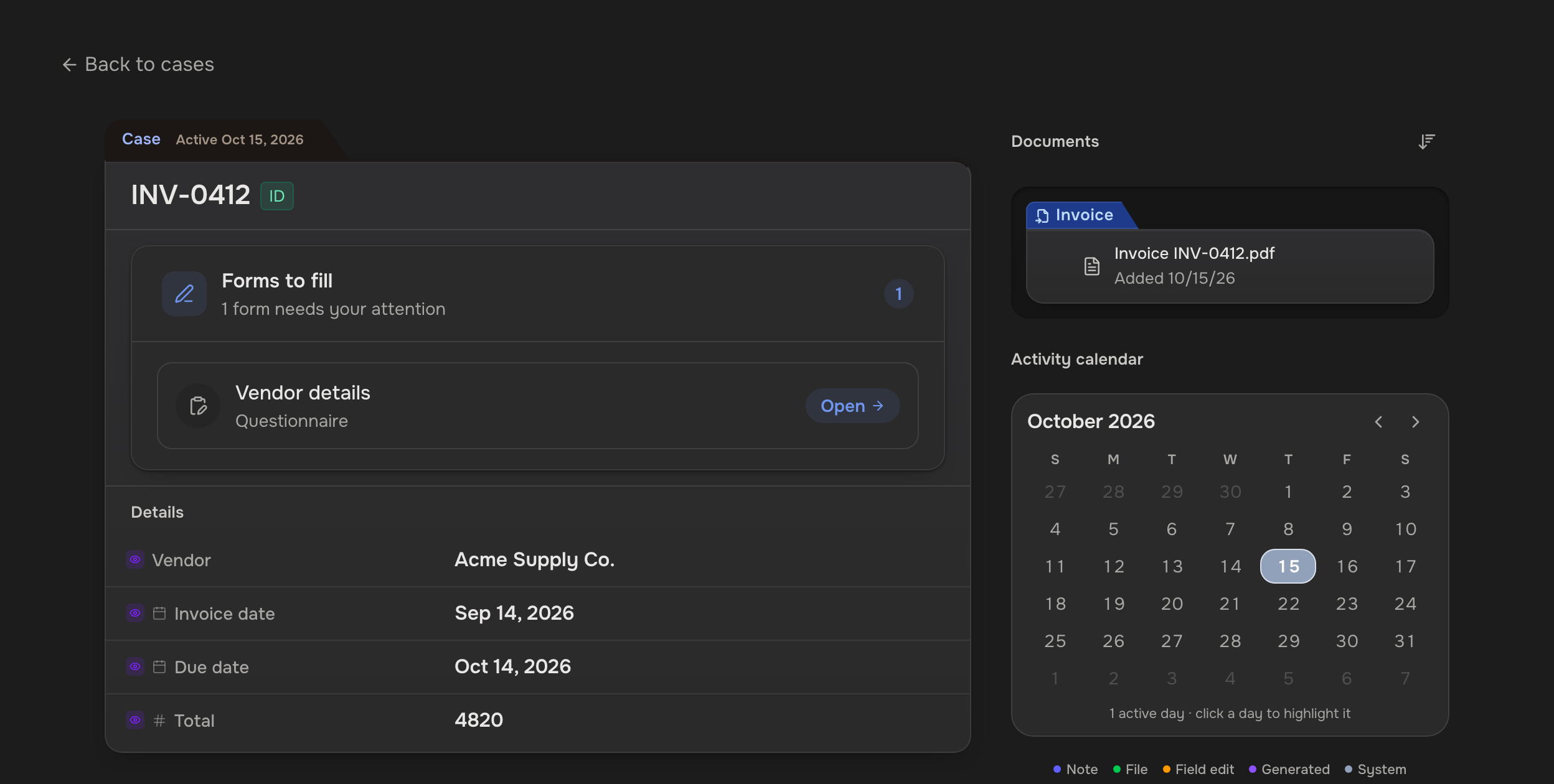
The portal is where an outside client sees the cases you share with them. They sign in with Google, see only the files and details you allow, fill in the forms you ask for, and sign documents.
Clients never see your dashboard. No password to send: they click Continue with Google with the address you added.
 View case email
 The portal
 Shared case
Choose what clients see first
Clients see nothing until you choose. Workspace settings, Clients: tick the file categories and fields every client here may see, then click Save changes.
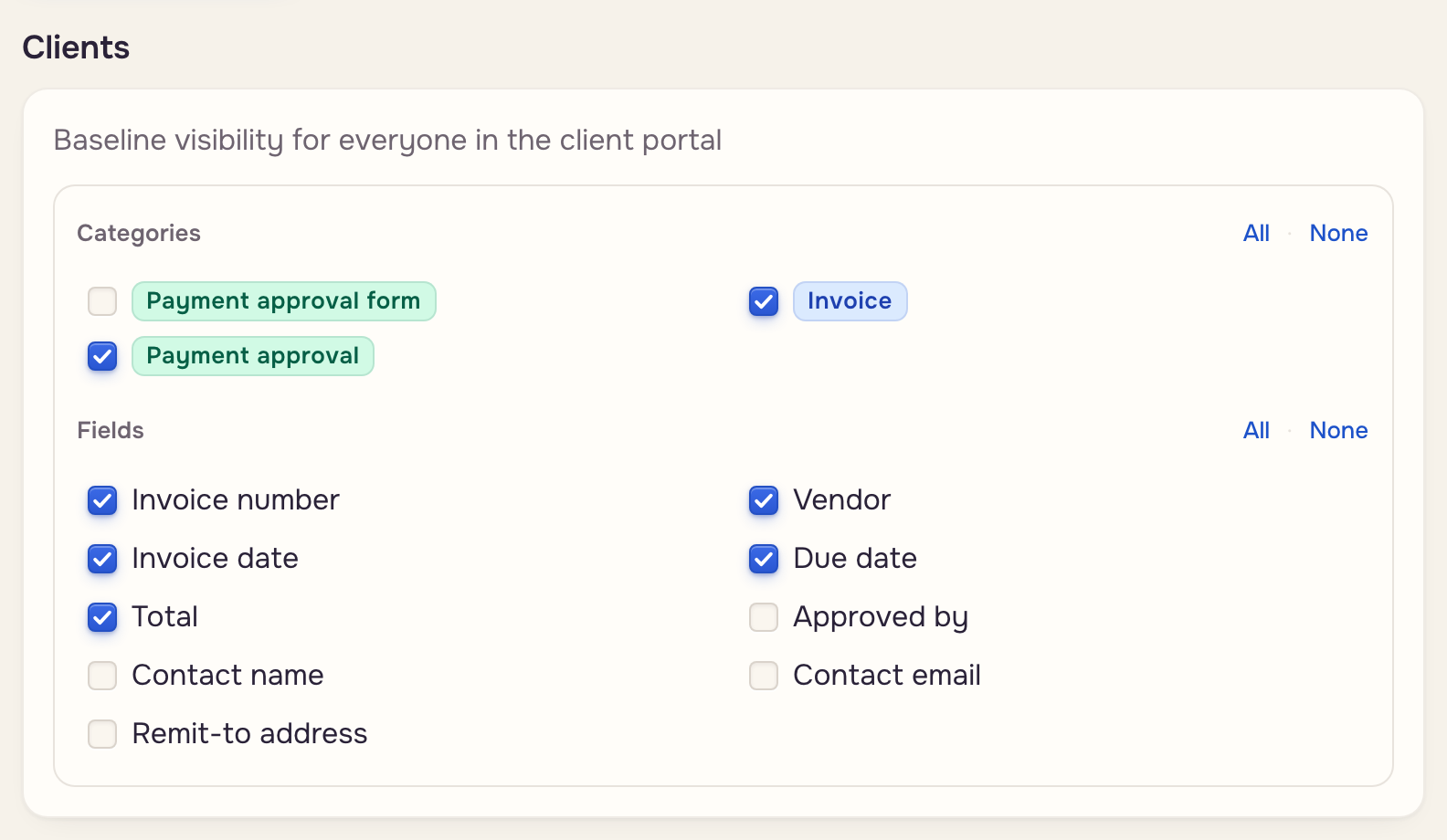
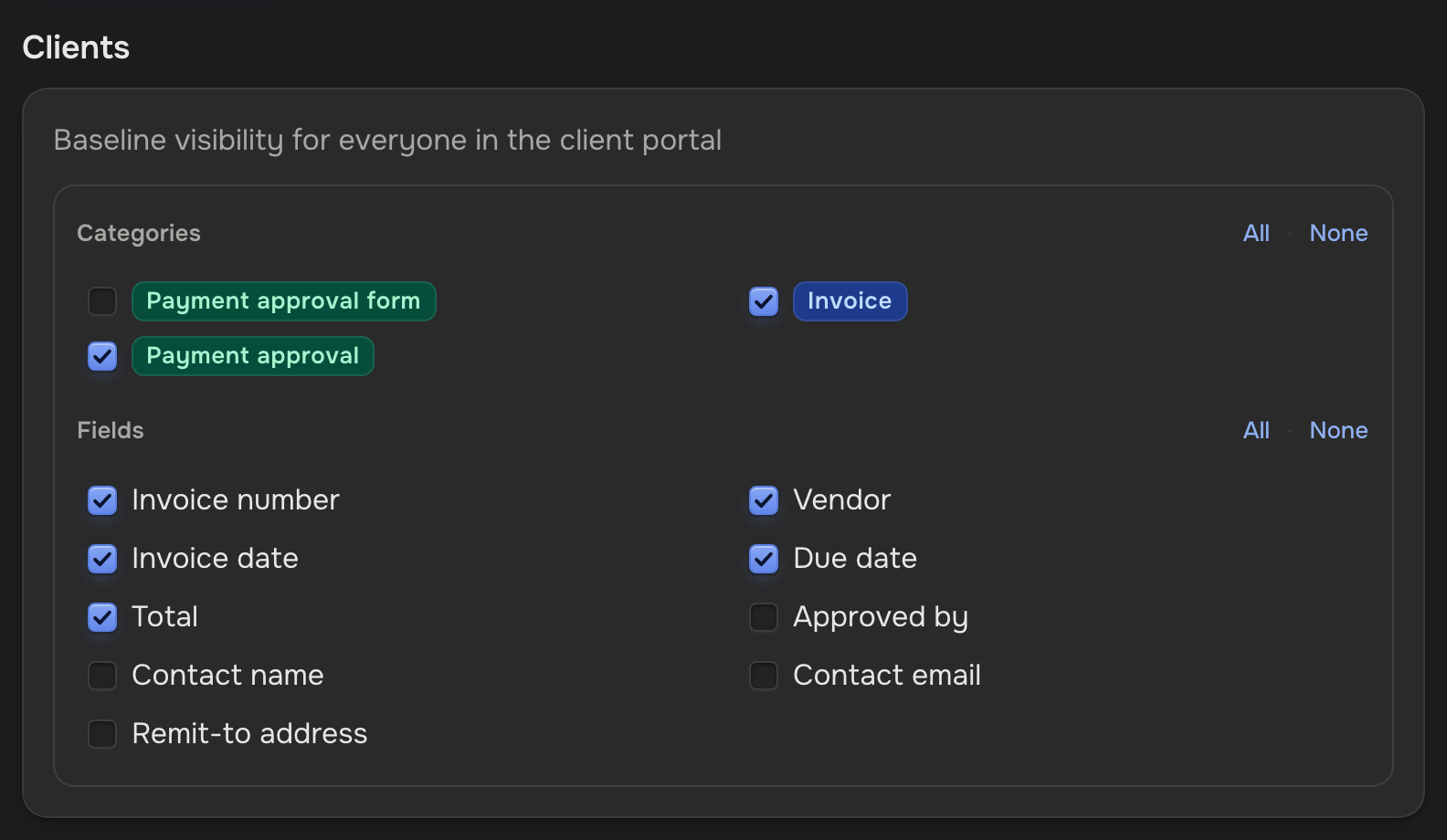
- A file with no category never shows. Sensitive values never show.
- One client, one case: Edit visibility on their avatar (People on a case).
What a client sees
My cases lists every shared case. A case shows Forms to fill, the details and Documents they may see, an Activity calendar, and the activity. Cases from several companies: pick the company first.
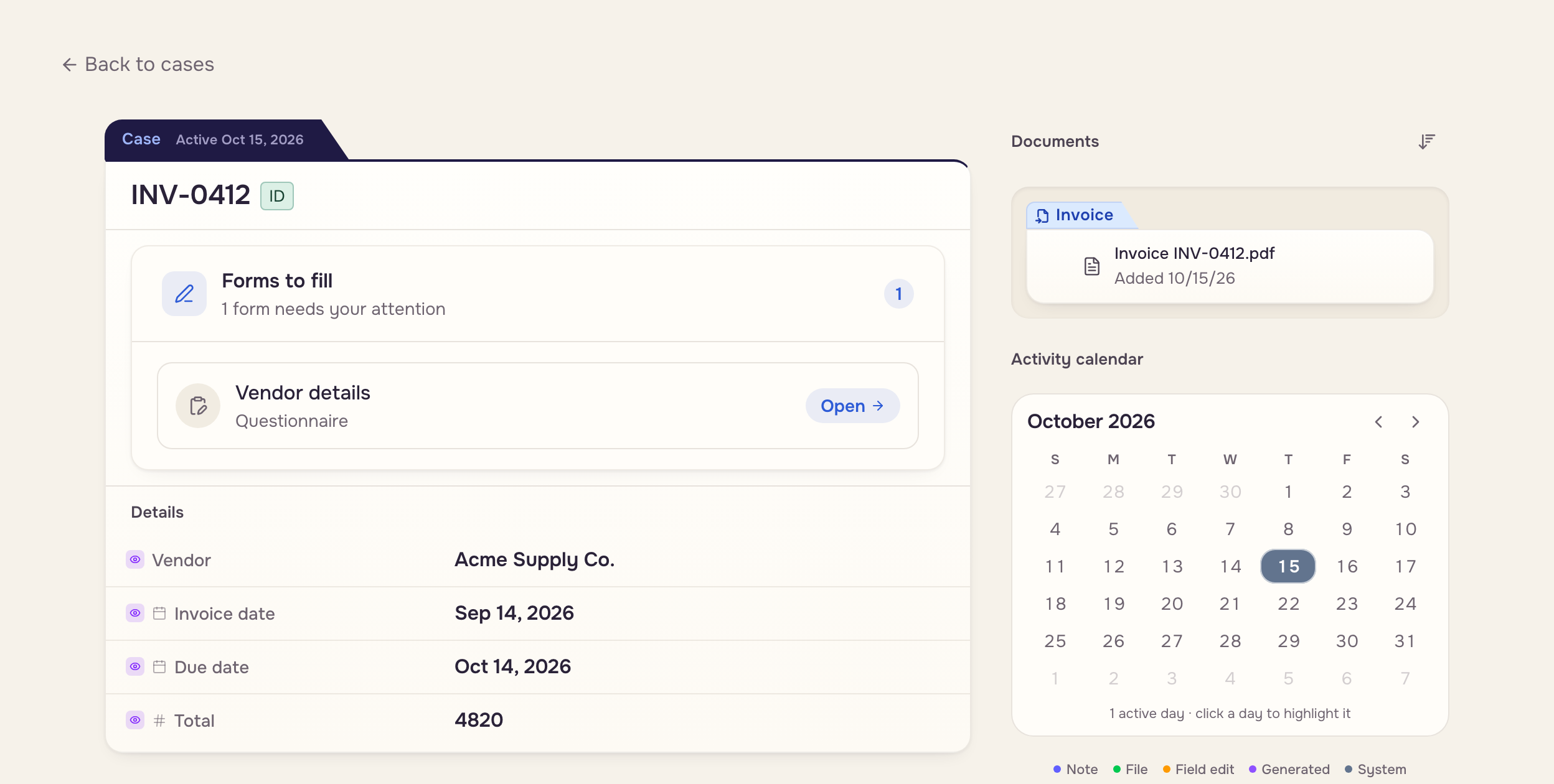
- Clients can Add note, with a date and attachments. Your team gets a notification.
- Lost the invite? Open
/portaland sign in with the same address.
Forms to fill
Click Open, answer, click Submit. Required questions must be answered, each the way your form asks: choices, a checkbox, a date field, a signature pad, a text box that grows.
 The form
 AnswersThe case
- A blank answer never erases a value. Your team gets a notification, and the activity shows the answers.
- A submitted form shows Submitted and locks. To fix an answer, edit the case.
Signing documents
A template with signature spots shows Review & sign. The client answers the questions, draws or types a signature, clicks Continue to sign, taps each highlighted spot, ticks I agree to sign this document electronically, and clicks Finish & submit.
 The template
 Sign
Sign Signed PDF
- The activity records it. An electronic signature, not a notarized one.
- A document built from more than one file: "This document must be signed by your contact."