Run a template
Click Run in the template editor, pick a case, and check the file and the answers. The app reads the file, fills the document, and saves both on the case.
A run puts a template to work on one case. Each new case gets its own run.
 A file
 Your template
 Filled copy
 The case
Start a run
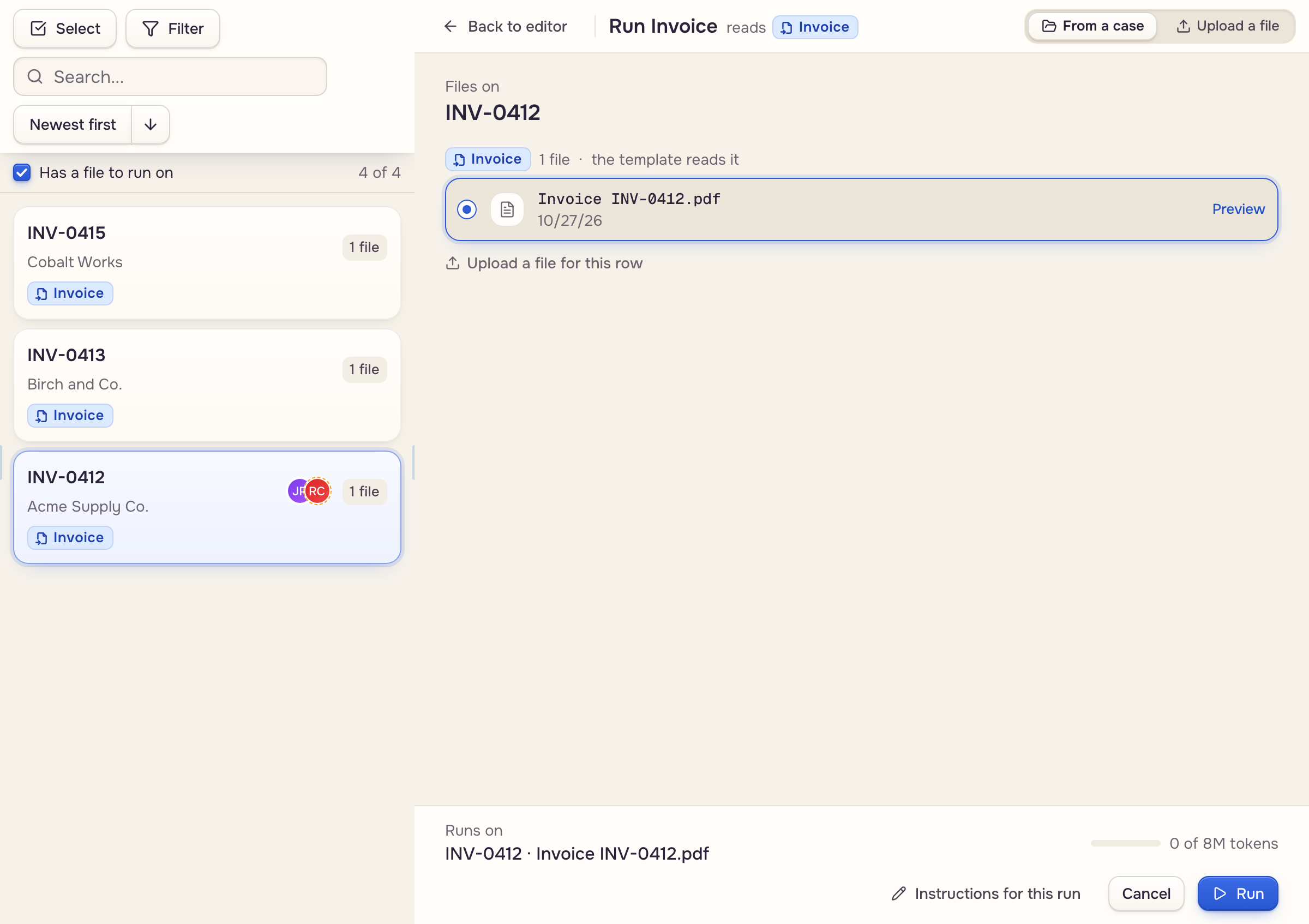
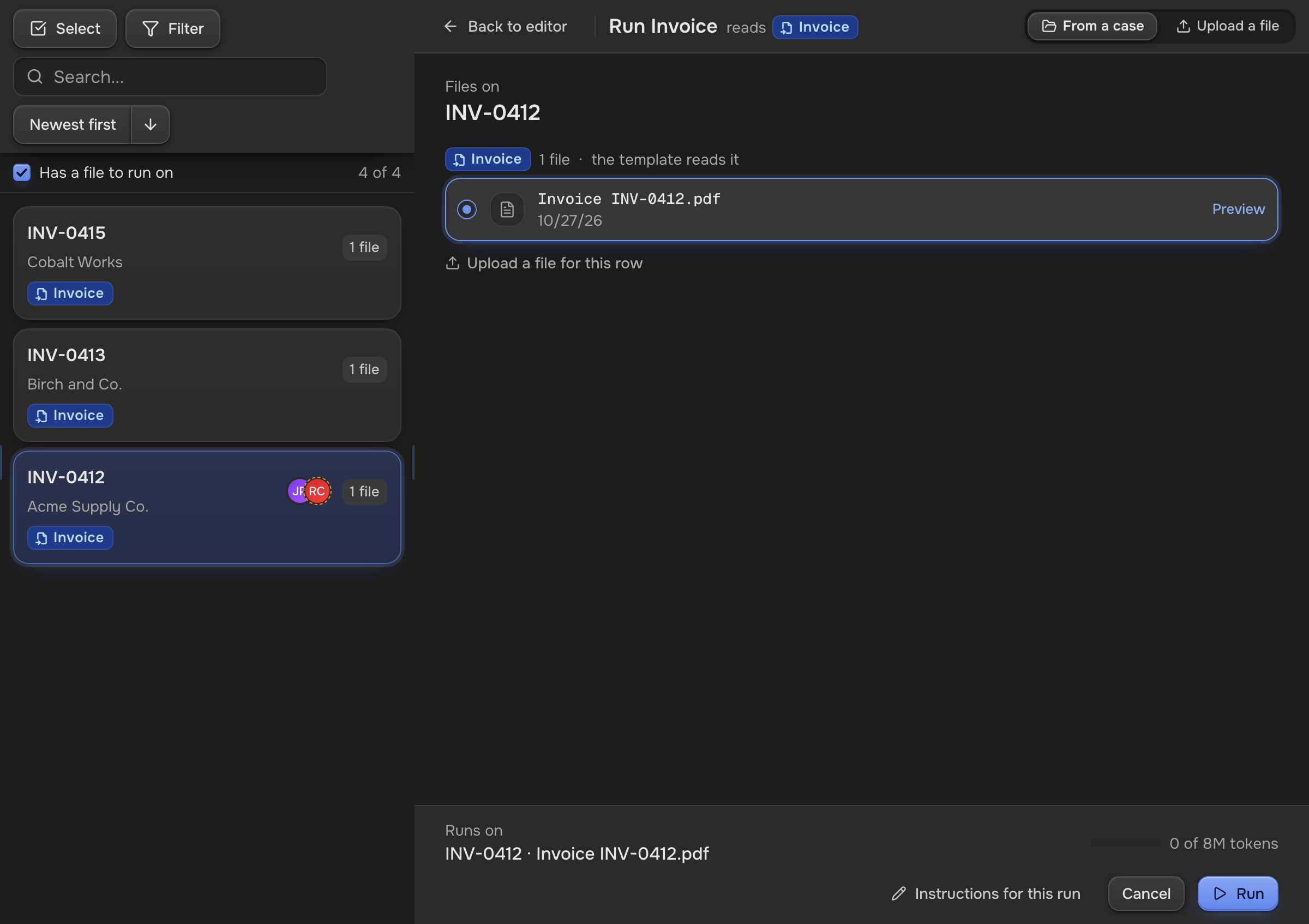
- Open the template and click Run. It is in the toolbar on every tab.
- Pick a case. The case you last ran on, or else the case you had open, is already picked.
- Check the file under Files on. The file your last run used is picked again, or else the newest matching file.
- Answer Form questions for this run.
- Click Run.
A run always uses the saved template. With unsaved edits, the app asks: Save & run or Use saved version.
Let the AI answer the questions
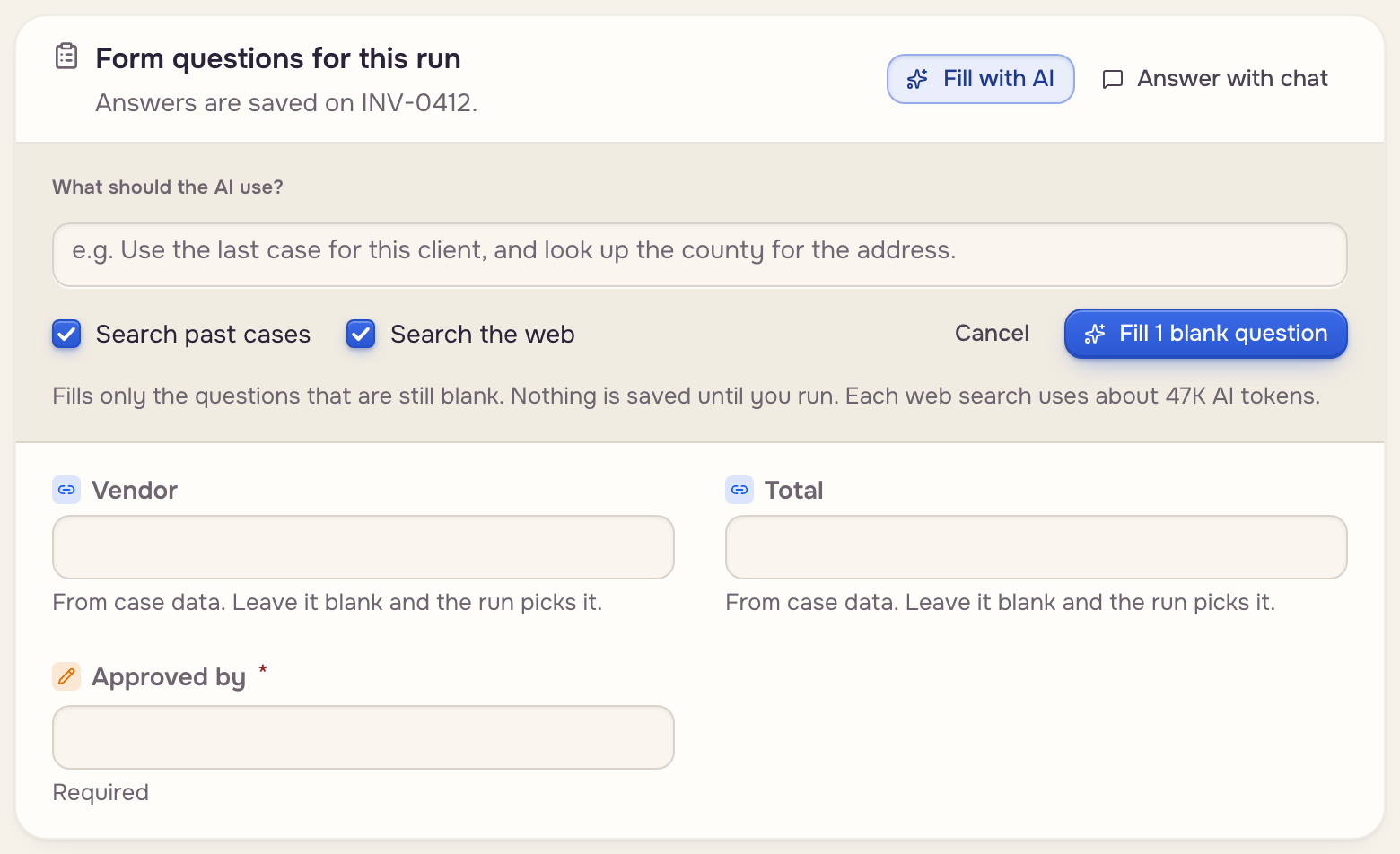
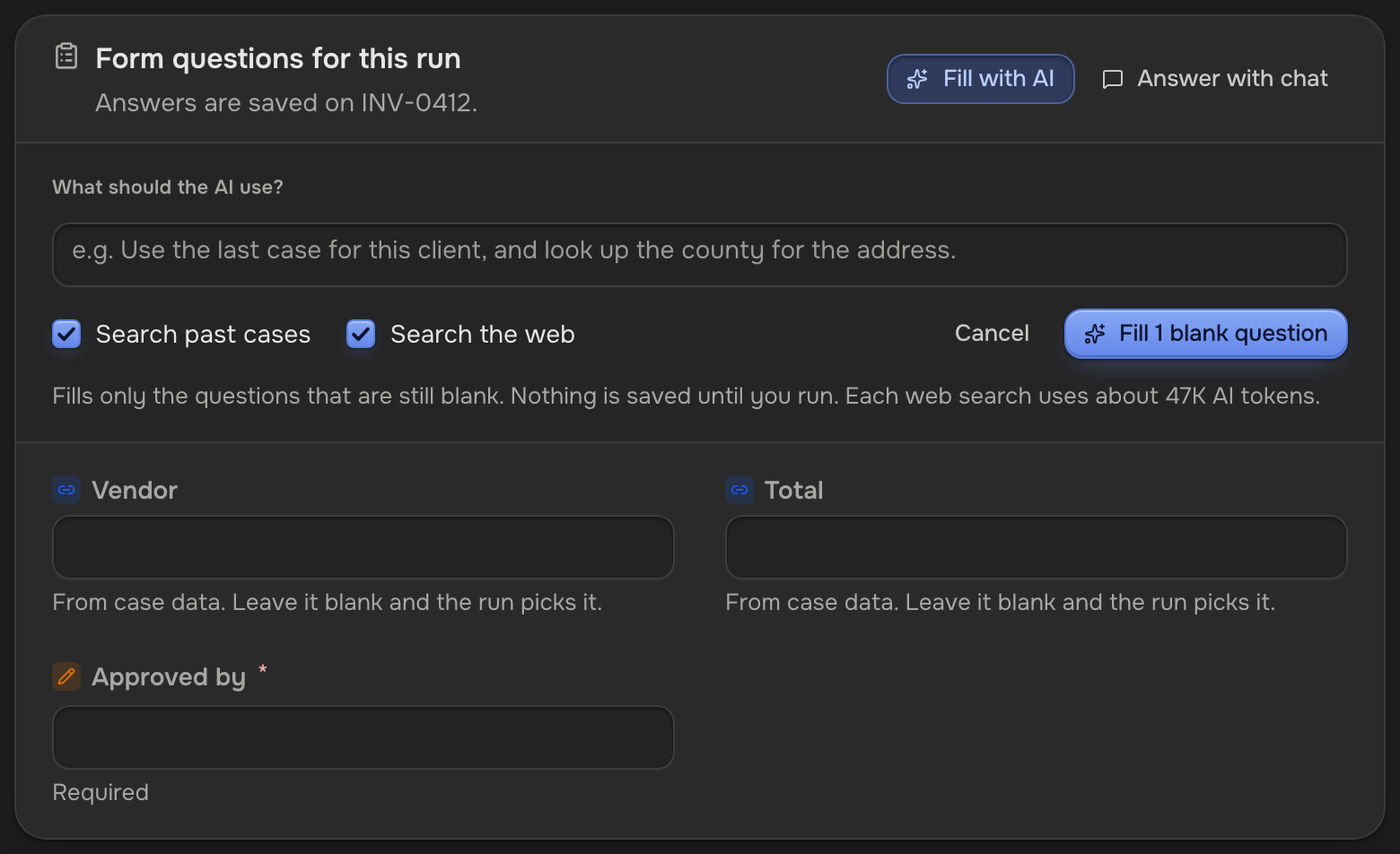
Click Fill with AI on the Form questions for this run card. Say what it should use under What should the AI use? (you can leave it empty), tick Search past cases and Search the web or not, then click Fill 1 blank question (the button counts the blanks).
Where it looks, in order:
- Your workspace documents. A rate sheet kept as a document gives it exact numbers.
- Past cases that answered the same questions. It reuses their prices and method, never their quantities or totals. On Pro and Scale it can compare a number across many past cases, and the app does that math.
- The web, for what the first two lack. Each web search spends AI tokens, so untick it when you do not need it.
While it works, the card lists each step. Click Stop to end it early. When it finishes:
- Each answer names its source and says in one line how the AI got there. A calculated number shows its arithmetic.
- Every price is checked against the source it names. A price the source does not give is taken out, and a total that needed it stays blank.
- A repeating field is filled as rows, each with its own source.
- The card names every question it left blank, and why.
The AI never changes an answer you typed, and it leaves a question blank rather than guess. Undo clears the answers it gave. It sees only what you can see, and spends AI tokens like any other AI work.
Other ways to run
On Upload a file with no case picked, nothing is saved. A template with questions and no document is a form: pick a case, answer, and click Save answers.
Read the file again
The footer holds two controls for the read:
- Instructions for this run tells the AI something about this run only, such as "the date is in the footer". It never changes the template, and any text makes the run read the file again. AI extraction & instructions covers the other places instructions go.
- Read the documents again reads the case's files again before the fill.
When the file shows a value that differs from the case, the run stops and asks.
Where the result goes
The filled document lands in the case's Documents list, tagged with the template's Output category. The values it read stay on the case for the next document. From the done screen, open the case or click Run on another file.
Run on many cases
On Pro, one run can fill a document for up to 100 cases. On the From a case tab, click Select above the list, tick the cases, and click Run on 12 cases (the button counts your ticks). Each case gets its own document. The run keeps going if you leave the screen; Stop the rest ends it.
 Ticked casesOne template
 A document each
For one document that lists many cases, use a batch template instead.