AI extraction & instructions
Set an input's Comes from to The document and the AI reads that value off the file each time the template runs. The input's name tells it what to look for. When it reads the wrong thing, add an instruction.
Extraction reads values off your documents: one value for each input that comes from The document.
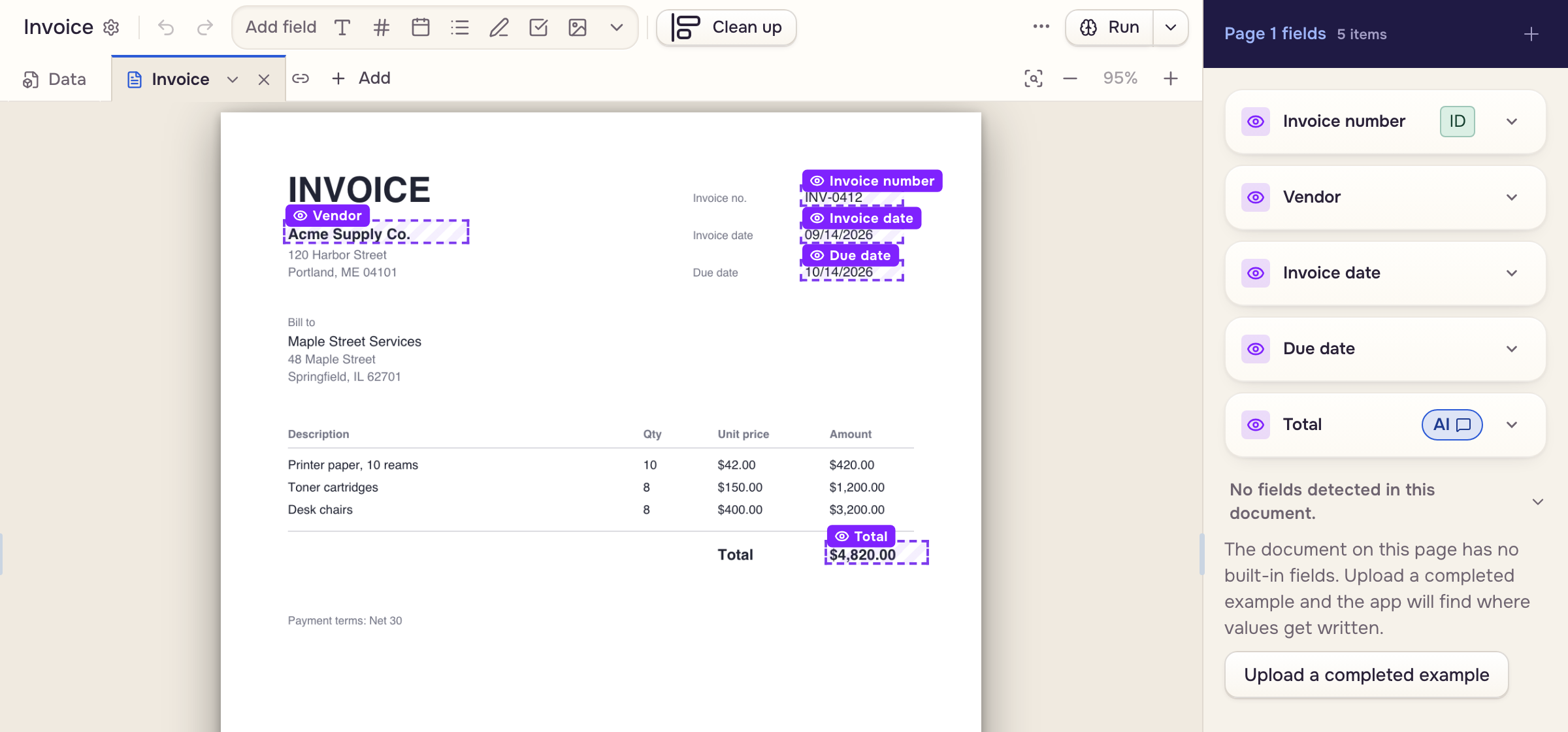
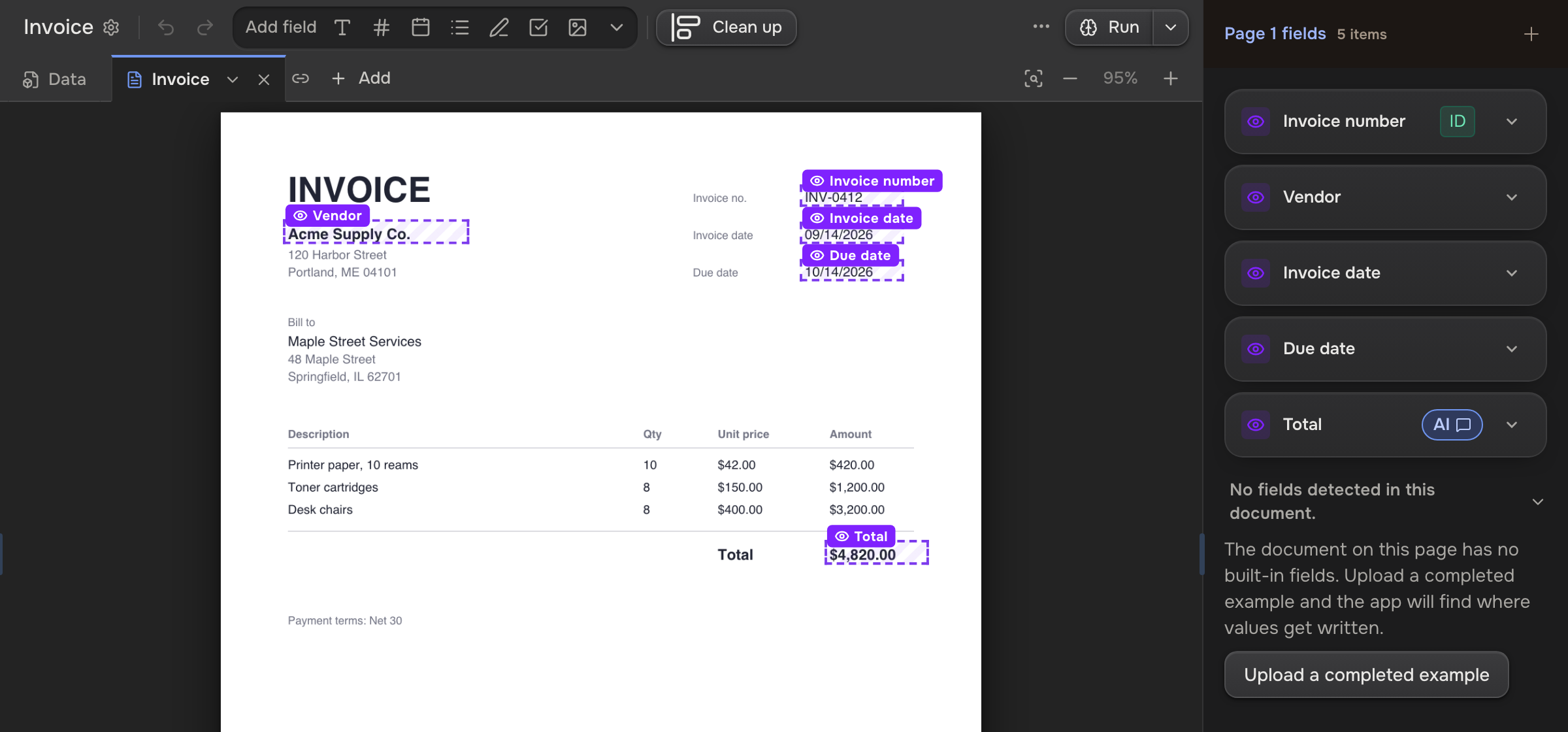
Make a value read from the document
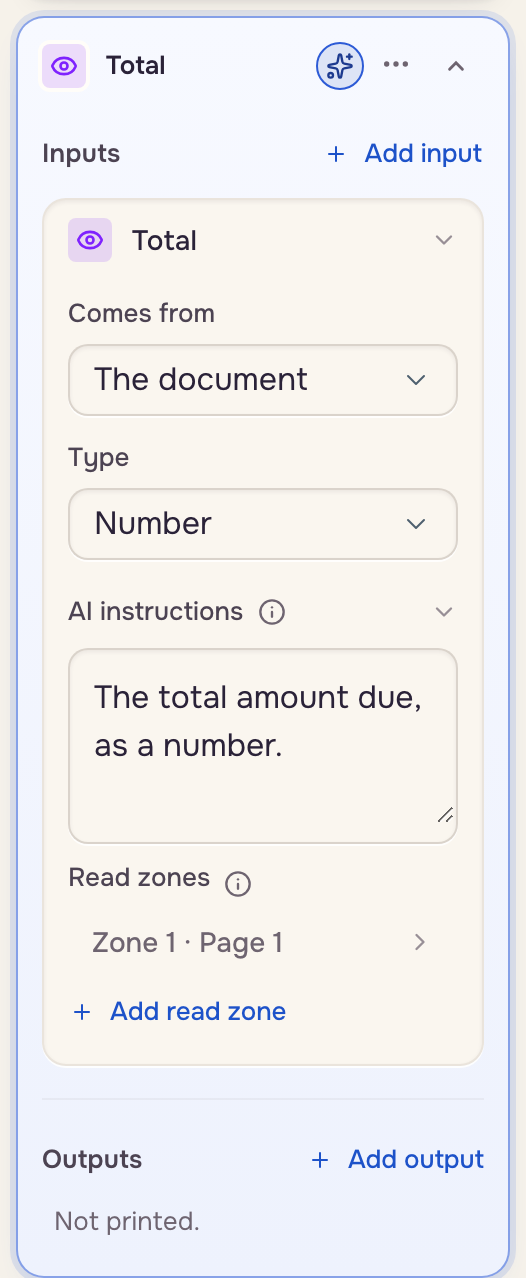
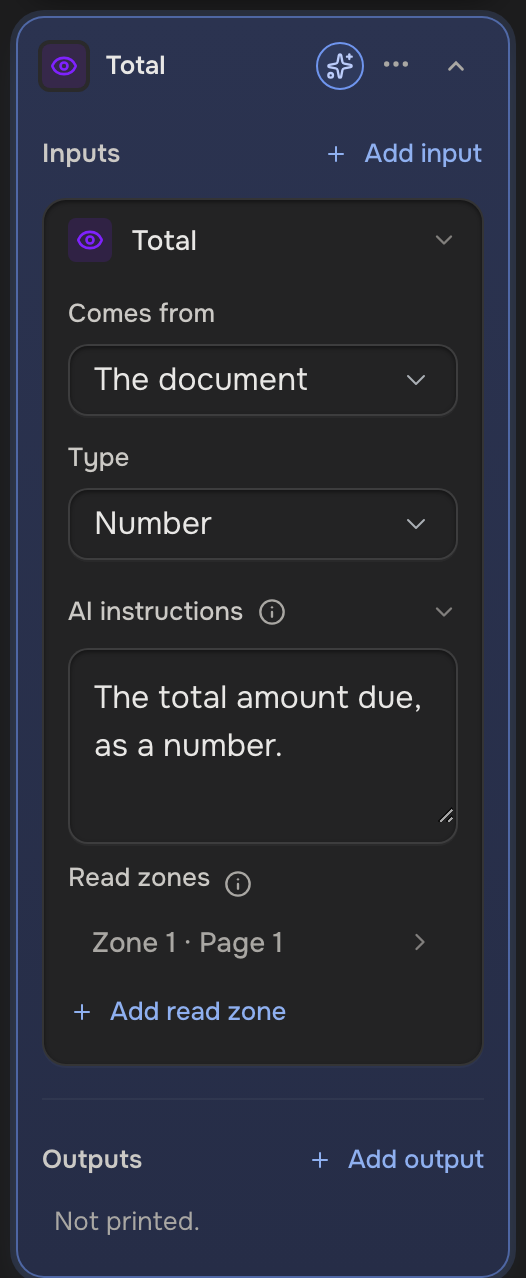
Set the input's Comes from to The document and name it the way the document labels it, like "Due date". When the name is not enough:
- AI instructions: one sentence on where the value sits and what to leave out, like "The total due, not the subtotal."
- Add read zone: draw a box around the spot on the page.
Dates are saved as MM/DD/YYYY; the document's own wording stays on the case behind View original value.
Steer the AI at four levels
The more specific instruction wins.
- This value: AI instructions on the input.
- This run: Instructions for this run on the run screen; the template keeps none of it.
- This document: the arrow on its tab, then AI instructions. Page overflow rules go here.
- This template: the arrow on the Data tab, then AI instructions. It shows once the template reads a value from a document.
Test it
Click Run and pick a case's file, or Upload a file (your own, or Use the sample document). The values land in the Values card on the Data tab.
 A file
 The AI
 Values card
Wrong value? Add an instruction and run again. A value typed by hand is never replaced without asking.
The AI model is each person's pick in Settings, under Preferences. AI use counts against the plan's monthly allowance (Plans & limits).